Logging in to mCommons with Zitadel (after initial setup) - standard login flow for returning users
This topic explains how existing users who have already completed their initial setup can log in to mCommons using Zitadel authentication.
Overview
mCommons now uses Zitadel for secure login and 2-factor authentication. This means:
-
Enhanced security for your account.
-
A simple and consistent login experience.
Login Process
Follow the steps below each time you log in to mCommons.
1. Open the mCommons login page in your browser.
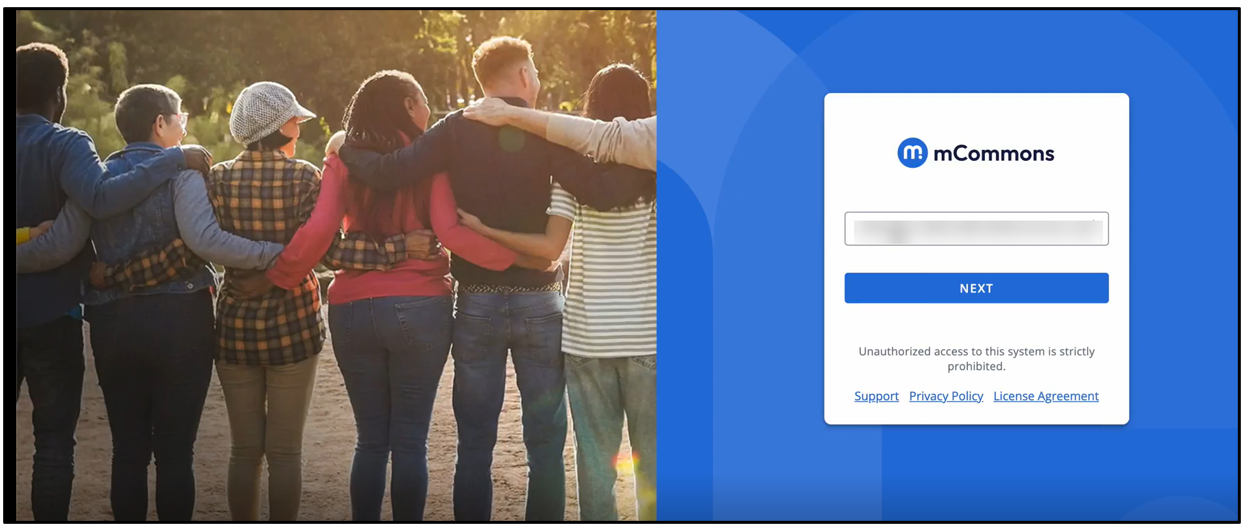
2. On the login screen, enter the email address associated with your mCommons account.
3. Click NEXT.
You will be redirected to the Zitadel authentication page.
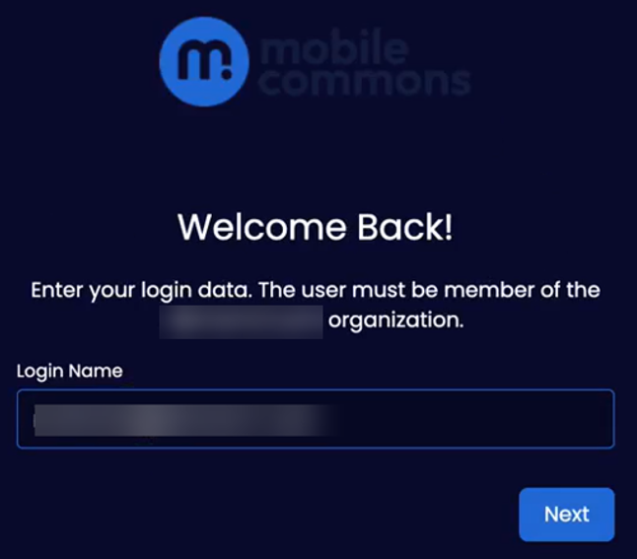
4. Enter your mCommons Login Name (Username).
5. Click Next.
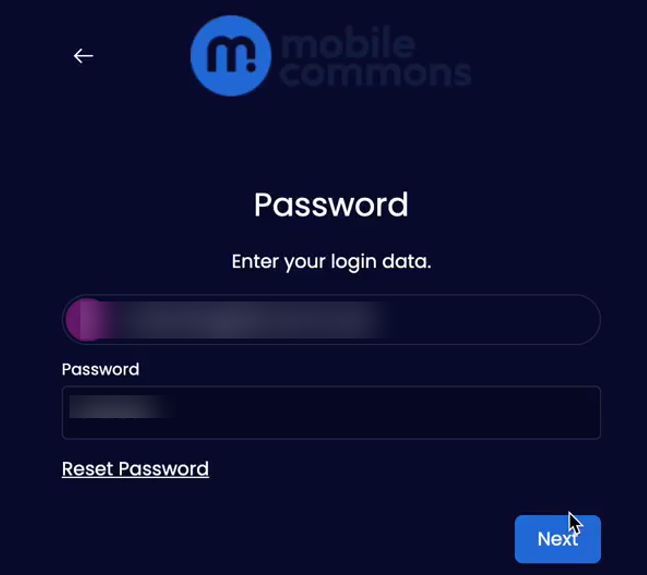
6. Enter the password.
7. Click Next.
Note: To reset your password, click Reset Password at the bottom-left of the page.
8. For 2-factor verification, enter the verification code from your selected authenticator application.
For more information on how to set up 2-factor authentication, see “Initial Zitadel Setup for Existing mCommons Users”.
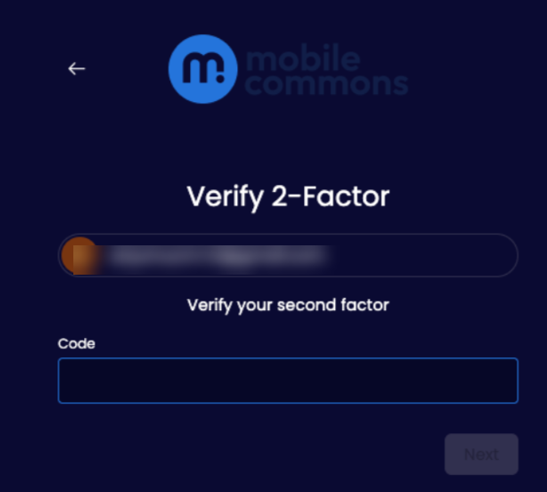
9. Click Next.
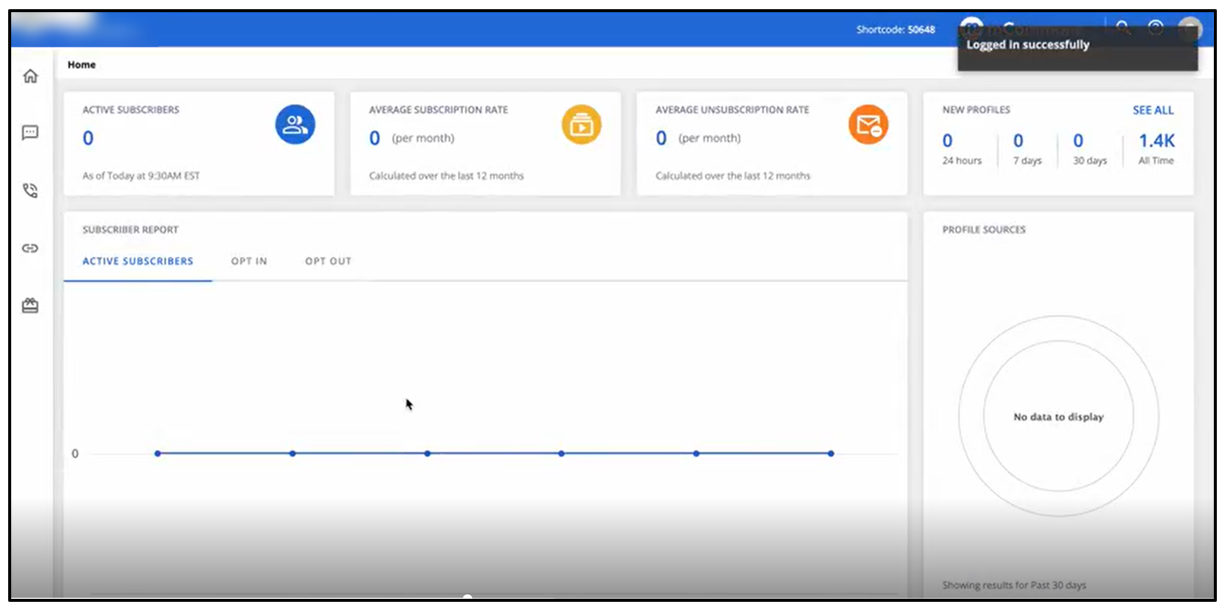
After successful authentication, you will be logged in and redirected to the mCommons Dashboard.
If you're unable to log in via Zitadel authentication, contact the mCommons support team.