Using Multi-Factor Authentication (MFA) & Resetting your password
Signing In with MFA
1. Enter your username in the mCommons application. Click NEXT.
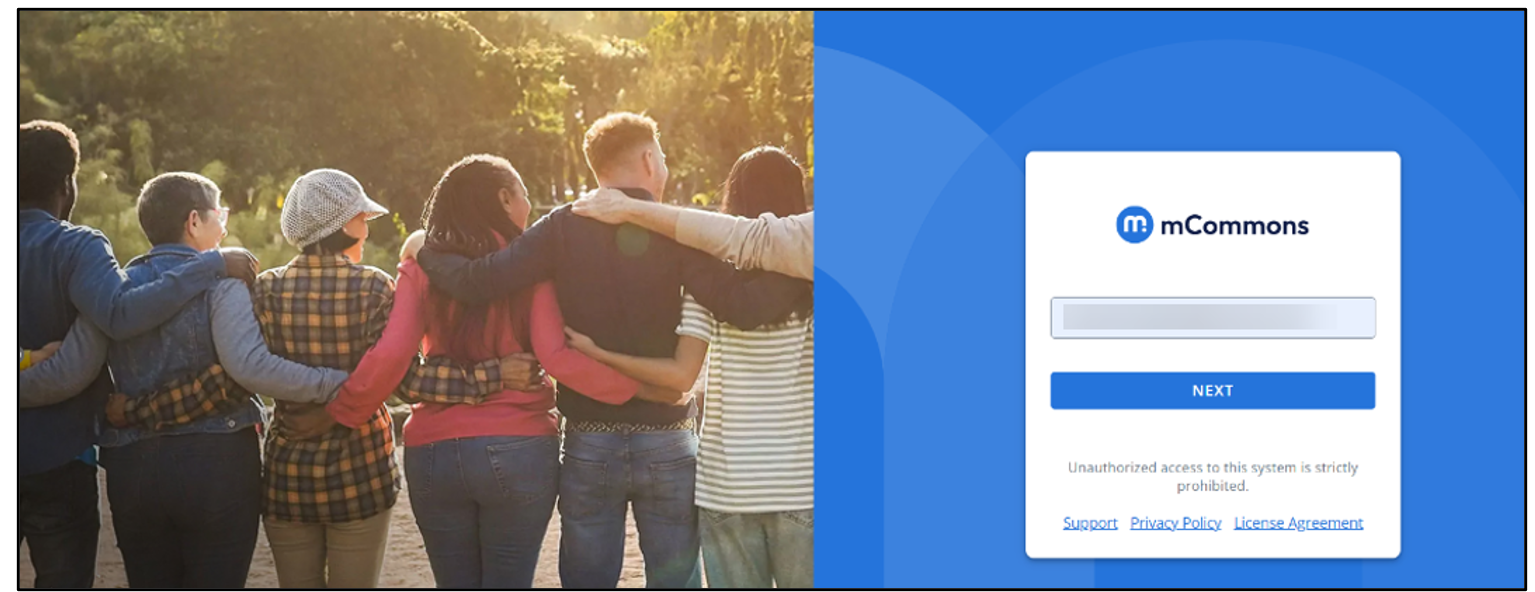
The standard mCommons login page opens.
2. Enter your username and password on the mCommons standard login page. Click SIGN IN.
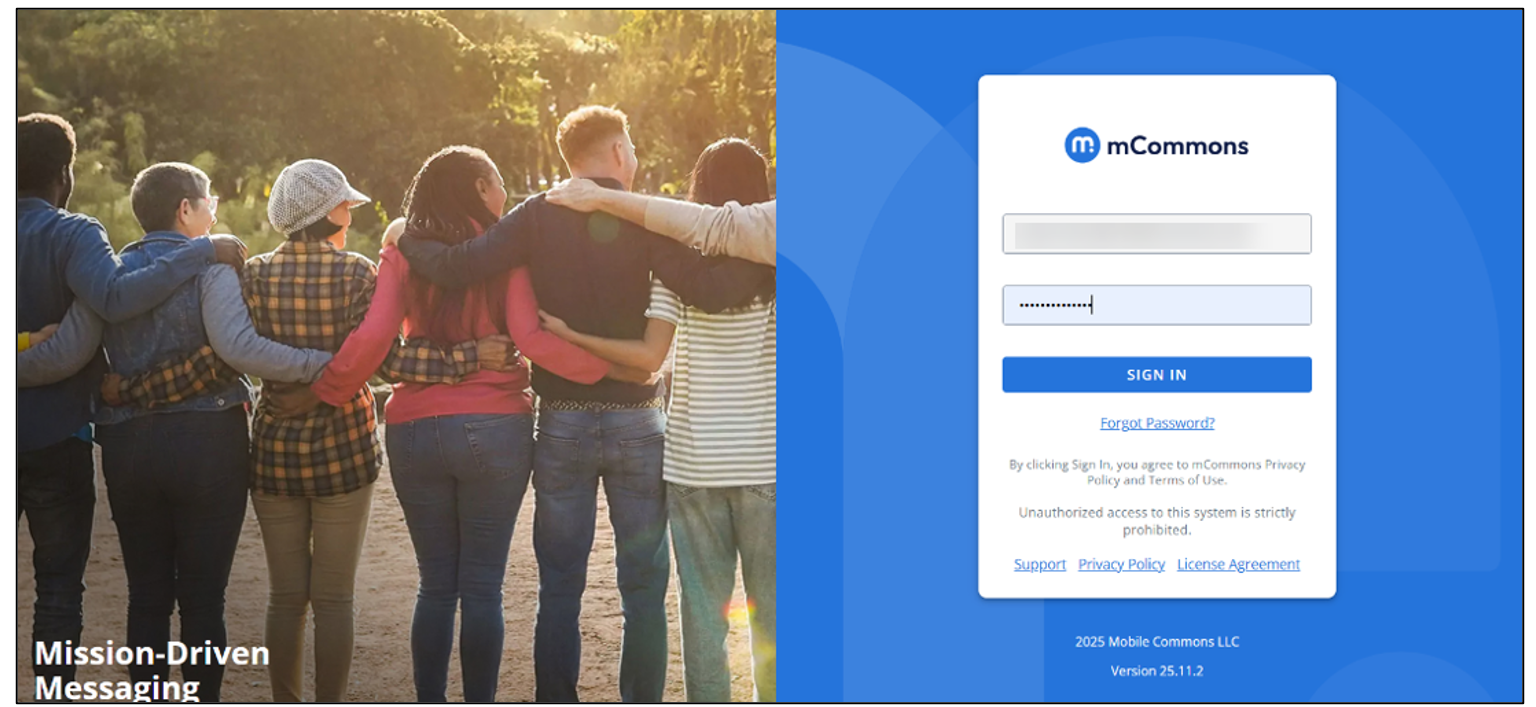
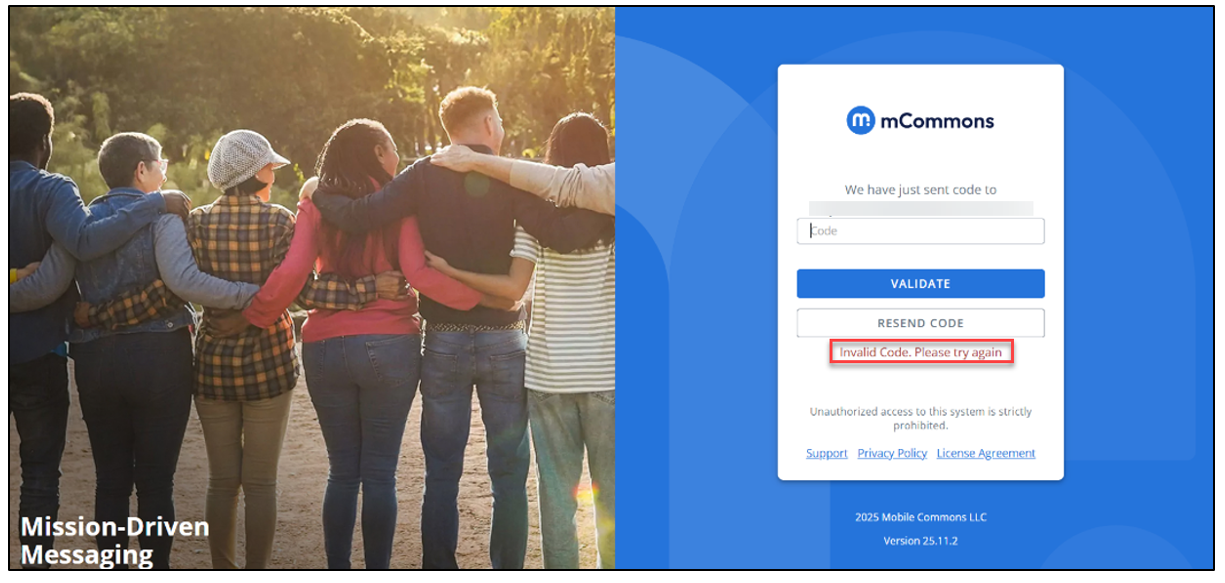
Once authenticated, the Multi-Factor Authentication (MFA) page appears.
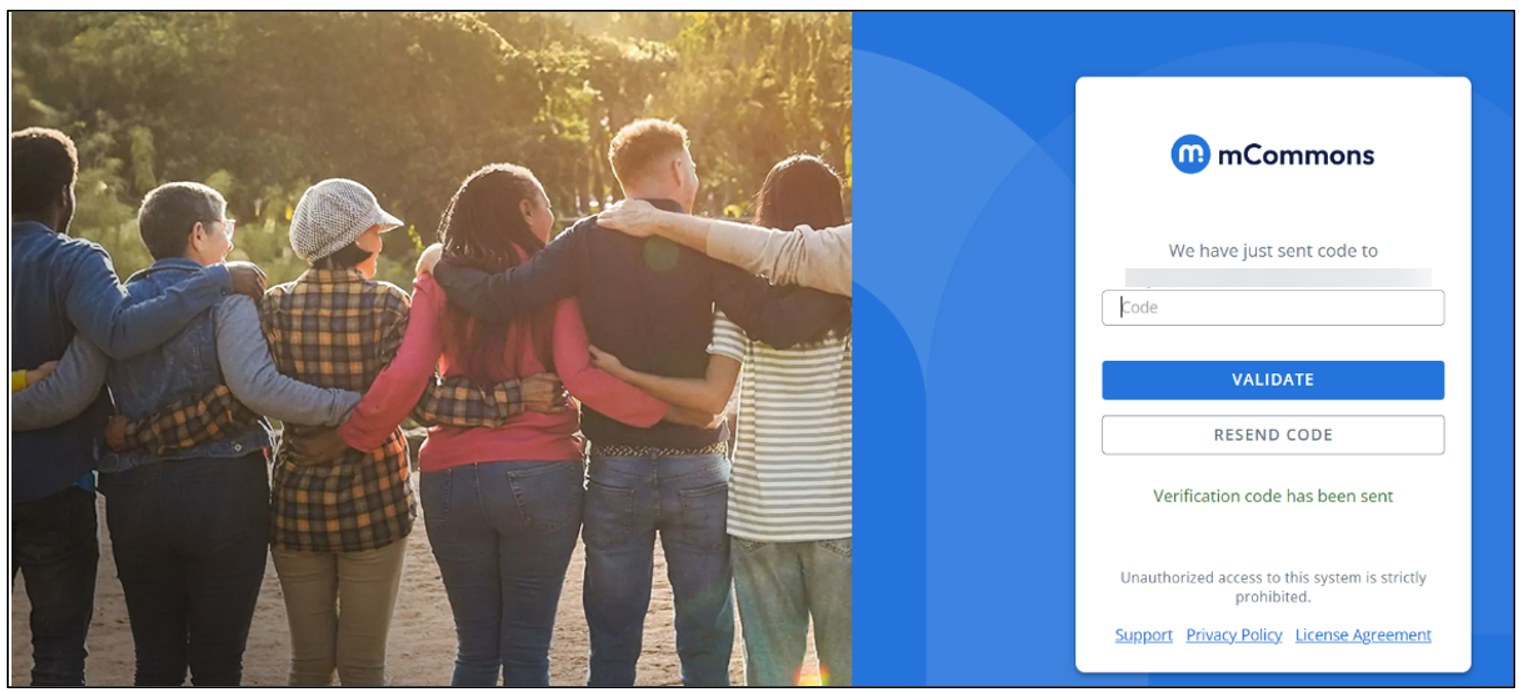
Note: MFA is required for all users, and the system automatically redirects all users to the MFA screen.
A one-time MFA code is sent to your registered email address based on company preference.
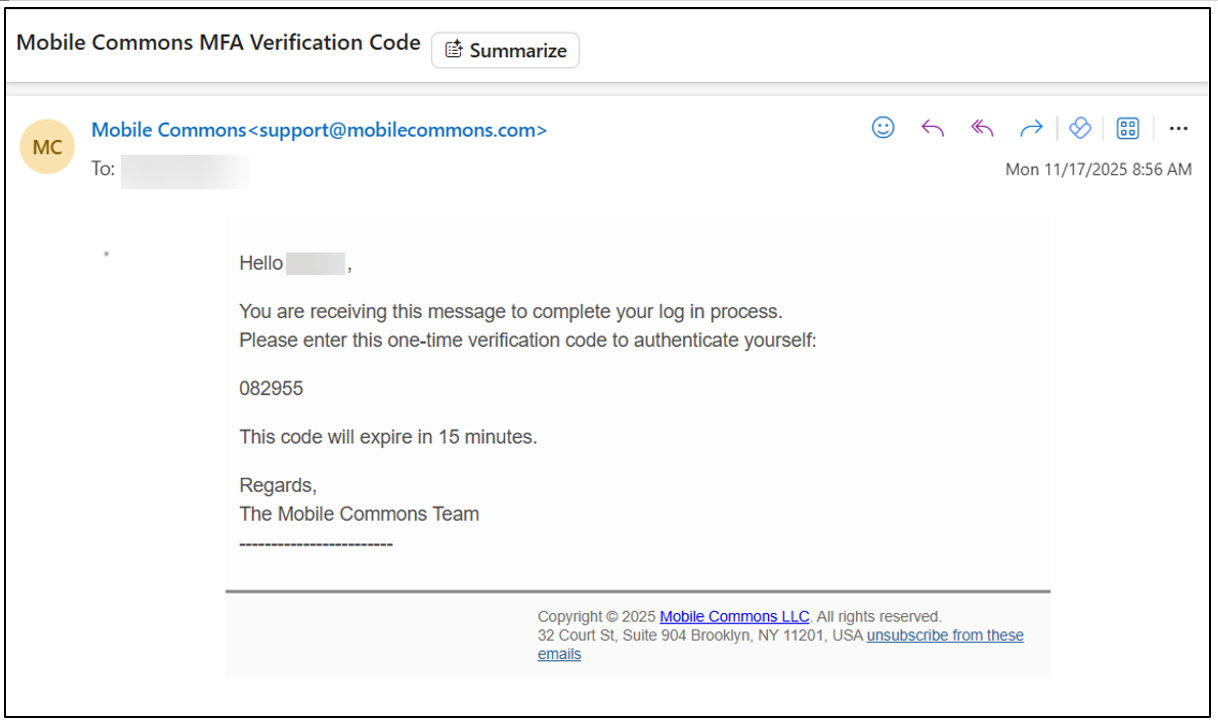
3. Enter the one-time code sent to your email on the MFA page. Click VALIDATE.
Resetting Password
1. Click Forgot Password on the mCommons standard login page.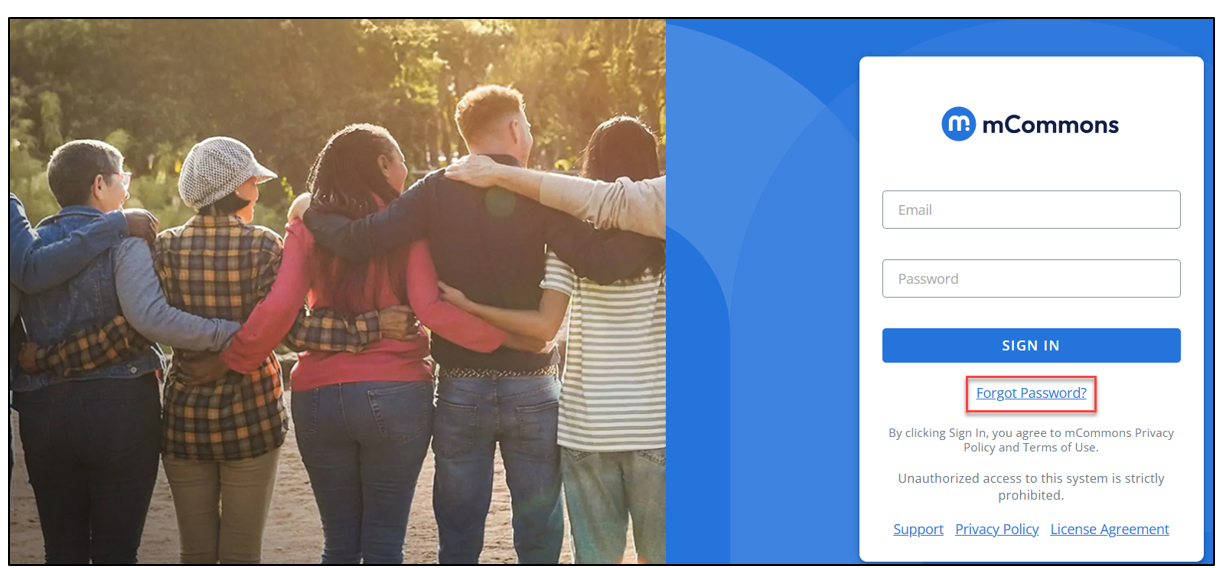
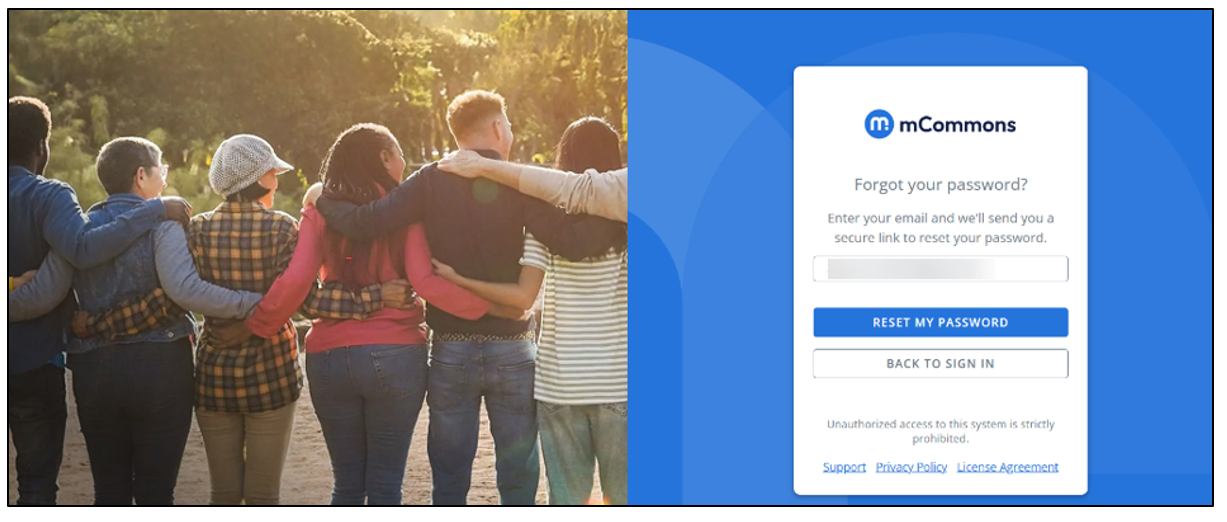
You are redirected to the Forgot Password page.
2. Enter your registered email address and click RESET MY PASSWORD.
An email is sent to your registered email address with a secure password reset link. Clicking this password reset link opens the password reset form.
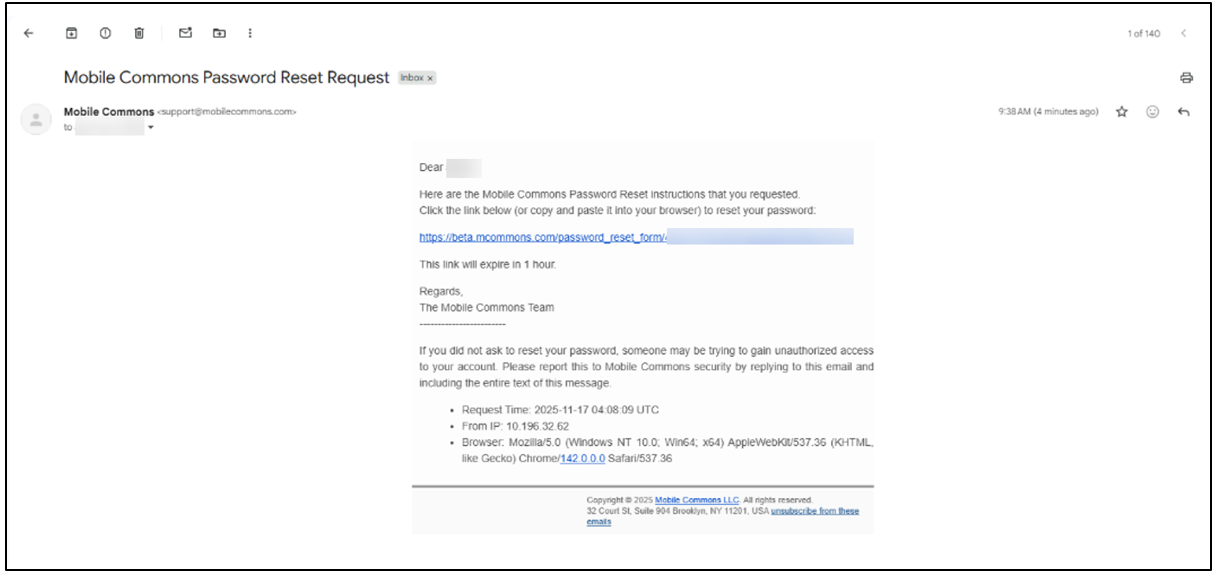
3. Click the password reset link in the email to open the following password reset form where you can enter and confirm your new password. Click SET NEW PASSWORD.
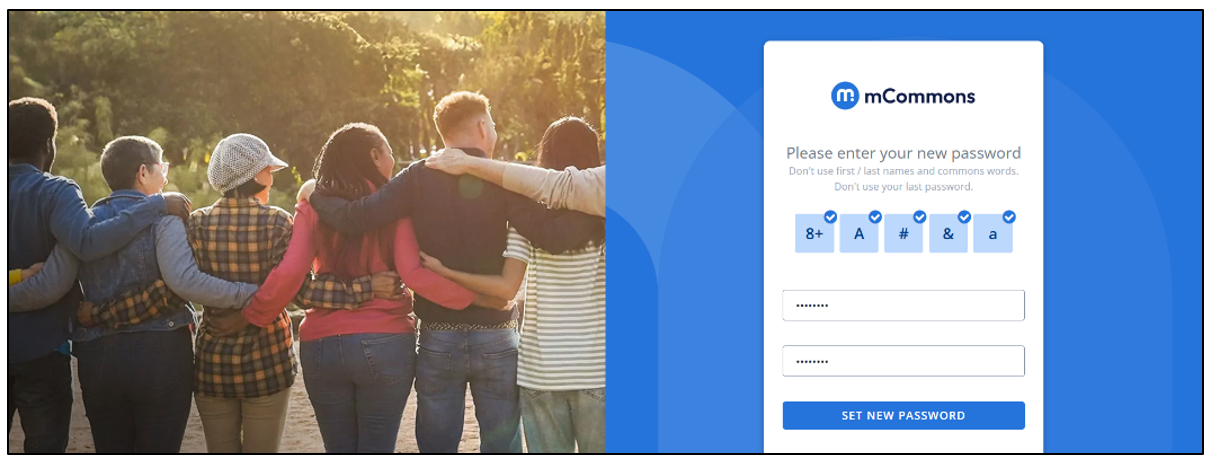
Note: After you submit your new password, it is validated against the required password criteria. If the password meets the requirements, the new password is updated, and you are redirected to the mCommons login page.
4. You can now enter your username and new password to log in. After successful authentication, you will proceed to the Multi-Factor Authentication (MFA) process.