Adding trackable links
mCommons creates shortened URLs to allow users to automatically track all clicks coming from text messages. These short domains can be used without any configuration and are available to all users.
Trackable links vary in length depending on the length of a profile's unique hash, but shortened trackable links will generally require between 24 and 27 characters.
Tip: If you are working on a set of messages and want to allow for the length of unique URLs, allow for 27 characters total.
To set up trackable links:
-
Create your own vanity URL to use with mCommons. For more information, see Configuring a vanity short domain.
-
Use the bit.ly online service to create short URLs in conjunction with mCommons. For more information, see Creating short links using bit.ly.
From the Trackable Links table:
Note: This feature may require some back-end coding. For assistance, contact your customer success manager.
Setting up a trackable link
To add trackable links to your campaign:
-
Select
 Mobile Web in the left pane, and then select Links.
The Links page opens.
-
In the upper-right corner, select +NEW LINK.

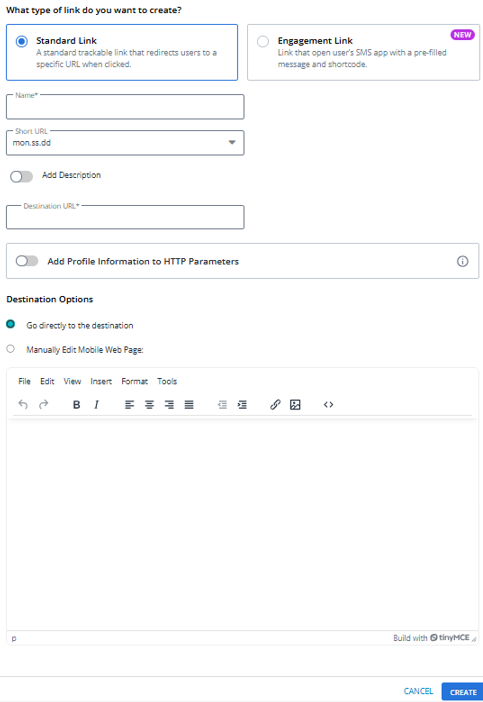
When you select Create New Link, both Standard Link and Engagement Link options are available. The Standard Link option is pre-selected by default, and all relevant fields for standard links are displayed automatically. You can choose between creating a Standard Link or an Engagement Link when adding a new link to include in your broadcast.
Note: Standard Link follows the HTTP protocol, whereas Engagement Link and Opt-In Link follow the SMS protocol.

Standard Link
Engagement Link
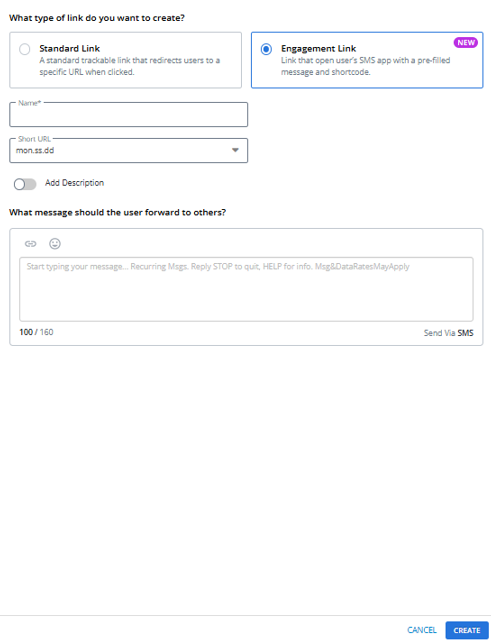
Note: When Engagement Link as a radio option is selected, the message body is mandatory. If it is not added, an error will be displayed. For the Engagement Link, the message is pre-filled you click the link; therefore, the message body is mandatory.
-
Enter a name for the link.
Note: Even though this name is available to internal users only, take the opportunity to assign a descriptive name that is meaningful to your organization.
-
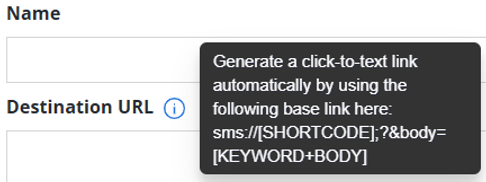
Enter the destination URL address (available in Standard Link only).
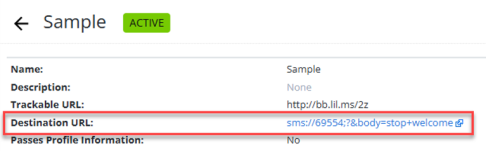
You can generate a click-to-text link automatically by using the following base link: sms://[SHORTCODE];?&body=[KEYWORD+BODY]
-
In the Short URL field, select a prefix for the link from the drop-down list, and then enter a descriptive suffix.
Tip: If an Administrator has set up a short domain for your company, you can select it from the Short URL drop-down list.
-
Message Box: What message should the user forward to others?
Enter the message that the user should forward to others (available for Engagement Link only). You can also insert links and emojis.
• To add a link, click Insert Link and select Existing to choose from standard links or engagement links.
Engagement links are identified by a link icon
 in the list. When you see this icon next to a link, it indicates that the link is an engagement link and can be selected for use in your message.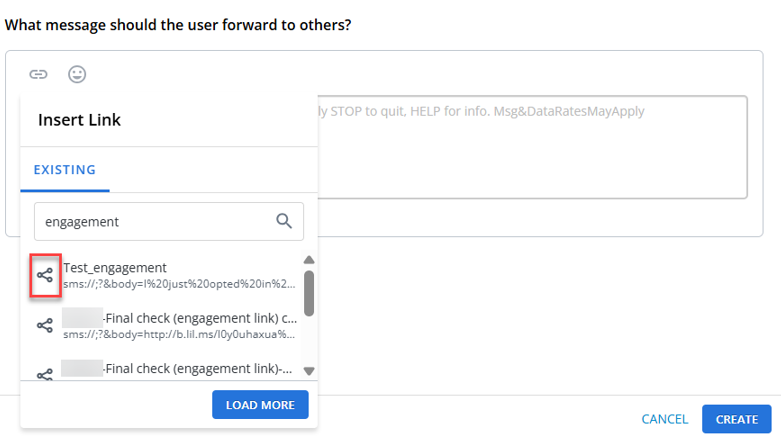
Standard links are identified by a link icon
 in the list. When you see this icon next to a link, it indicates that the link is a standard link and can be selected for use in your message.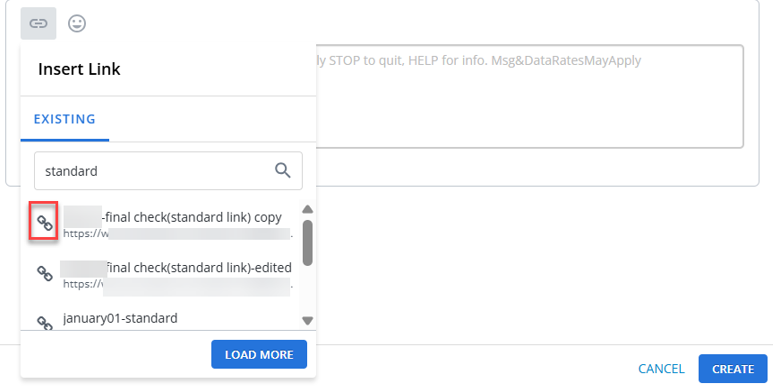
Select the Opt-In Path option to add opt-in path links. Opt-in path links are identified by a link icon
 in the list. When you see this icon next to a link, it indicates that the link is an opt in path link and can be selected for use in your message.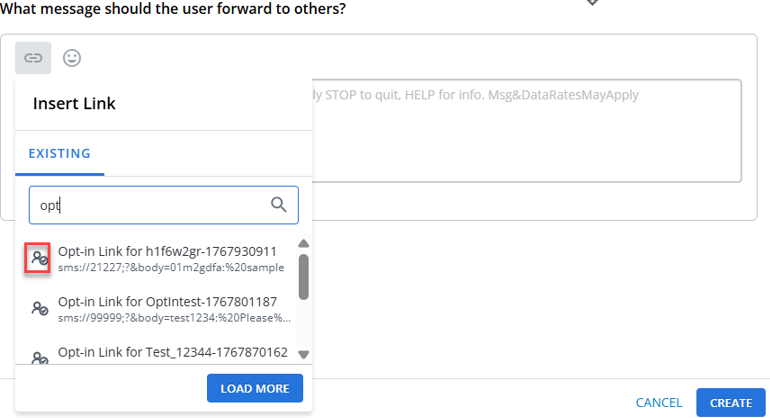
• Insert Emoji
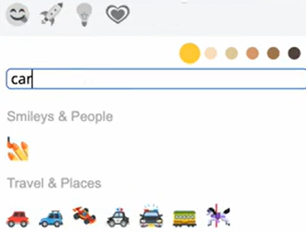
 : Enhance tone with emojis. To add an emoji, select Insert Emoji. Scroll through the emoji library and select an emoji image to use. You can also use the search bar in the emoji picker to quickly find the emoji you need, making it easier to browse and insert emojis within the editor. Click the selected emoji to attach an emoji to the message.
-
Select the Add Description toggle button to include a description for the engagement link (optional, available for Engagement Link).

-
If your URL directs the user to a form that you want to pre-populate with user data, select the Add profile information to HTTP parameters checkbox. To pass a parameter, in the Remote Name field, add a name that maps to the form field name.
-
Select the destination type:
-
To direct users to an existing web address, select Go directly to destination.
-
To set up a web page, select Manually edit mobile web page and then enter HTML code for the web page.
-
-
When you are done, select CREATE.
The Link Details section displays the basic information about the link:
• Name: The name assigned to the link.
• Trackable URL: The unique URL generated for tracking clicks, the shortened address for the link. You can copy it using the copy icon.
• QR Code: A QR code for the same trackable link. A QR code is generated, pre-filled with the message and associated keyword. Scanning it automatically pre-fills the user’s device.
• Link Type: Indicates that this is an Engagement link or Standard link.
• Destination URL: The full address for the link.
• Message: The message associated with the link.
• Description: The description added for the link.
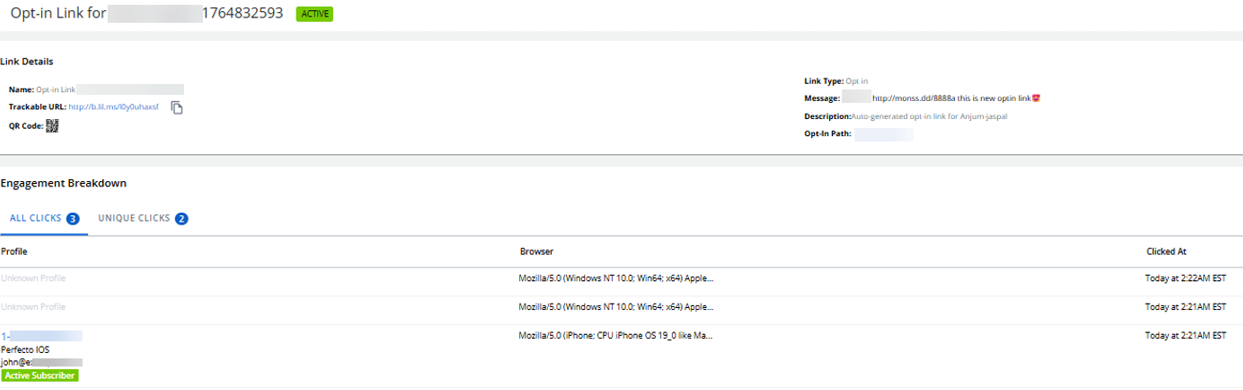
Engagement Breakdown
This section shows engagement activity for the link.
• All Clicks: Displays the total number of clicks received. The total number of clicks for the link, counting every click for every user.
• Unique Clicks: Shows how many unique profiles clicked the link. The number of users who clicked the link, counting only one click per user.
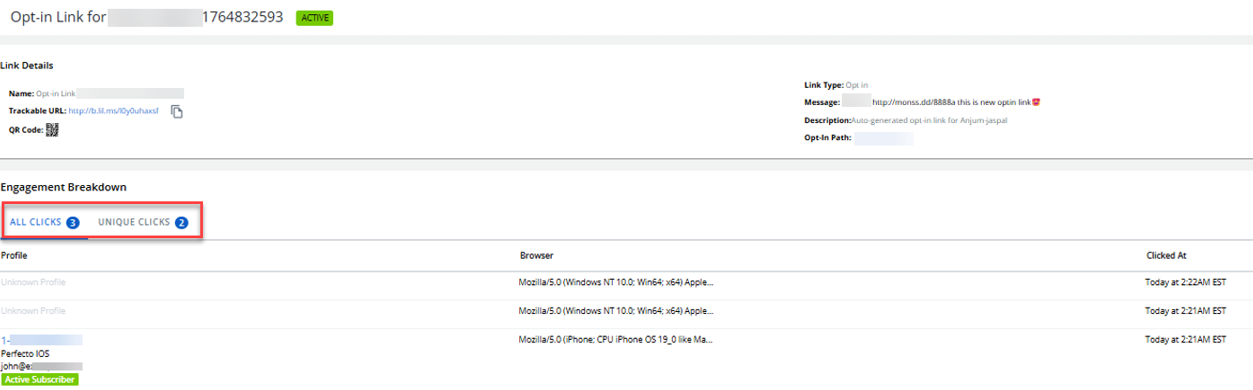
Columns:
• Profile: The profile of the user who clicked the link.
• Browser: The browser used to access the link.
• Clicked At: The date and time of the click.
If no interactions have occurred, the page displays “No matching records found.”
Tip: To distribute the URL, paste it into your messaging conversations. Alternatively, you can automatically create a lil.ms URL by adding the full URL in double curly brackets {{ ... }} to the conversation. For more information, see Adding a new opt-in path message and Adding a new broadcast message.
Testing a trackable link
After you add a trackable link, you can test it to ensure that the destination URL opens as expected.
To test the trackable link:
-
Select
Mobile Web in the left pane, and then select Links. -
Locate the new link in the Trackable Links table.
The link record includes the shortened link and the full URL.
-
To test the link, select the full URL.
The web page opens.
Note: If the web page does not open as expected, edit the link to correct it. For more information, see Editing a trackable link.
Editing a trackable link
To edit a trackable link:
-
Select
Mobile Web in the left pane, and then select Links. -
Locate the link in the Links table, select
 Menu at the end of the row, and then select Edit.
The Trackable Link form opens.
-
Make your changes to the form. For more information, see Setting up a trackable link.
-
When you are done, select Update.
Cloning a trackable link
To clone a trackable link:
-
Select
Mobile Web in the left pane, and then select Links. -
Locate the link in the Links table, select
 Menu at the end of the row, and then select Clone.
A copy of the link is added to the Trackable Links table.
-
To change the link name and customize the link settings, select
Menu at the end of the row, and then select Edit.The Trackable Link form opens.
-
Make your changes to the form. For more information, see Setting up a trackable link.
-
When you are done, select Update.