Reviewing trackable link usage
When you create trackable links to add a shortened URL to your text messages, mCommons identifies the profile users who have clicked the link and the number of times the link is clicked by one or all users.
To review trackable link usage:
-
Select
 Mobile Web in the left pane, and then select Links.
The Trackable Links table displays the link records.
-
Locate the link in the Trackable Links table, select
 Menu at the end of the row, and then select View record.
The full record for the trackable link opens. The Link Details section displays the basic information about the link:
• Name: The name assigned to the link.
• Trackable URL: The unique URL generated for tracking clicks, the shortened address for the link. You can copy it using the Copy
 icon.
icon.• QR Code: A QR code for the same trackable link. When clicked the QR code, you get the options to download the QR code and copy the link.
• Link Type: Indicates that this is an Engagement link or Standard link.
• Destination URL: The full address for the link.
• Message: The message associated with the link.
• Description: The description added for the link.
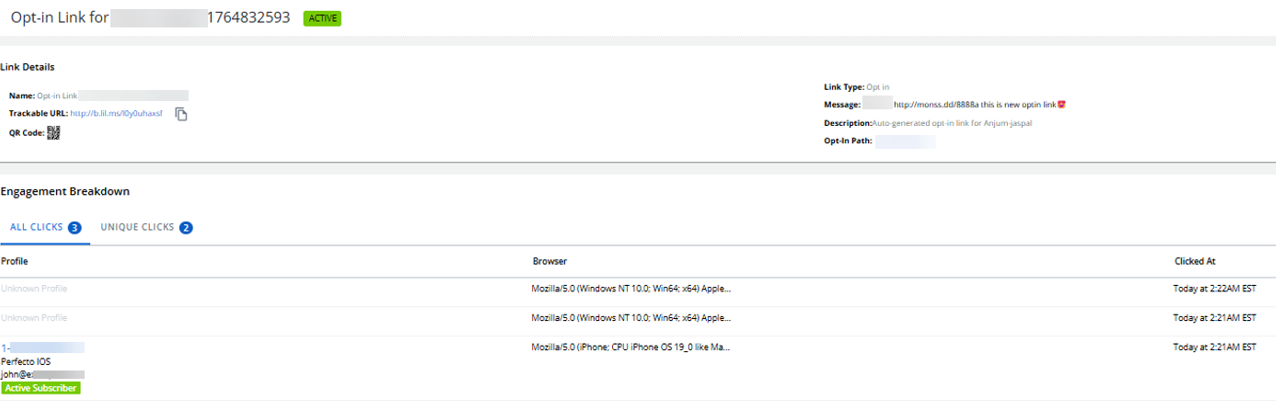
3. Engagement Breakdown: This section shows engagement activity for the link.
• All Clicks: Displays the total number of clicks received. The total number of clicks for the link, counting every click for every user.
• Unique Clicks: Shows how many unique profiles clicked the link. The number of users who clicked the link, counting only one click per user.
Columns:
• Profile: The profile of the user who clicked the link.
• Browser: The browser used to access the link.
• Clicked At: The date and time of the click.
If no interactions have occurred, the page displays “No matching records found.”