Setting up EveryAction
The EveryAction data sync allows for flexibility in sync type for new and updated records. User records must include a listed mobile number and the Country field setting must be US:
-
If Liberal sync is enabled, the data is synced in both directions, regardless of the opt-in status in EveryAction.
-
If Liberal sync is not enabled (Conservative sync), the data is updated only for those records with an opt-in status of true in your EveryAction system.
During import, rows are skipped based on the data required for your chosen sync type.
-
Liberal Sync: A row is skipped only if it does not have a phone number.
-
Standard Sync: A row is skipped only if it does not have a phone number and an email address, along with the required opt-in status.
For information on selecting the data sync type, see Configuring the EveryAction Integration.
Note: You must have Administrator access to work with data syncs in mCommons. For assistance, contact Technical Support.
To set up the EveryAction data sync:
Preparing for setup
Before you begin, gather the log-in credentials and set up any other key connection settings for your EveryAction CRM system.
-
In mCommons, create or designate a web opt-in path, which will serve as the default opt-in path for any new users pulled from the EveryAction data set. For more information, see Adding a new web opt-in path.
New subscribers will receive the Welcome message associated with the selected opt-in path. For more information, see Data sync paths.
-
Make a note of the existing EveryAction login or API user name (email address) and password. Use the “Application Name” from EveryAction as the username. Use the API key as the password, and append the database mode to the end of the API key using a pipe symbol (|).
For example:
User/Application Name: EAXXX.000001.XX2
API Key (with database mode appended): XXXXXXXX-XXXXXXX-XXX-XXX139357a97|1
Tip: Create a new set of credentials exclusively for use with mCommons (recommended).
Note: Work with your EveryAction representative to set up a new API user, with Superuser status.
-
Make a note of the EveryAction API base URL, for example: https://api.securevan.com/v4. Enter this in the Host Name field in mCommons. This URL is used to make API calls to EveryAction.
Configuring the EveryAction integration
To sync data between your EveryAction database and mCommons:
-
Select
 Home in the left pane, and then select Data Sync.
 -
From the Integration Type drop-down list, select EveryAction.
-
Select Create.
The EveryAction configuration form opens.
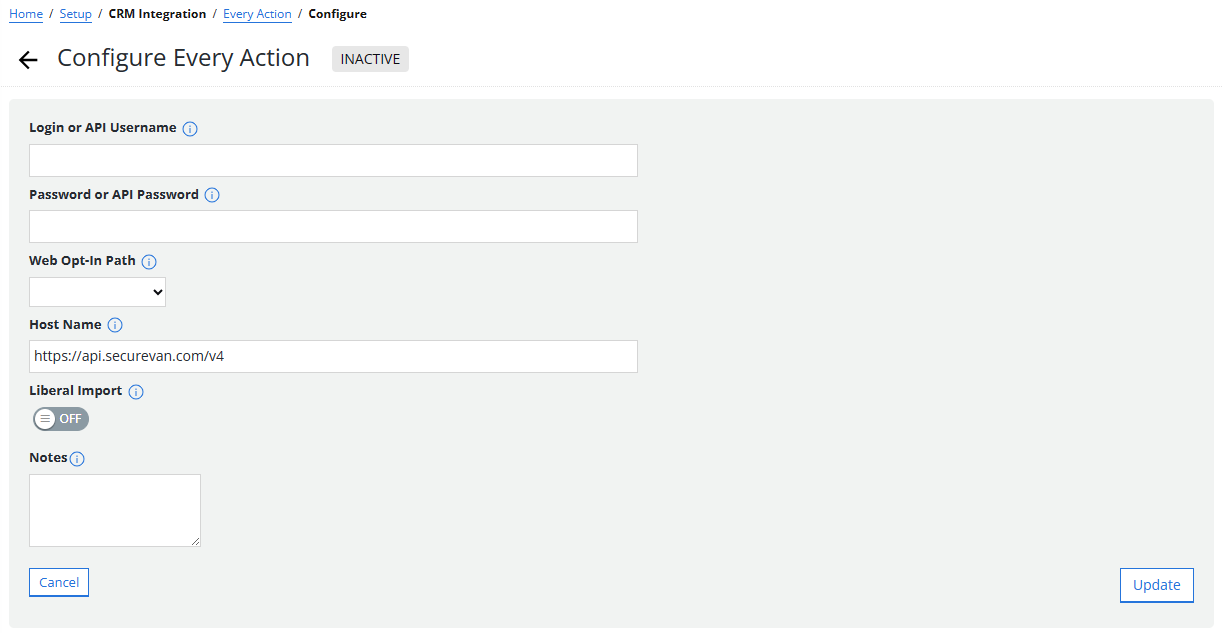
For assistance, select
 Help next to the field label.
-
In the Login or API Username field, enter the EveryAction application name of your EveryAction instance.
-
In the Password or API Password field, enter the EveryAction API key with the database (DB) mode appended (you can confirm the correct database mode with the EveryAction team).
-
Web Opt-In Path: If you want new records coming from EveryAction to subscribe to a specific campaign, select a web opt-in path from the dropdown menu. If you do not select a web opt-in path, new records from EveryAction will remain unsubscribed in mCommons.
-
Enter the host name (EveryAction API URL), for example: https://api.securevan.com/v4.
-
Select the type of data sync:
-
Select On to enable Liberal data sync: sync data in both directions, regardless of the opt-in status.
-
Select Off to disable Liberal data sync (Conservative sync): sync data only for those records with an opt-in status of true in your EveryAction system.
-
-
(Optional) Enter your notes for internal use only.
-
When you are done, select Update.
Note: Subaccounts in EveryAction can generate their own API keys and can follow the same process as the main account to set up the sync.
Reviewing required and supported fields
The EveryAction data sync supports all standard profile fields; it does not sync custom fields. After you configure your EveryAction integration with mCommons, review your EveryAction system and mCommons user records (profiles) to ensure required and supported fields are available in both data sets.
The following fields are required:
-
Phone number
-
Email
-
Opt-in status
 Supported fields
| Category | Field |
Default field name (The field names differ by data set) |
|---|---|---|
| Subscription status | Opt-in (required) |
|
| Demographic | Phone number (required) |
|
| First name |
|
|
| Last name |
|
|
| Email (required) |
|
|
| Address/Location | Street address |
|
| City |
|
|
| State |
|
|
| Zip Code |
|
|
| Country |
|
|
| Other |
Identifier |
|
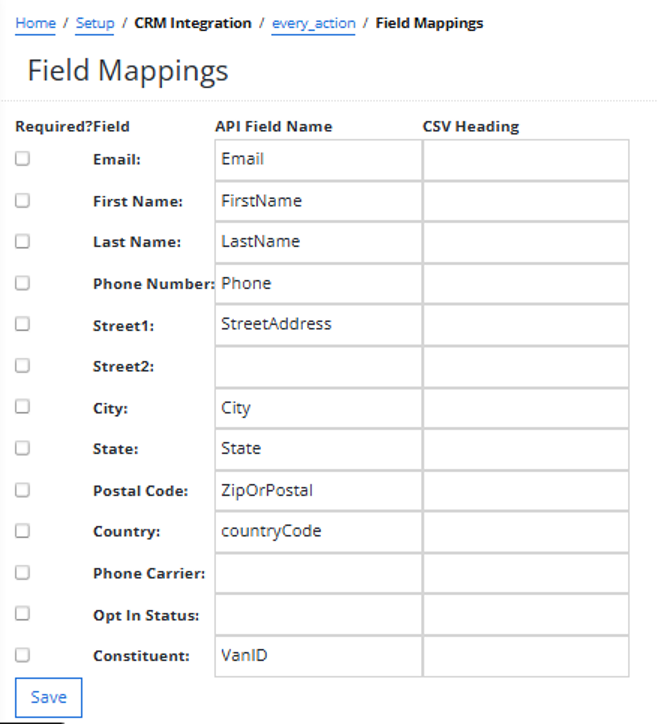
Use custom field mappings to specify field names in EveryAction.
To set up custom field mappings:
-
Select
Home in the left pane, and then select Data Sync.The home page for your EveryAction sync opens.
-
In the Integration Actions panel on the right, select Edit Field Mappings.
-
Review the field names to ensure that they are correct.
-
The Field column contains the mCommons field name.
-
The API Field Name column contains the API field name in EveryAction.
-
-
To limit the sync to records that contain data in specific fields, select the Required? checkbox next to the field name. When a field is required, it must contain a value in order to be synced. Empty fields are not synced.
Caution: Do not select Required for Phone number, Email, or Opt-in status fields, which must by default exist in both databases in order to sync data. Use caution if you change the field name for any of these three fields; if the custom field name is incorrect, the data sync will fail.
Caution: Do not select Required for Constituent as this ID is provided by EveryAction. If it is set to Required, mCommons profiles will not have this ID, causing the sync from mCommons to EveryAction to fail.
-
When you are done, select Save.
Activating the EveryAction sync
Before you begin, review the configuration settings for your sync:
-
Select
Home in the left pane, and then select Data Sync.The home page for your EveryAction sync opens.
-
In the Integration Actions panel on the right, select
 Configure Integration.
 -
Review the configuration settings, making adjustments as needed.
-
When you are done, select Update.
-
To activate the EveryAction integration sync, in the Integration Actions panel on the right, select
 Activate Integration.
 The indicator in the upper-right corner is
 Active. The first data sync will run the following morning.
Note: When syncing records, mCommons pushes records to EveryAction to add the identifier to the profile, which will keep both records in sync. mCommons can match a record based on the mobile phone number and acquires the email address from EveryAction.
Data sync updates
After activation, the mCommons data set and your EveryAction database are both updated on a regular basis:
- mCommons checks for updates nightly, processing all recent updates from EveryAction during overnight hours or updates to any of the supported fields within the past 48 hours.
-
Any new opt-ins or opt-outs from mCommons are synced to EveryAction every five minutes during the day.
-
For users whose profile records contain an email address, new opt-ins are added to EveryAction as a new record with an opt-in status of true.
-
For users with a matching record in EveryAction, new opt-outs update their opt-in status to false.
Note: Once user records are synced, the record number from the EveryAction system is added to the Constituent ID field in mCommons user profile and serves to identify records across both of your systems.
-
After your data sync runs, you can open the Synchronization report. For more information, see Working with the Synchronization report.
Tip: If you need to shut off the data sync with your CRM system, whether temporarily or permanently, you can deactivate it. For more information, see Deactivating the integration.