PIN authentication for messaging
• Setting up your PIN (first time)
• Using your PIN for scheduling broadcasts
• Using your PIN for other messaging modules
The PIN authentication feature enables you to send messages and broadcasts using a secure 4-digit PIN. This process adds an extra layer of protection for your account.
Benefits
• Enhanced security: Your personal PIN protects against unauthorized messaging operations.
• Two-factor protection: Combines email verification with PIN security.
Prerequisites:
Before setting up your PIN, you must have a verified email address. With Zitadel, your email address is automatically verified once you set up your password and MFA. If you need to change your email address, please contact the Waterfall Support team. Once your email is verified, you can proceed to set up your PIN.
Setting up your PIN (first time)
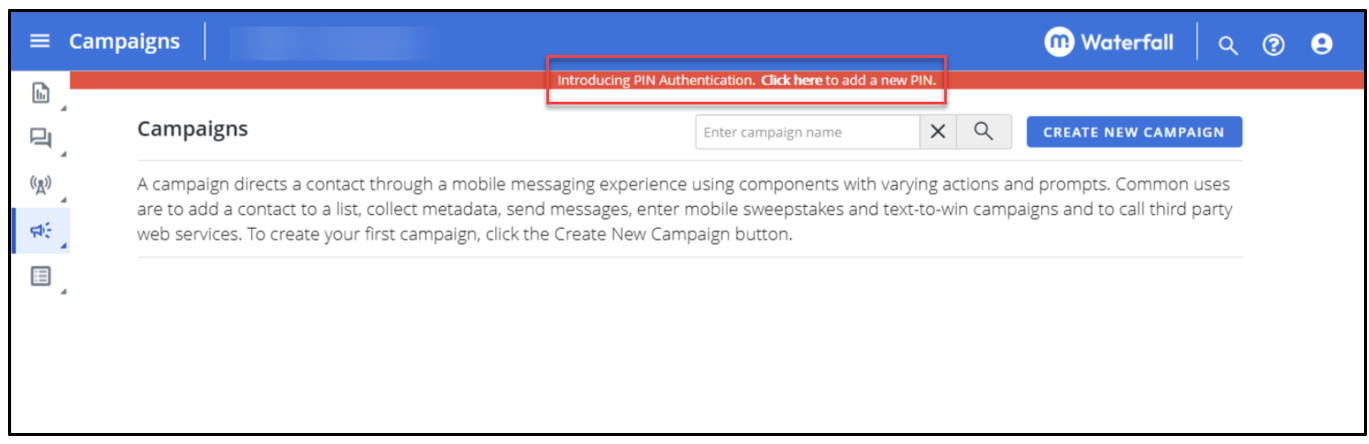
After logging in to Waterfall, you will see a banner: "Introducing PIN Authentication. Click here to add a new PIN."
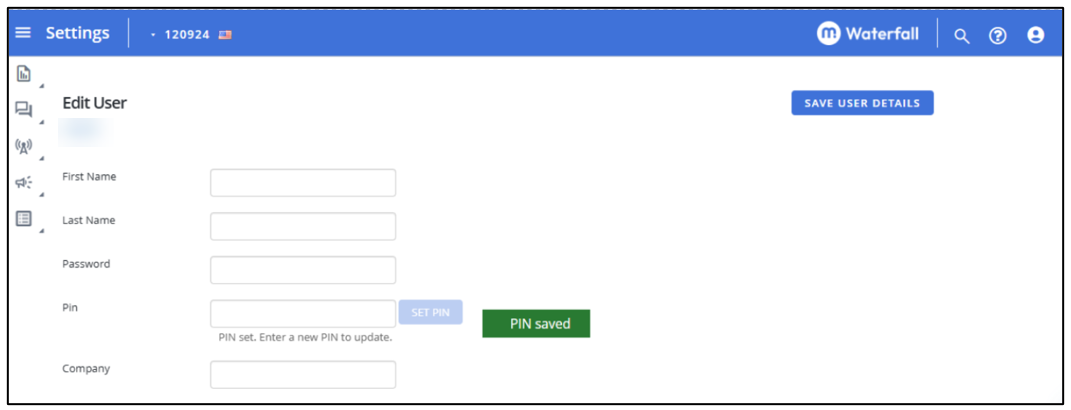
1. Navigate to the Edit User page.
-
Click the banner, OR
-
Go to Settings → Edit User.
2. Enter your 4-digit PIN.
-
In the PIN field, enter your chosen 4-digit PIN.
-
Follow the PIN requirements (see below).
3. Click SET PIN.
PIN requirements:
Your PIN must be 4 digits (numbers only). The following are NOT allowed:
-
Repeating digits: 1111, 2222, 1122, 1212, 3434
-
Sequential numbers: 1234, 2345, 3456, 4321, 5432
Valid PIN examples: 1357, 2468, 1984, 3057, 2749
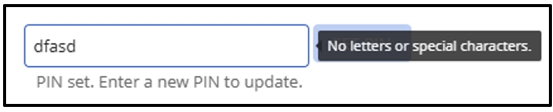
If your PIN violates these rules, you’ll see a tooltip.

Verification code sent automatically.
The Set PIN Authentication modal opens, and a 7-digit verification code is automatically sent to your registered email address.
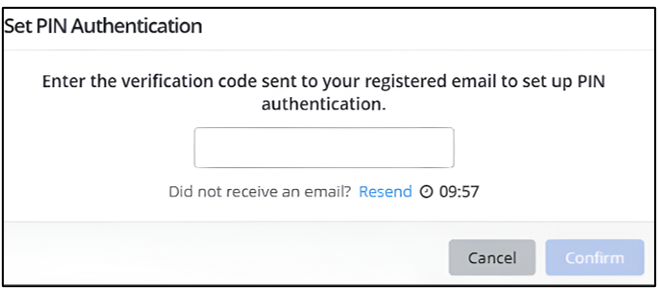
4. Enter the 7-digit code from your email in the field provided.
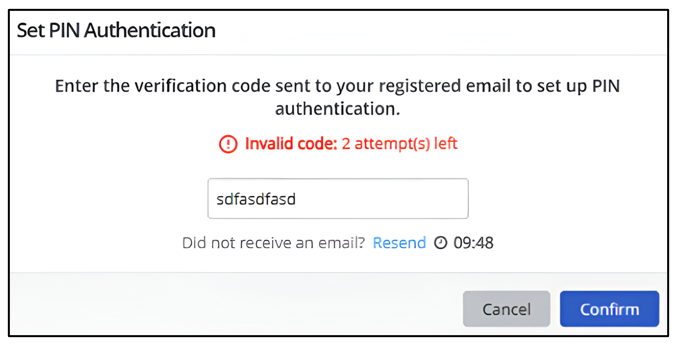
If you enter an incorrect code:
You'll see an error message showing the remaining attempts. You have 3 attempts per code.
Didn't receive the verification code? If you don't receive the code:
• Check your spam/junk folder.
• Click "Resend" to request a new code.
• You can resend up to 3 times within 10 minutes.
5. Click Confirm.
Once verified, your PIN is saved and active.
Note:
During PIN setup:
-
You have 3 attempts to enter the correct verification code.
-
You have 3 code resends available within 10 minutes.
-
If you exhaust these limits, you must wait 10 minutes before trying again.
After setup:
-
PIN setup is a one-time process.
-
The same PIN is used for all future messaging and broadcast operations.
-
You can reset or change your PIN anytime.
Using your PIN for scheduling broadcasts
Scheduling broadcasts always require PIN verification for maximum security.
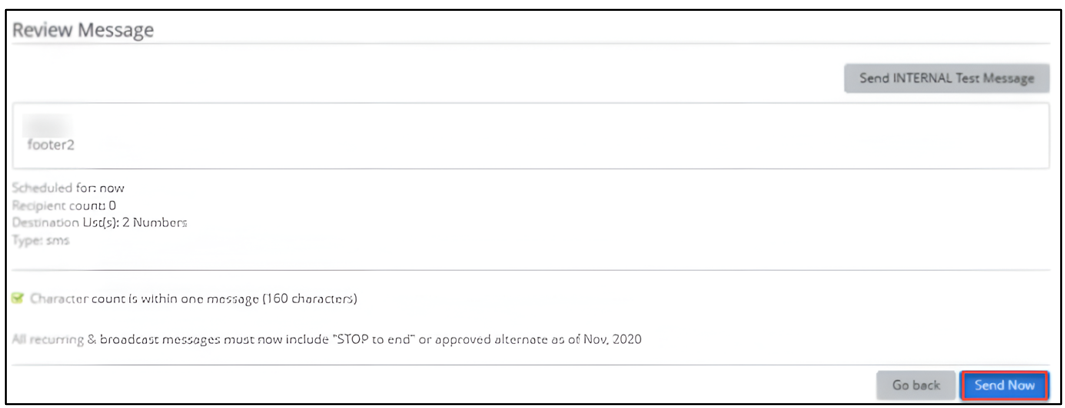
1. Create and review your broadcast message.
Complete your broadcast setup on the Review Message screen.
2. Click Send Now or Schedule.
The PIN Verification modal opens.
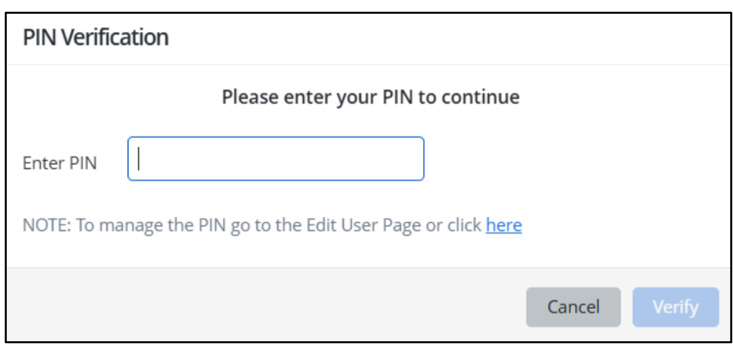
3. Enter your 4-digit PIN.
4. Click Verify.
If the PIN is valid, your broadcast is sent or scheduled immediately.
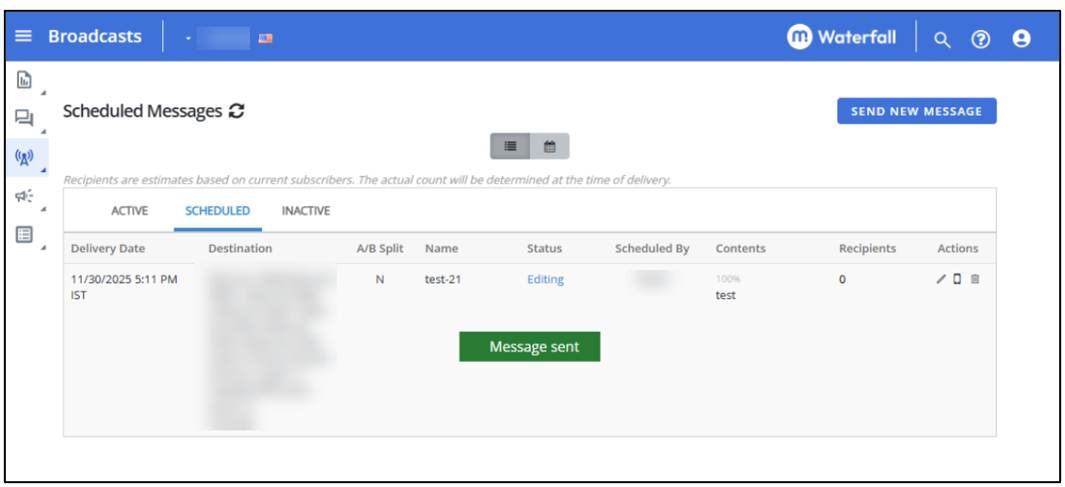
Note: You'll need to enter your PIN for every production broadcast, even within the same session.
Using your PIN for other messaging modules
The first time you access the following messaging features per login session, you’ll be prompted to enter your PIN. After that, you can continue sending messages without re-entering your PIN. You’ll only be prompted again if you log out or your session times out.
• Broadcast Test Messages
• Sweepstakes Messages
• Subscriber Profile Actions
• Conversations
• Inbox (UK only)
First message send in a log in session (PIN required)
1. Attempt to send a message in any session-based area (Conversations, Inbox, Test Messages, Sweepstakes, or Subscriber Profile).
2. The PIN Verification modal appears with the message: "Please enter your PIN to continue".
3. Enter your PIN in the input field.
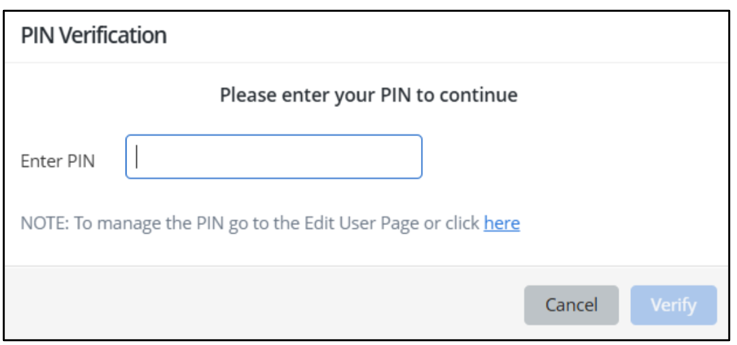
4. Click Verify.
5. If PIN is correct:
-
Message sends successfully.
-
Your session is authenticated.
-
You won't need to enter PIN again this session.
Session expiration
Your authenticated session expires when:
• You log out of Waterfall.
• Your login session times out due to inactivity.
• You manually end your session.
After session expiration, you'll need to enter your PIN again on your next message send.
Failed PIN attempts
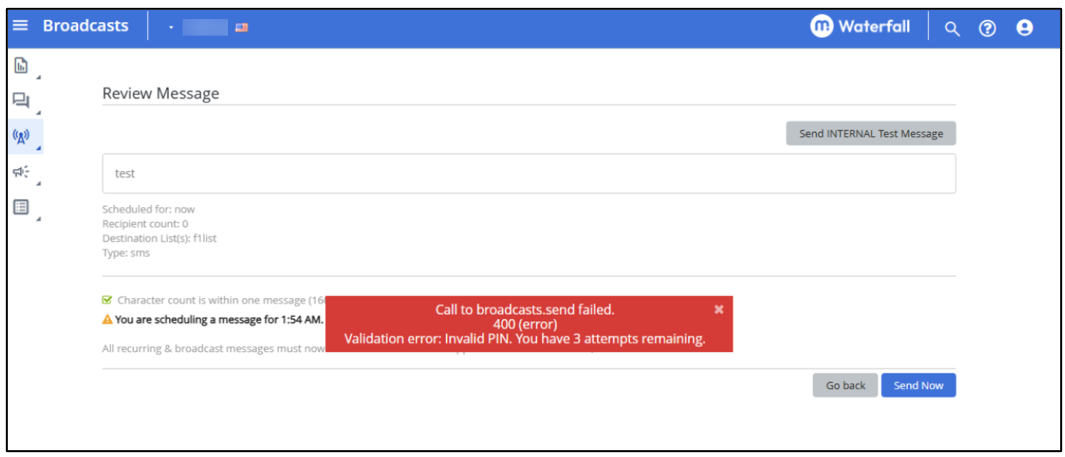
If you enter an incorrect PIN, you'll see an error message with remaining attempts.
Note:
-
You have 5 consecutive failed PIN attempts across all messaging operations.
-
Failed attempts are counted cumulatively within your session.
-
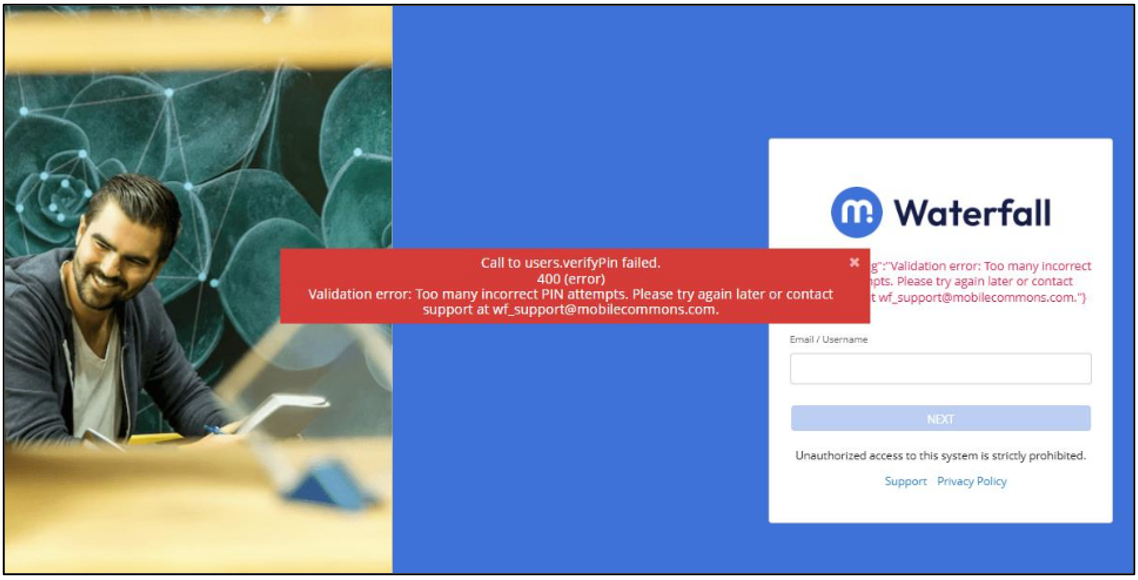
After 5 failed attempts, you will be logged out and locked for 120 minutes (2 hours).
Tip: If you're unsure of your PIN, reset it using the Edit User page rather than attempting multiple times.
After lockout:
You must wait 120 minutes (2 hours) before you can log in again.
Forgot your PIN?
If you've forgotten your PIN:
1. Click the link in the PIN Verification modal: "To manage the PIN go to the Edit User page or click here".
2. You'll be taken to the Edit User page.
3. Follow the same setup steps to reset your PIN.
4. A new verification code will be sent to your email.
5. Enter the code to confirm your new PIN.
Note:
-
Your old PIN becomes invalid immediately after resetting.
-
The reset process is the same as initial setup.
-
Support cannot reset your PIN for security reasons, you must do it yourself.
For any assistance, contact Waterfall Support.