Uploading subscriber data
Note: You must have special permissions to upload data to Waterfall. For assistance, contact Technical Support (wf_support@mobilecommons.com).
To upload subscriber data:
Preparing the upload file
You can upload information from mobile users to your company database in a CSV file, which you can create in a spreadsheet program such as Microsoft Excel. The users will be added to the list you specify.
Note: Waterfall supports special characters, including $ (dollar sign), £ (pound sign), and € (Euro sign), in the upload file.
Tip: To create a valid upload file, include the standard metadata field names for your company (for example, MSISDN, firstName, lastName, email, state, and zipcode, etc.), making sure that they conform with the variable definition. Work with Technical Support to build a template CSV file for your uploads.
To prepare an upload file:
-
In a spreadsheet program, create a new, blank file.
-
Add MSISDN or msisdn (for the mobile phone number) in the first, left-most header column, and then add the relevant entries in one of the following formats:
-
4085551212
-
14085551212
-
0014085551212
Note: Do not add spaces or punctuation to the MSISDN entry.
For users in the UK, numbers can be uploaded in the Waterfall in the following format: country code - trunk prefix - local number. If a zero is added before the country code, the number upload will fail.
Note: For UK clients/numbers, the number can be added without the trunk prefix and country code.
-
-
Continue to add headers and entries that match the defined metadata in the user profile.
For example, a CSV file with entries from a sign-up sheet at your Maine store may look something like this:
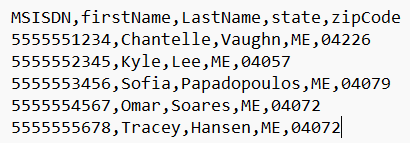
Note that the header row starts with MSISDN (msisdn is also acceptable) in the left-most position, followed by metadata field names from the user profile.
-
Save the file in CSV (comma-separated values or comma-delimited values) format. Make a note of the file location, so you can find it easily when uploading it to Waterfall.
Uploading subscriber data
To add user data for new and existing users to a list via CSV file:
-
From the Lists menu, select Uploads.
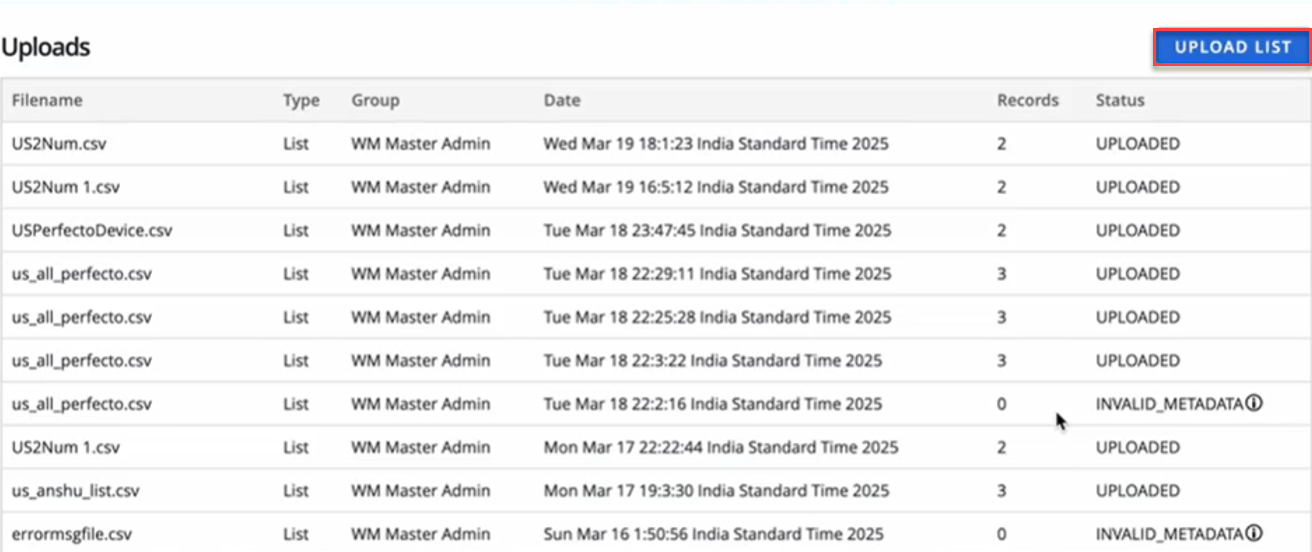
 Uploads table
The Uploads table contains the following information for each upload file:
-
The file name of the upload file
-
The group where the upload file will be stored
-
The date and time when the file was uploaded to Waterfall
-
The number of records added to the list from the upload file
-
The status of the upload:
-
Invalid_Metadata: The upload file contained data that could not be uploaded. Review the source file and try again.
-
Uploaded: The file was successfully uploaded.
-
-
-
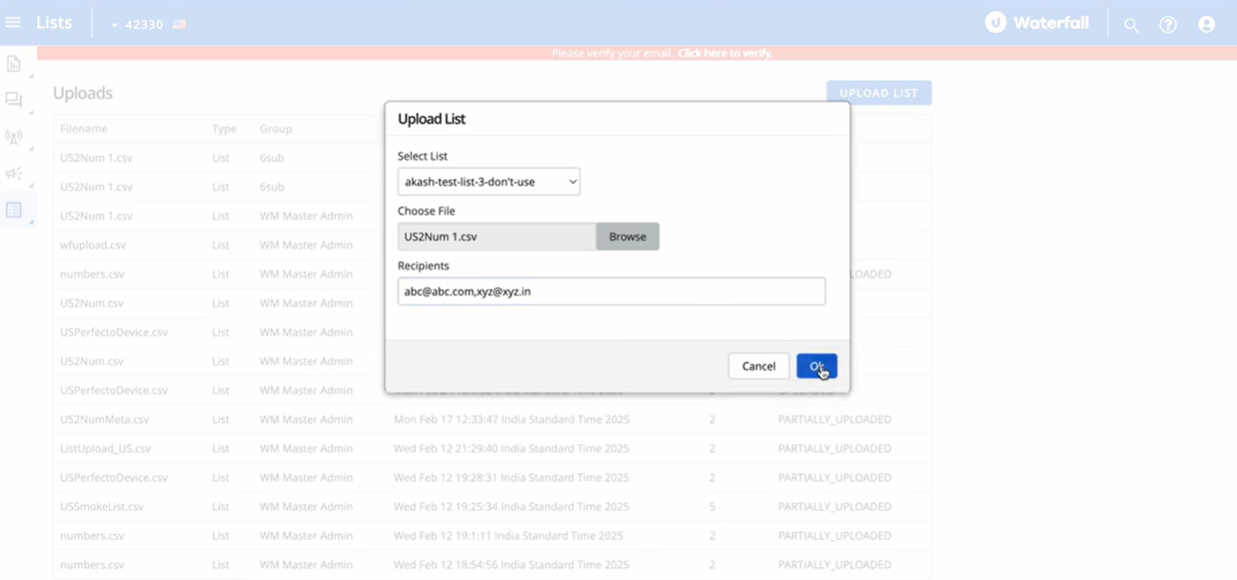
In the upper-right corner, select Upload List.
-
On the upload list form, select a list from the drop-down list. The user data in the upload file will be added to this list.
-
Select Browse, navigate to the location of the upload file, and then select Open.
-
In the “Recipients” field, enter one or more email addresses, separated by a , (comma). Waterfall will send the upload file (successful or unsuccessful) report to these recipients when it is ready.
-
When you are done, select OK.
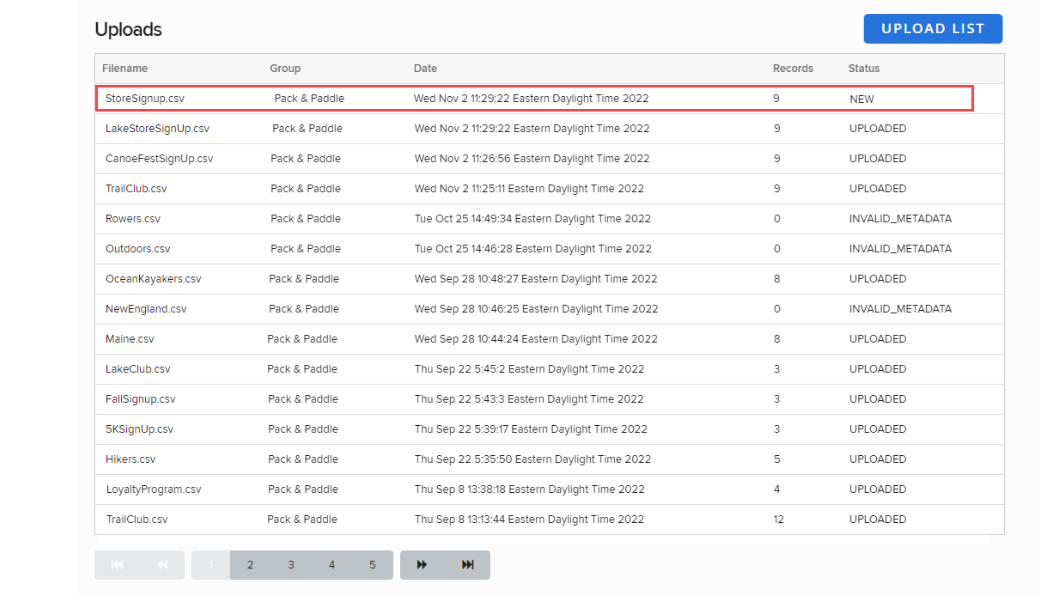
The upload file is added to the Uploads table.
Handling errors in PARTIALLY_UPLOADED, INVALID_METADATA, or ERROR statuses in Upload List
This section provides instructions on handling the PARTIALLY_UPLOADED, INVALID_METADATA, or ERROR status when using the "Upload List" functionality in the system, which helps users identify and resolve upload issues by viewing error reports.
When you upload a list, the system assigns one of the following statuses:
-
NEW – The upload request has been received.
-
SCRUBBING – The system is validating the data.
-
INVALID_METADATA – The metadata in the file is incorrect.
-
UPLOADING – The system is processing the file.
-
UPLOADED – The file has been successfully uploaded.
-
ERROR – The upload failed.
-
PARTIALLY_UPLOADED – Some records were uploaded successfully, but others failed.
Reasons for Upload Failures
Your file may fail to upload due to the following reasons:
-
BAD_MSISDN – Invalid phone numbers.
-
UNSUPPORTED_CARRIER – Valid phone numbers, but the carrier is not supported.
-
BAD_METADATA – Incorrect metadata values.
-
BAD_MESSAGE – Issues with message format.
-
BAD_HEADER – Incorrect file headers.
You can download and view error reports directly from the Waterfall UI.
Downloading and Viewing Errors Reports from Waterfall UI
If your upload status is INVALID_METADATA, you can now view the errors on the Waterfall UI by clicking or hovering over the tooltip icon available next to the INVALID_METADATA status or download the CSV error reports for ERRORS and PARTIALLY_UPLOADED status.
To view errors for INVALID_METADATA or download CSV files to view errors for ERRORS and PARTIALLY_UPLOADED status:
-
Go to the Upload List page.
-
Locate the file with the PARTIALLY_UPLOADED, INVALID_METADATA, or ERROR status.
For INVALID_METADATA, click on the tooltip icon available next to the INVALID_METADATA status to know about the errors. Correct these errors and reupload the files to upload them successfully.
The tooltip for INVALID_METADATA shows “Please check if the headers are valid and try to re-upload the file.”

For the new uploads, if a list contains the errors (for example, BAD_MSISDN, UNSUPPORTED_CARRIER, BAD_METADATA, etc.), you will see a single downloadable Errors CSV file that includes all these errors. Click the ERROR hyperlink in the Status column to download and view the Errors CSV file.
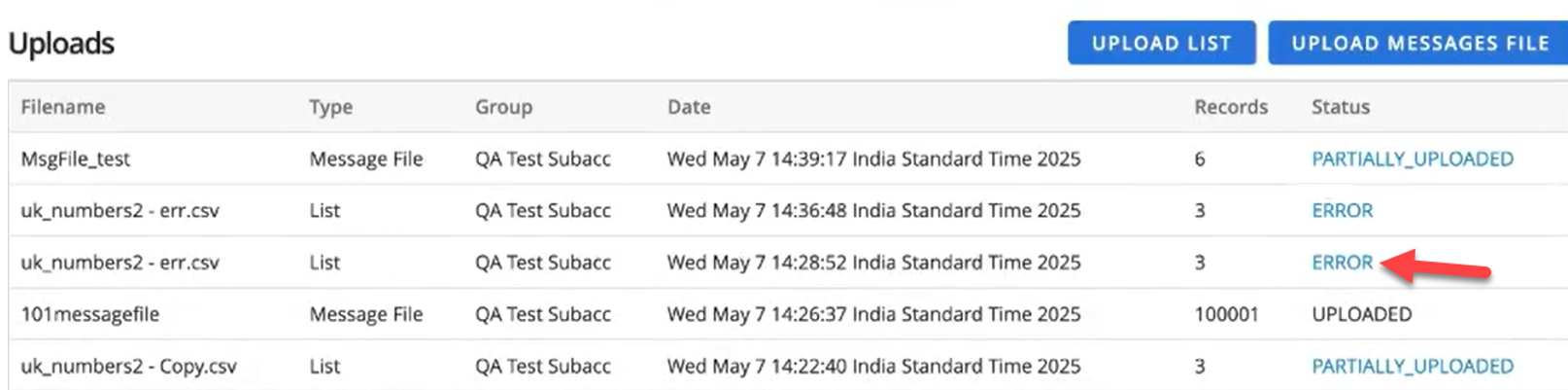
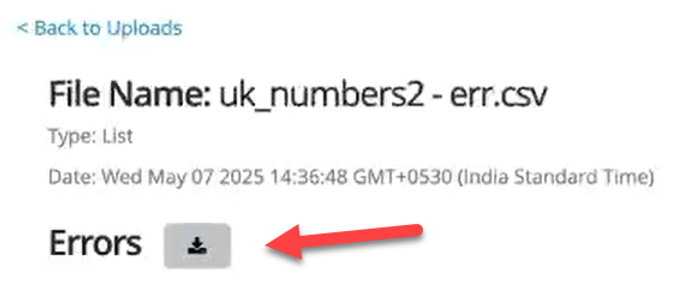
Similarly, for the new uploads, if your message file contains the errors (for example, BAD_MSISDN, UNSUPPORTED_CARRIER, BAD_METADATA, etc.), you will see a single downloadable Errors CSV file that includes all these errors. Click the ERROR hyperlink in the Status column to download and view the Errors CSV file.
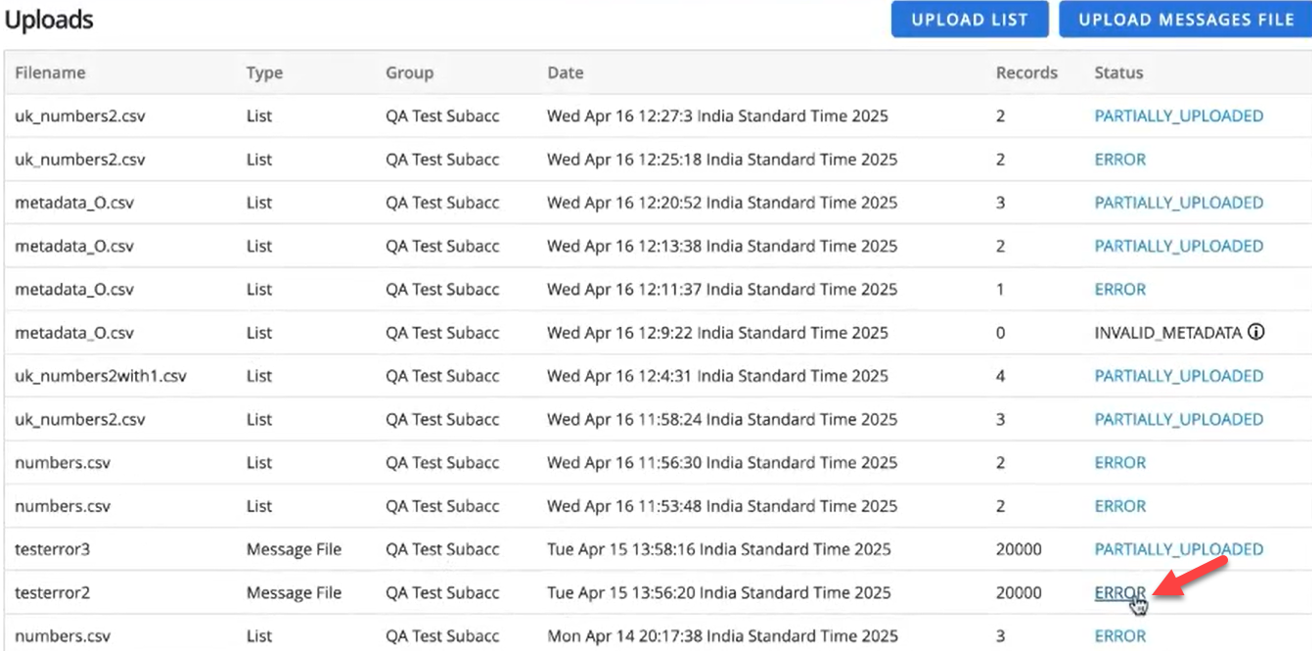
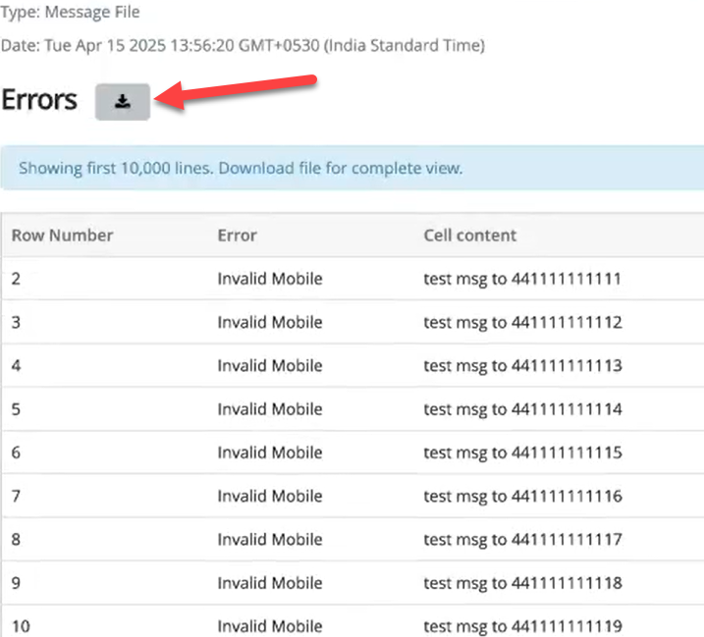
If there are more than 10,000 errors in the message file, the Waterfall UI also displays the first 10,000 errors. To view all errors, you can download the Errors CSV file.
For old or existing uploads (list or message files), when you click the ERROR hyperlink, you will still see the following four separate error files instead of a single Errors CSV file:
-
VALID
-
BAD_MSISDN
-
UNSUPPORTED_CARRIER
-
BAD_METADATA
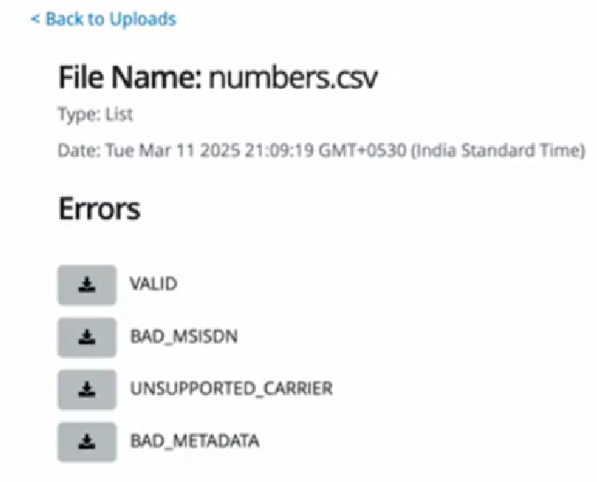
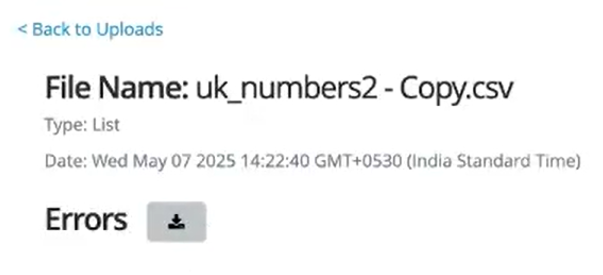
For the new PARTIALLY_UPLOADED list or message files, clicking the PARTIALLY_UPLOADED hyperlink in the Status column displays a single downloadable Errors CSV file instead of multiple error files. You can download the Errors CSV file to view all the errors.

The screen below displays a single downloadable Errors CSV file for a PARTIALLY_UPLOADED list.
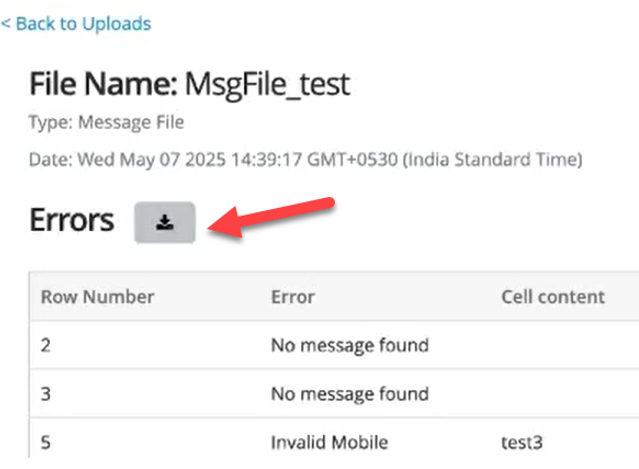
The screen below displays a single downloadable Errors CSV file for a PARTIALLY_UPLOADED message file.
For a PARTIALLY_UPLOADED message file, you will also see a list of errors in the Waterfall UI, along with a single downloadable Errors CSV file.
For old or existing PARTIALLY_UPLOADED list or message file, on clicking the PARTIALLY_UPLOADED hyperlink in the Status column, you will still see the below four separate error files instead of a single Errors CSV file.
-
VALID – Lists successfully uploaded records.
-
BAD_MSISDN – Lists records with invalid phone numbers.
-
UNSUPPORTED_CARRIER – Lists records rejected due to unsupported carriers.
-
BAD_METADATA – Lists records with incorrect metadata.
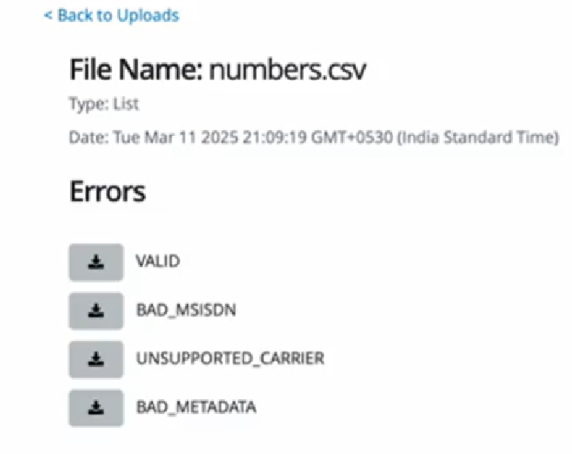
These files will be downloaded to your system where you can view the errors, correct the errors and reupload them successfully to Waterfall. The message “File uploaded successfully” appears once the file is successfully uploaded to Waterfall.
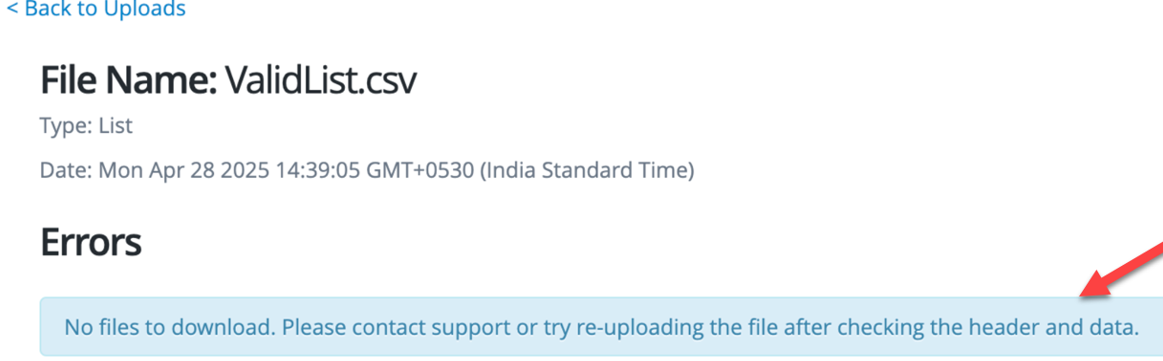
If no Errors files are available for download in the Waterfall UI, please contact support for assistance or try re-uploading the file after checking the header and data.
Once the list upload is successful or unsuccessful, users will receive an email notification about the successful, partial, or unsuccessful upload of the list on their provided email in the recipient section of the list upload.
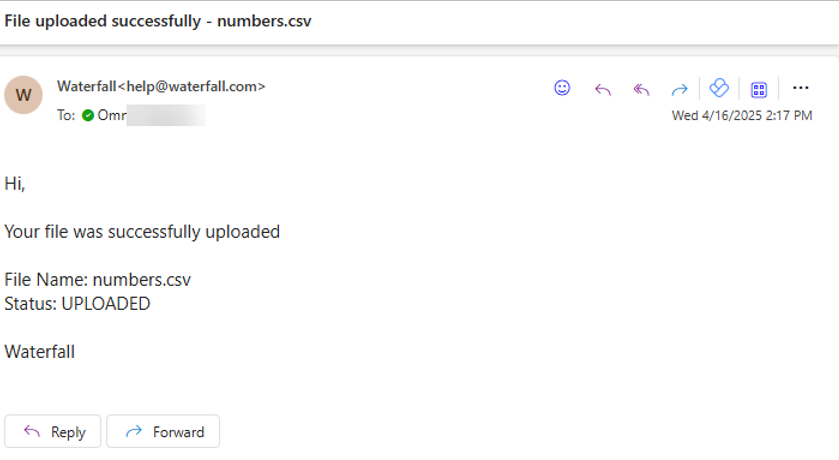
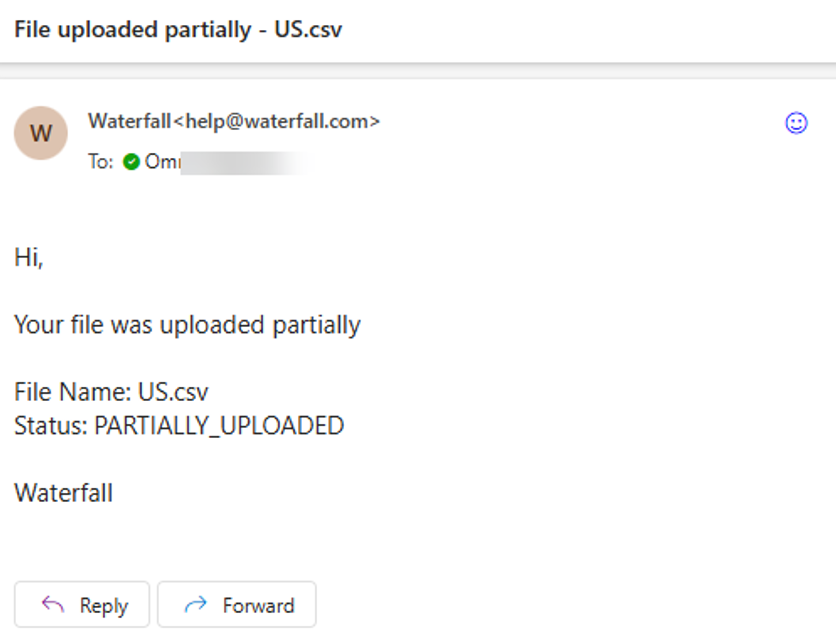
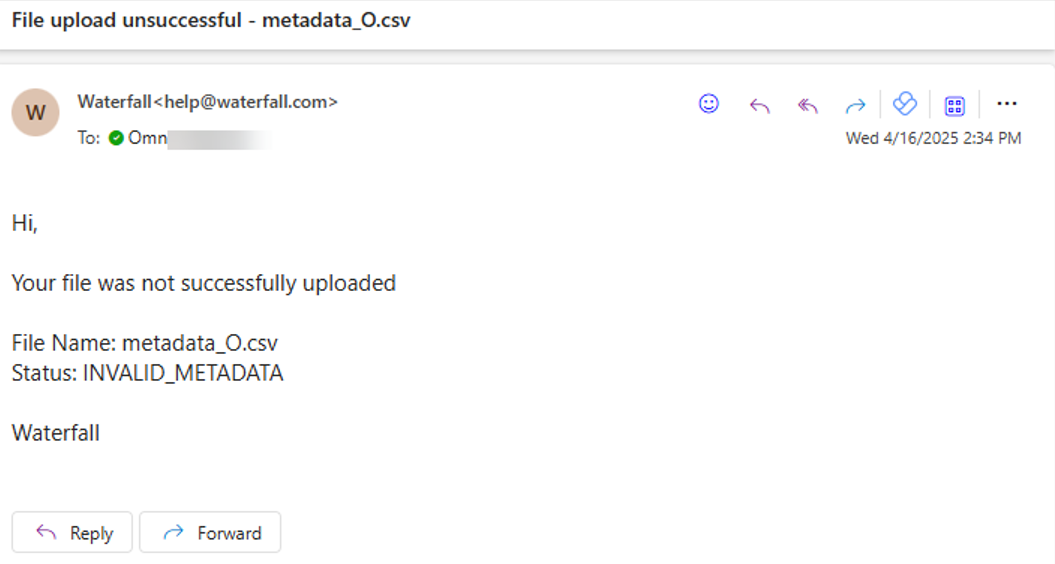
Note: Only valid email addresses will receive email notifications.
The Waterfall (UK) provides regional support for the following countries:
-
Australia
-
Austria
-
Belgium
-
Brazil
-
Canada
-
China
-
Denmark
-
UAE
-
France
-
Germany
-
Hungary
-
India
-
Ireland
-
Italy
-
Japan
-
Korea
-
Mexico
-
Norway
-
Poland
-
Russia
-
Singapore
-
Slovakia
-
Spain
-
Sweden
-
Taiwan
-
UK
Note: While sends are allowed for each country using a UK originator, they cannot be ensured due to the varying sending requirements of each country. For any questions, please contact support. -