Broadcast Summary report
To access a Broadcast Summary report:
-
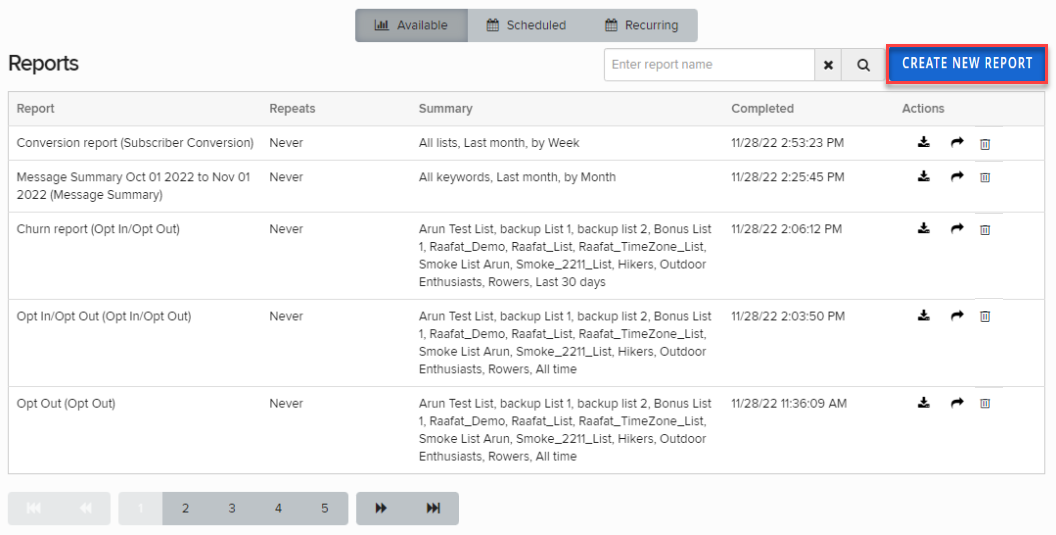
From the Reports menu, select Reports.
The Reports table lists the available reports.
-
Locate the report in the Available Reports table:
-
To search for the report, enter all or part of the campaign name in the Search box at the top of the table, and then select
 Search.
 -
To navigate a multipage Available Reports table, use the pagination bar at the bottom of the table.
-
-
To download an available report in CSV (comma-separated values) format, select
 Download and then select Open file to view the report in a spreadsheet program, such as Microsoft Excel.
 Broadcast Summary report
The Broadcast Summary report contains the following information:
-
Date: The date the broadcast message was sent
-
Destination: The recipients list(s) for the broadcast message
-
Message: The message copy that was sent
-
Subject: For MMS messages only, the subject line for the message
Note: MMS messaging is available in the United States and Canada only.
-
SMS Fallback: Backup message in case the original message cannot be sent
-
Files: For MMS messages only, media files (image, video, audio, etc.) attached to the message
-
Recipients: The total number of recipients to whom the message was sent
-
User: The Waterfall user who created the broadcast message
Creating a new Broadcast Summary report
-
From the Reports menu, select Reports.
-
In the upper-right corner, select Create New Report.
-
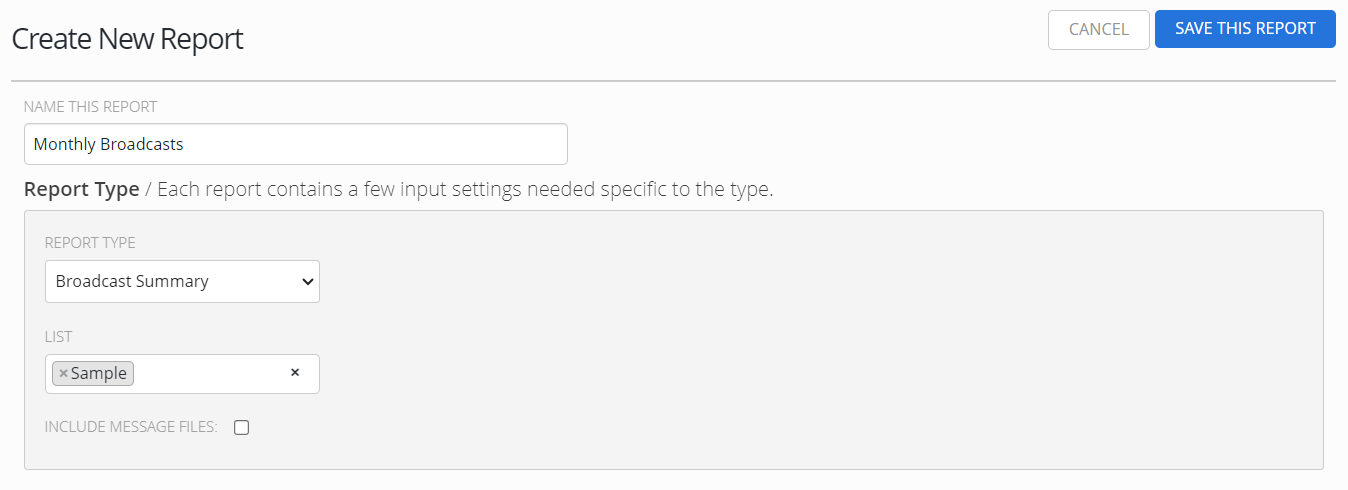
On the Create New Report form, enter a descriptive name for the report.
-
From the Report Type drop-down list, select Broadcast Summary.
-
From the List or Smart Segment drop-down list, retain All or select one or more lists or smart segments to populate the report.
-
To add another list or smart segment, select the field and select a list or smart segment.
-
To remove a selection, select the field and reselect it.
-
To clear your selections, select Delete
 .
.
Note: You cannot mix lists and smart segments in a report.
-
-
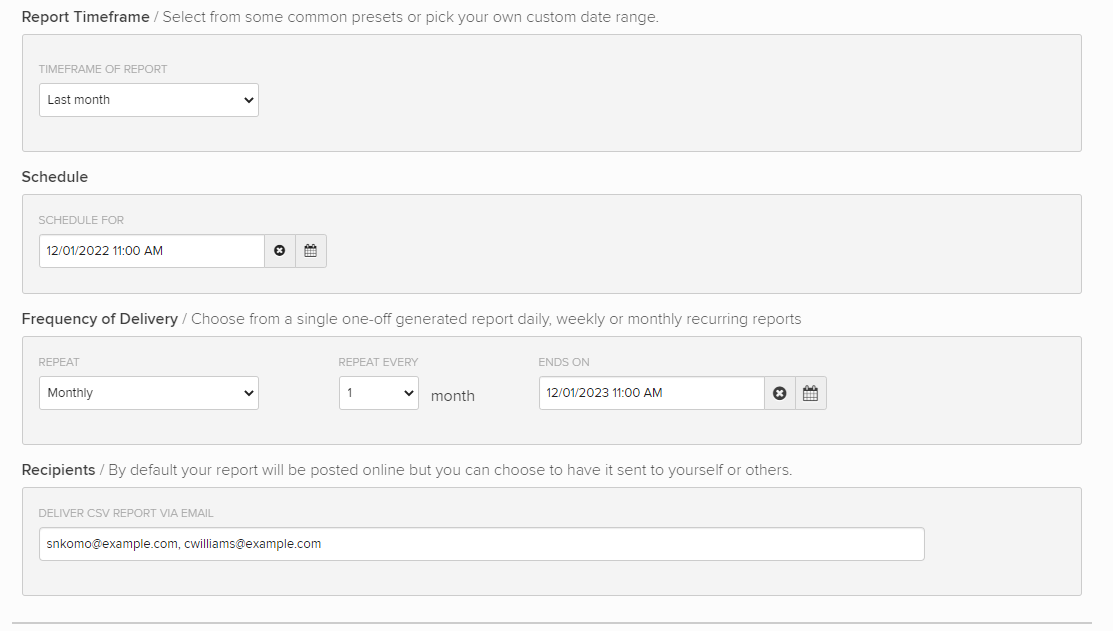
In the Report Timeframe section, select a preset time frame for your report data or add a custom time frame:
-
To select a custom timeframe, select Custom. Enter the start and end dates in MM/DD/YYYY format or select
 Calendar and select a date.
 Note: The end date is not included in the report.
-
-
In the Schedule section, select a date and time when the report will be built.
-
In the Frequency of Delivery section, select Never, Daily, Weekly, or Monthly.
Tip: Select Never to hold a report until you are ready to run it.
When the report is ready, it will be available from the Reports table. You can also email a copy directly to yourself or to other recipients.
-
(Optional) In the Recipients section, enter one or more email addresses, separated by a , (comma). Waterfall will send the report to these recipients when it is ready.
-
When you are done, select Save this Report.
The report is added to the Reports table according to its schedule and frequency settings.