Message Details report
To access a Message Details report:
-
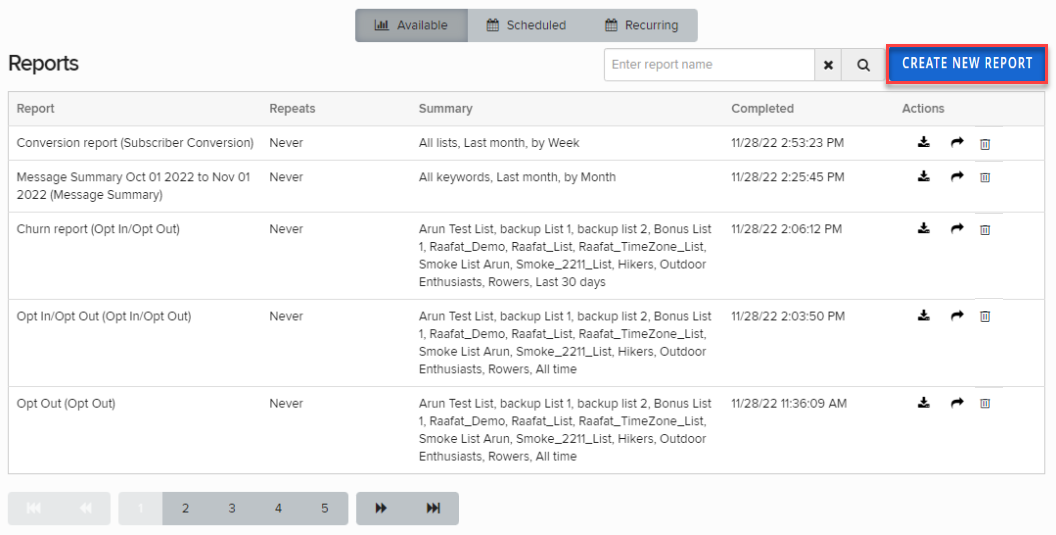
From the Reports menu, select Reports.
The Reports table lists the available reports.
-
Locate the report in the Available Reports table:
-
To search for the report, enter all or part of the campaign name in the Search box at the top of the table, and then select
 Search.
 -
To navigate a multipage Available Reports table, use the pagination bar at the bottom of the table.
-
-
To download an available report in CSV (comma-separated values) format, select
 Download and then select Open file to view the report in a spreadsheet program, such as Microsoft Excel.
 Message Details report
The Message Details report contains the following information:
-
Date: The date the message was sent.
-
Message Type: The type of message, either sent by Waterfall (MT) or received from a subscriber (MO).
-
MSISDN: The subscriber's mobile phone number.
-
Body: The content of the message.
- Subject: For MMS messages only, the subject line for the message.
Note: MMS messaging is available in the United States and Canada only.
-
SMS Fallback: Backup message in case the original message cannot be sent.
-
Files: For MMS messages only, media files (image, video, audio, etc.) attached to the message.
-
Content Type: The content type of the message, for example, basic text.
-
Channel: The channel used to send messages, for example, SMS or MMS.
-
No. Msgs: The number of messages delivered for this conversation.
-
Campaign: The campaign for this message.
-
Keyword: The keyword used to opt in to this campaign.
-
Short Code: The short code for this message.
-
Carrier: The subscriber's mobile phone carrier or mobile provider.
Account and subaccount fields will also be exported and included in this report.
Creating a new Message Details report
-
From the Reports menu, select Reports.
-
In the upper-right corner, select Create New Report.
-
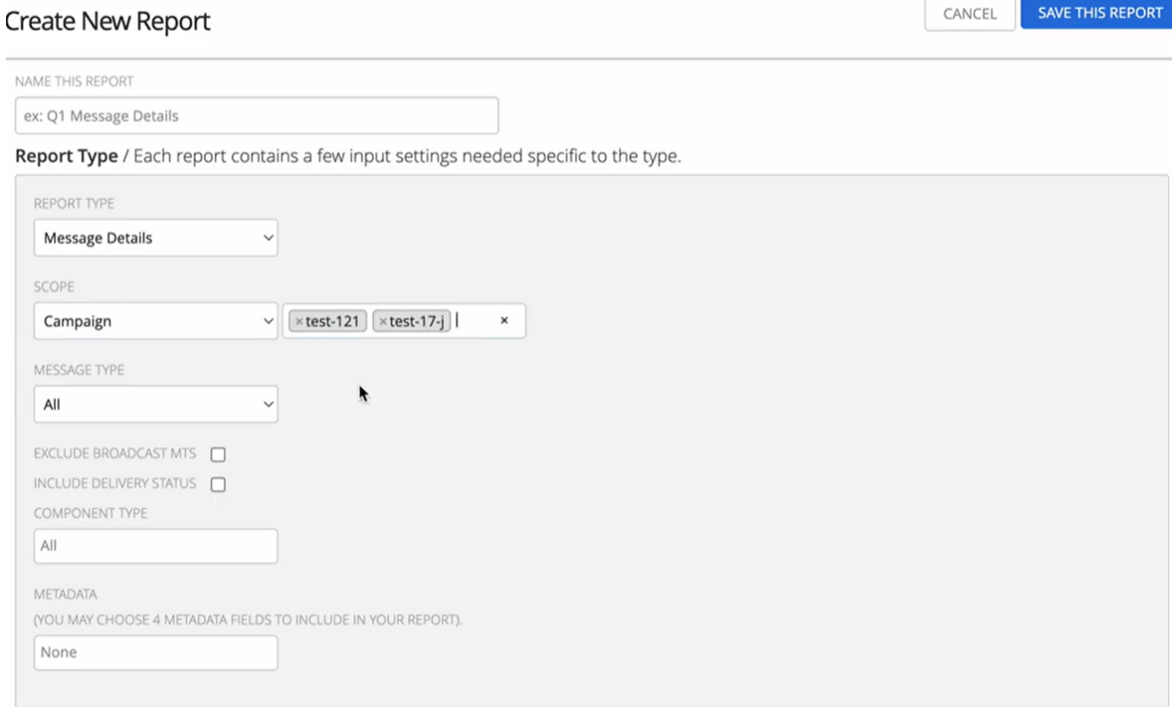
On the Create New Report form, enter a descriptive name for the report.
-
From the Report Type dropdown list, select Message Details.
-
From the Scope dropdown list:
-
Select All to include all messages in the time frame you define.
-
Select Campaign to include messages from the campaign(s). You can select multiple campaigns from the dropdown list.
-
Select Keyword to include messages from campaigns using keyword that you select from the dropdown list.
-
-
From the Message Type dropdown list:
-
Select All to include all messages in the time frame you define.
-
Select Incoming (MOs) to include only those messages sent by mobile users to Waterfall.
-
Select Outgoing (MTs) to include only those messages sent from Waterfall.
Select or clear the Exclude Broadcast MTs checkbox to remove or add broadcast messages sent by Waterfall.
Select or clear the Include Delivery Status checkbox to remove or add message delivery status in the message details report (available only for All and Outgoing (MTs) message types).
The following table outlines the message status codes included in the message details report:
Term Description AGG Sent to the aggregator BAN Msisdn on the banned list BLK Msisdn on the blacklist CAR Sent to the carrier ERR Error MOB Sent to the mobile subscriber QUE Queued to the messaging layer REJ Rejected by the aggregator UNK Unknown WM Sent to the messaging layer -
-
From the Component Type dropdown list, select ALL or select one or more campaign components from the dropdown list.
-
To add another component, select the field and select a component.
-
To remove a selection, select the field and reselect it.
-
-
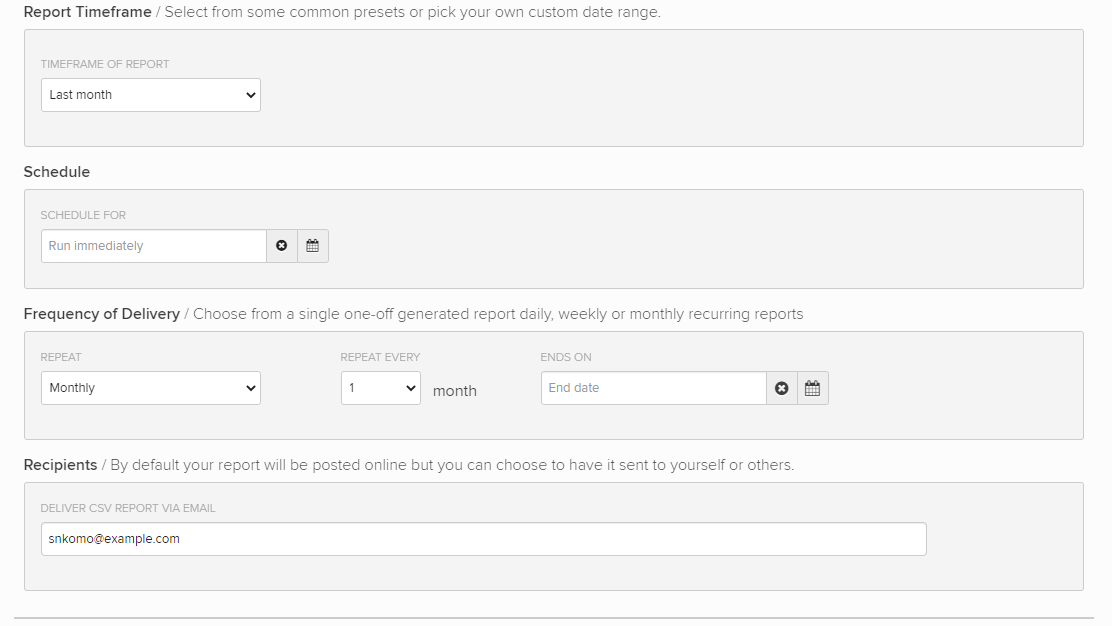
In the Report Timeframe section, select a preset time frame for your report data or add a custom time frame:
-
To select a custom timeframe, select Custom. Enter the start and end dates in MM/DD/YYYY format or select
 Calendar and select a date.
 Note: The end date is not included in the report.
-
-
In the Schedule section, select a date and time when the report will be built.
-
In the Frequency of Delivery section, select Never, Daily, Weekly, or Monthly.
Tip: Select Never to hold a report until you are ready to run it.
When the report is ready, it will be available from the Reports table. You can also email a copy directly to yourself or to other recipients.
-
(Optional) In the Recipients section, enter one or more email addresses, separated by a , (comma). Waterfall will send the report to these recipients when it is ready.
-
When you are done, select Save this Report.
The report is added to the Reports table according to its schedule and frequency settings.