Working with trackable links
You can create shortened, trackable URLs to include in your text messages. Shortened links take up fewer characters in your text message. Trackable links keep a record of every user click, providing key usage information for your campaign.
To add trackable links to your campaign:
-
Select
 Mobile Web in the left pane, and then select Links.
The Trackable Links table opens.
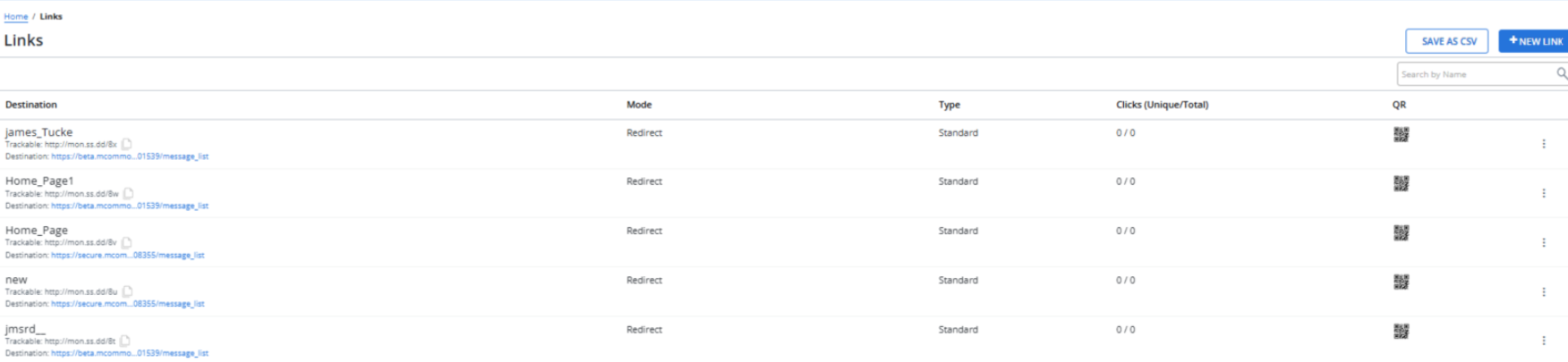
 About the Trackable Links table
The Trackable Links table contains the following information:
Column Description Destination The trackable link (lil.ms URL) you have already created and where it directs. Mode One of the following modes:
-
Basic/iPhone: The link goes directly to the destination.
-
Redirect: The link opens a web page that you design.
Type Shows the link type, such as Standard, Engagement, Opt-In, etc. Clicks (Unique/Total) The number of clicks:
-
Unique shows only one click per user.
-
Total shows each time a link was clicked, even if a single user clicked multiple times.
QR An automatically generated QR code for the URL:
Select the QR code symbol to open a scannable version.
You can select Download to download the QR code or COPY LINK to copy the link.
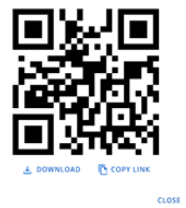
You can also select the View record link from the Actions menu of a link to open the link record, and then select
 QR Code in the Link Details to copy the QR code or or COPY LINK to copy the link.
Available actions for a trackable link:
-
Edit: Edit the link settings.
-
Clone: Make a copy of the trackable link.
-
View record: Review the full record for the trackable link.
-
If the table is longer than one page, use the page-navigation options on the lower-right to select the number of rows per page and to navigate to the  next or
  previous page.
Tip: To navigate directly to a specific page, select the page field, enter the page number, and then press ENTER.
From the Trackable Links table:
For more information, see Adding trackable links.
Searching the Trackable Links table
To search the Trackable Links table by link name:
-
Select
Mobile Web in the left pane, and then select Links. -
Above the Trackable Links table, on the right, enter a search term in the Search box, and then select
 Search.
 The Trackable Links table displays the matching records.
Exporting trackable links records
You can export the full set or a subset of trackable links records to a CSV (comma-separated values) file.
To export trackable links records:
-
Select
 Home in the left pane, and then select Mobile Web.
 -
(Optional) Use Search to display the records to export in the Trackable Links table.
-
Above the Trackable Links table, on the right, select Save as CSV. mCommons generates a comma-separated values (CSV) file.
-
When the file is ready, select Download CSV.
The trackable links records in the Trackable Links table are downloaded in a CSV file containing the following columns:
Column Description name The name of the link. trackable The shortened address for the link. destination The full address for the link. unique_clicks The number of users who clicked the link, counting only one click per user. total_clicks The total number of clicks for the link, counting every click for every user.