Working with broadcast templates & footers
You can add efficiency to your broadcast messaging program by creating predefined message templates, which ensure consistent customer communications and streamline the broadcast-creation process.
Note: Broadcast templates are an add-on feature. To add templates to your company account, contact your mobile strategist or Technical Support.
To work with templates:
For information on using a template to build a new broadcast message, see Creating a new broadcast.
Creating a new template
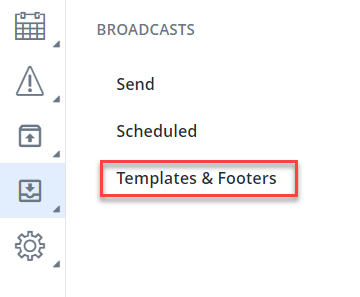
1. From the Broadcasts menu, select Templates & Footers.
2. In the upper-right corner, select Create Template.
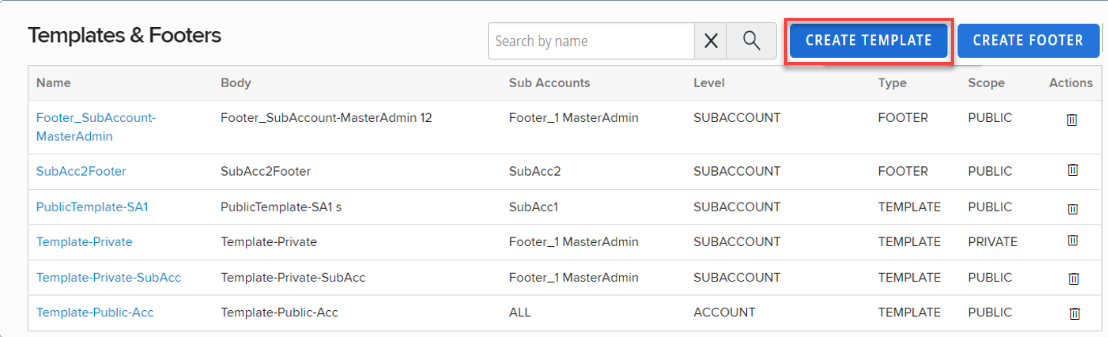
 Templates table
The Templates table contains the following information for each predefined message template:
-
Link to the template
-
The text of the message in the template
-
The availability (scope) of the template: Private (available to the user who created it only) or Public (available to all users in the company account)
-
The action available for this template:
-
Delete
-
3. Enter a descriptive name for the template.
4. Select the template type:
-
Private: available to the user who creates it only
-
Public: available to all users in the account or subaccount
Note: When a template created by an administrator, it is available all users in the account; when created by a user who is not an administrator, it is available to subaccount users only.
5. In the text field, enter the standard text for this template.
6. When you are done, select Save Template.
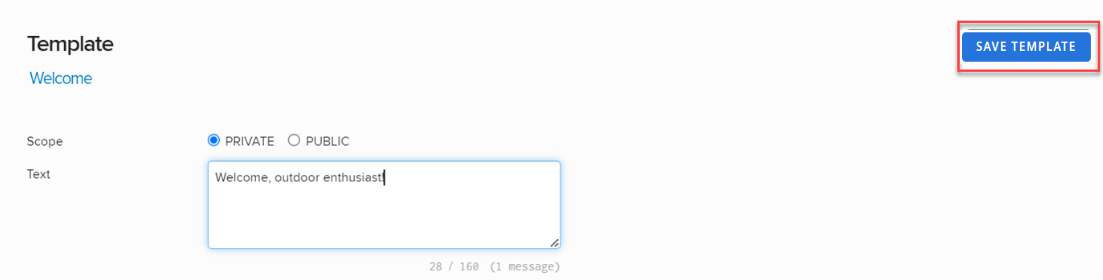
Note: A simple text message is limited to 160 characters. Check the lower-right corner for the remaining character count. If the number is negative and red, then the message is overlong and may be split and sent as a multipart SMS message.
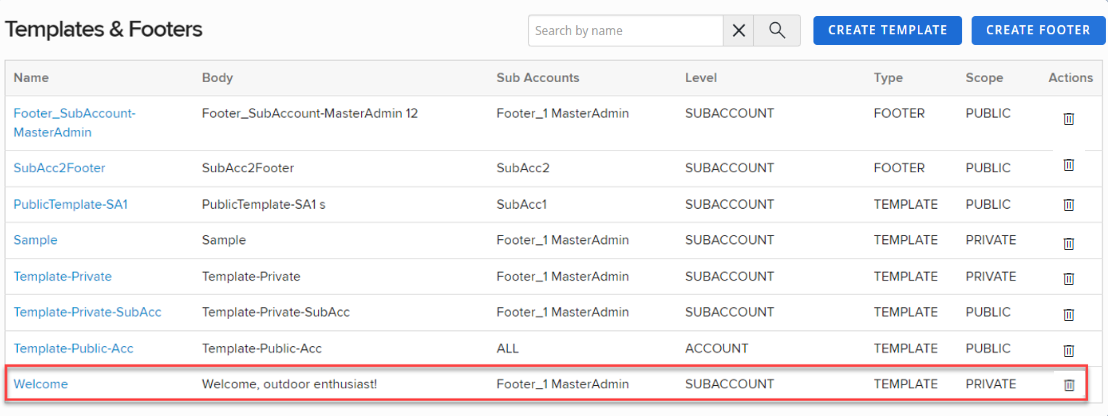
The template is added to the Templates & Footers table.
Editing a template
To make changes to a broadcast template:
-
From the Broadcasts menu, select Templates & Footers.
-
Locate the template to edit in the Templates & Footers table.
-
To search for the template, enter all or part of the table name in the Search box at the top of the table, and then select
 Search .
 -
To navigate a multipage Templates table, use the pagination bar at the bottom of the table.
-
-
Select the template name link.
The template page opens.
-
Make changes to the template name, type, or message, as needed.
-
When you are done, select Save Template.
Deleting a template
To delete a broadcast template:
-
From the Broadcasts menu, select Templates & Footers.
-
Locate the template to delete in the Templates & Footers table.
-
To search for the template, enter all or part of the table name in the Search box at the top of the table, and then select
Search . -
To navigate a multipage Templates & Footers table, use the pagination bar at the bottom of the table.
-
-
Select
 Delete at the end of the row.
Caution: Deleting a template is permanent. You cannot reverse it.
-
Select OK to confirm.
The administrators can create footers at both the account and sub-account levels. This feature enables tailored messaging, and compliance efforts across various organizational tiers, ensuring consistent communication while allowing for necessary customization.
As an administrator, you can create, update, and delete footers.
Creating a new footer
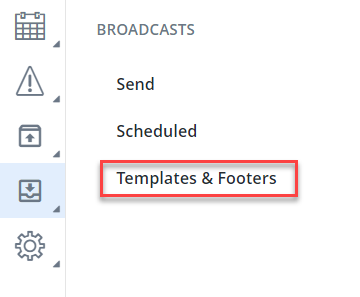
1. From the Broadcasts menu, select Templates & Footers.
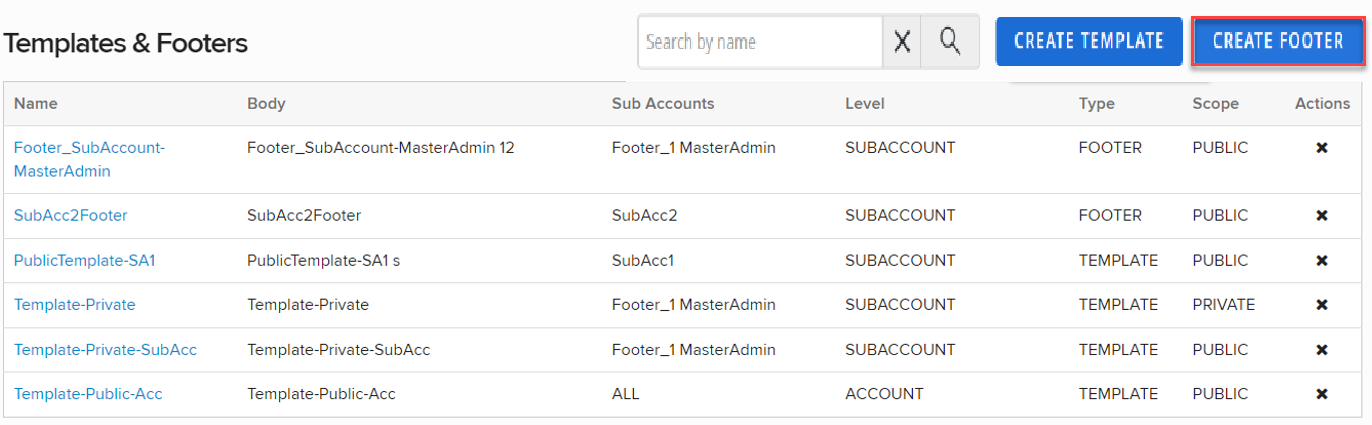
2. In the upper-right corner of the Templates & Footers page, select Create Footer.
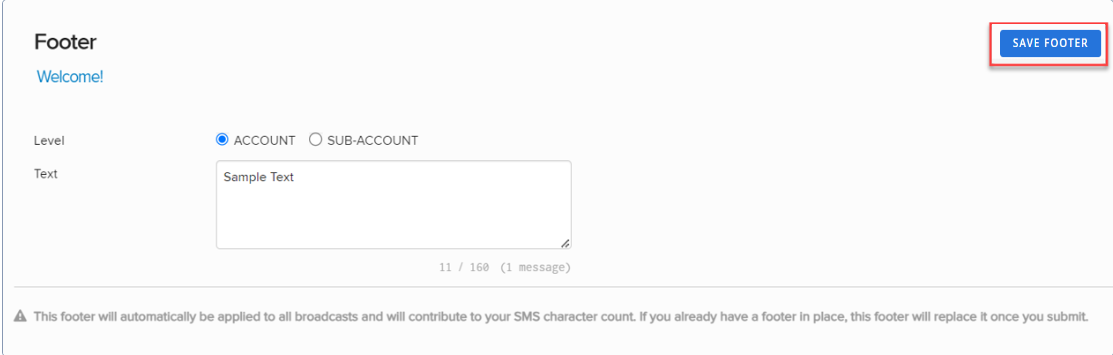
3. Enter a descriptive name for the footer.
4. Select the level type: ACCOUNT or SUB-ACCOUNT.
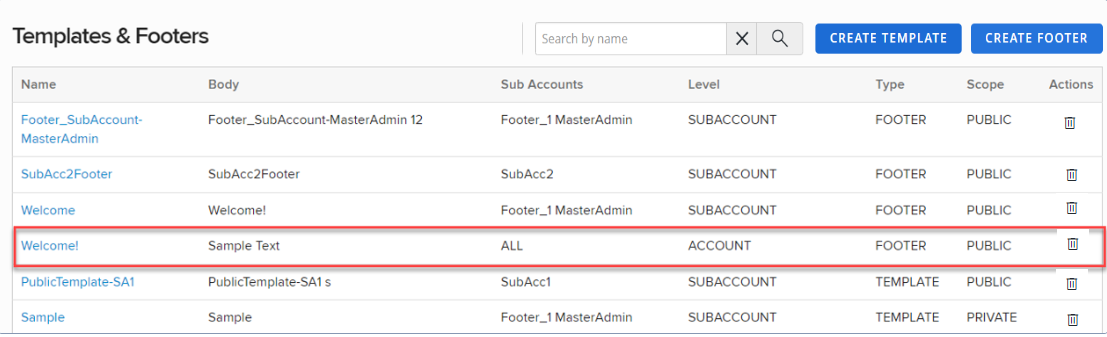
5. In the text field, enter the standard text for the footer. When you are done, select Save Footer. The footer is added to the Templates & Footers table.
Footers are automatically applied to all broadcasts. The footer text appears in the broadcast creation and review message (read-only).
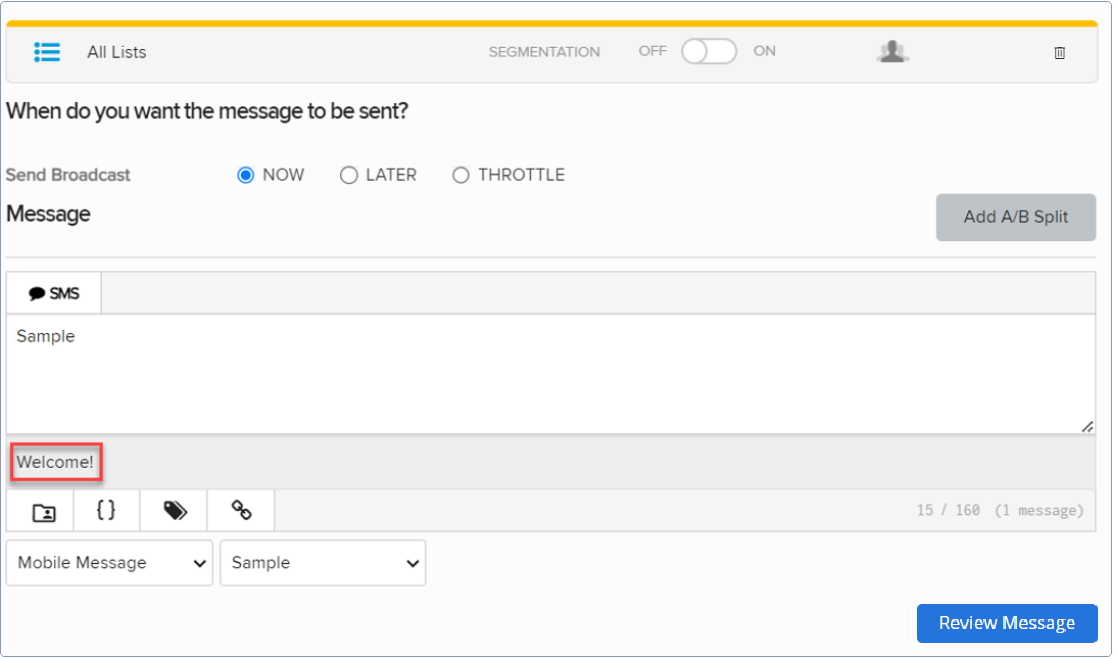
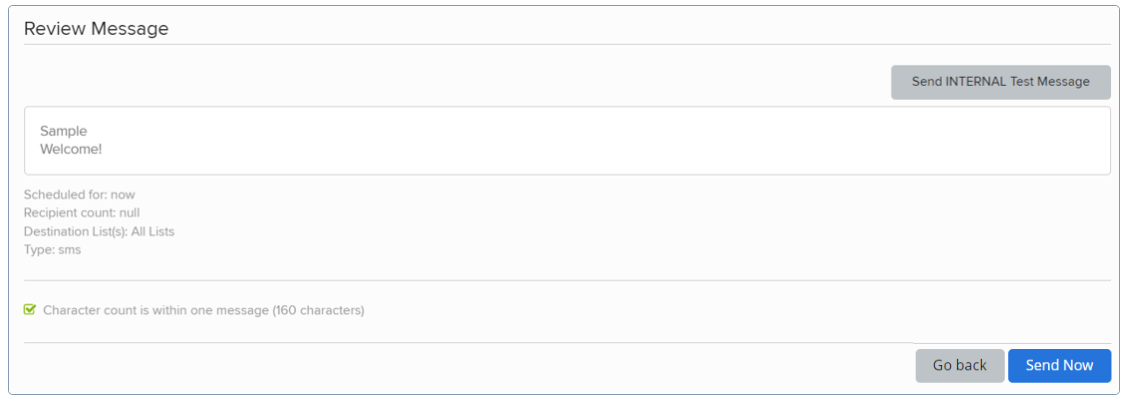
Account-level footers applies to all broadcasts throughout the account. Sub-account level footers apply to all broadcasts belonging to the selected sub-account(s).
The sub-account footer created by master admins is visible to other sub-accounts.
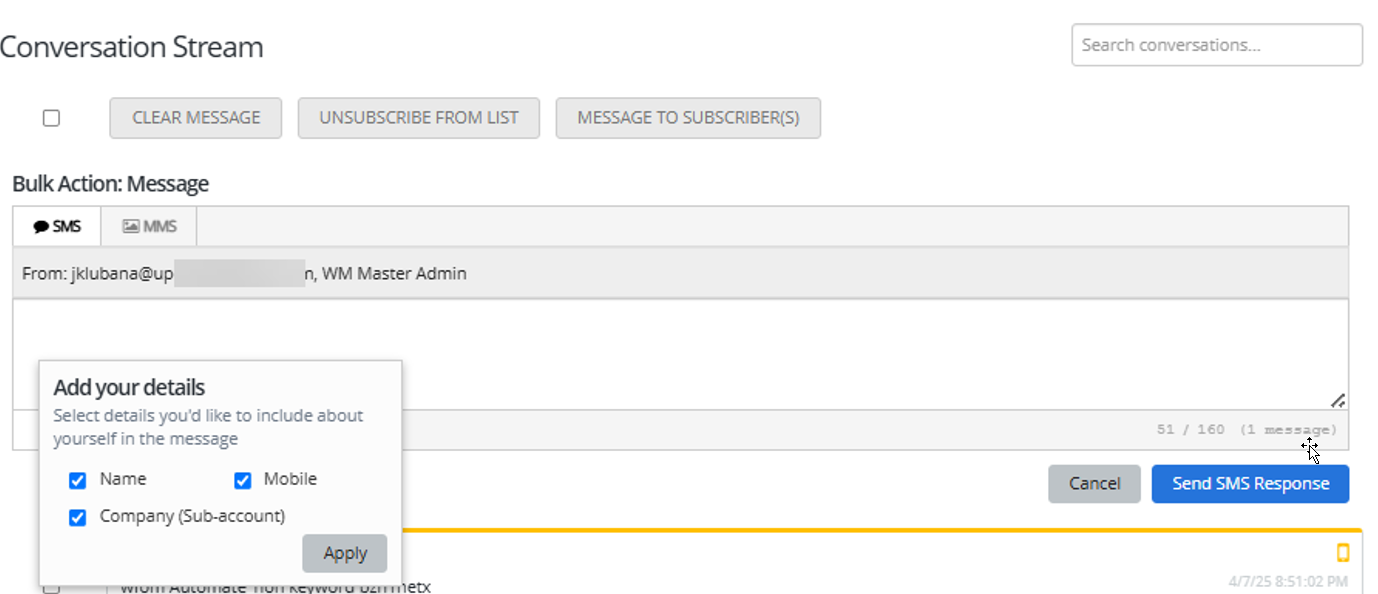
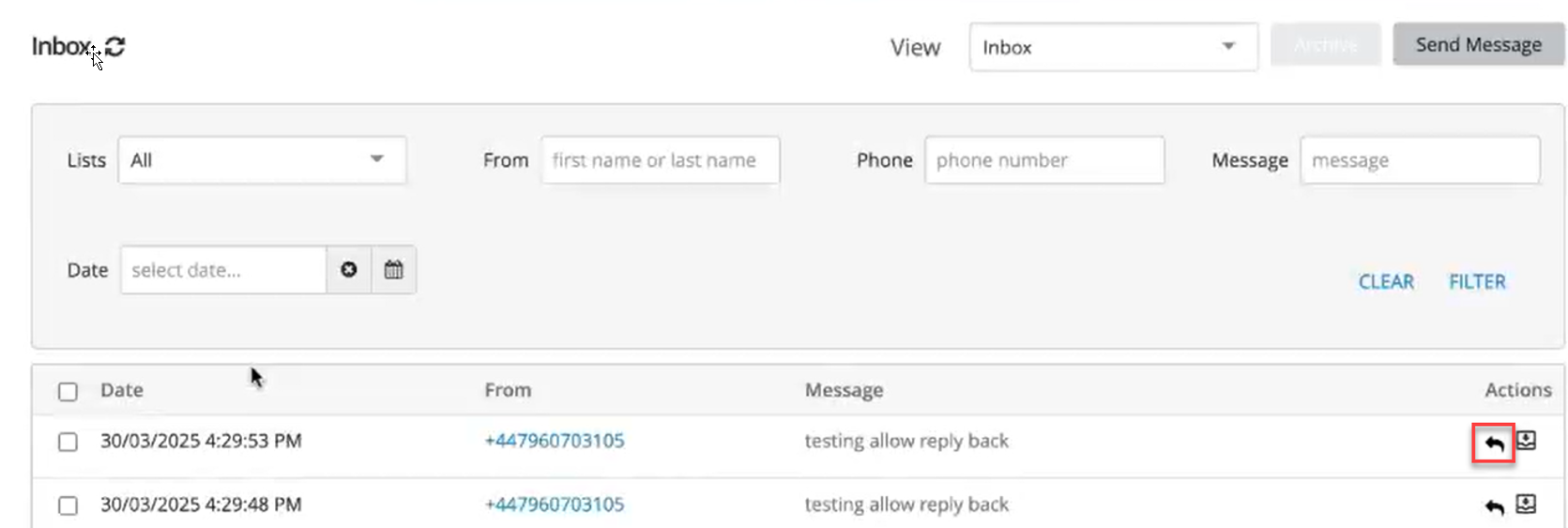
You can add header and footer for all users in Conversations, Inbox, and the Messaging section on individual subscriber pages.
For instructions on creating footers, see Creating a new footer section above. By default, footers are enabled on these pages when created by an admin.
Note: Footers can only be created by an admin user.
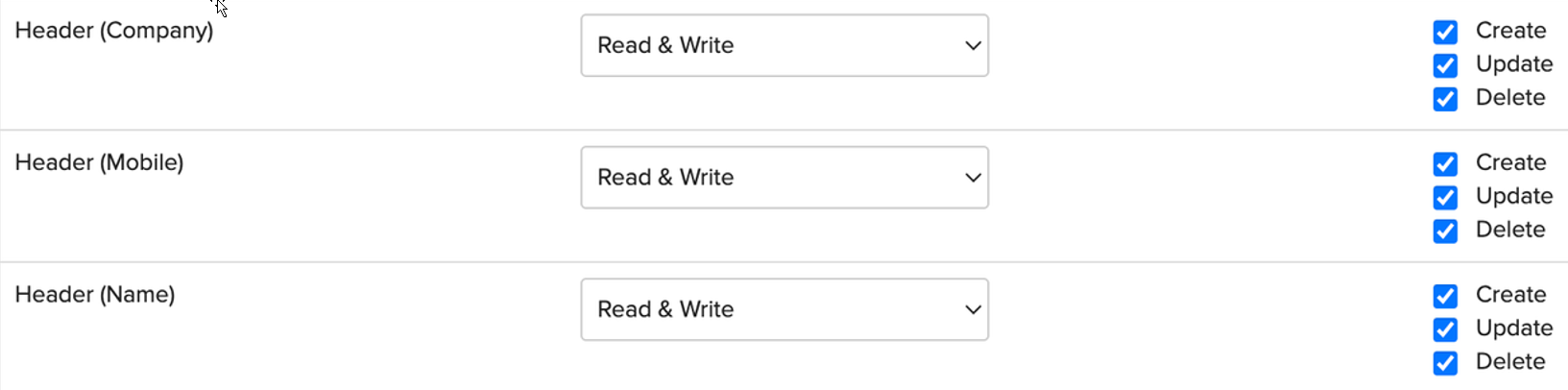
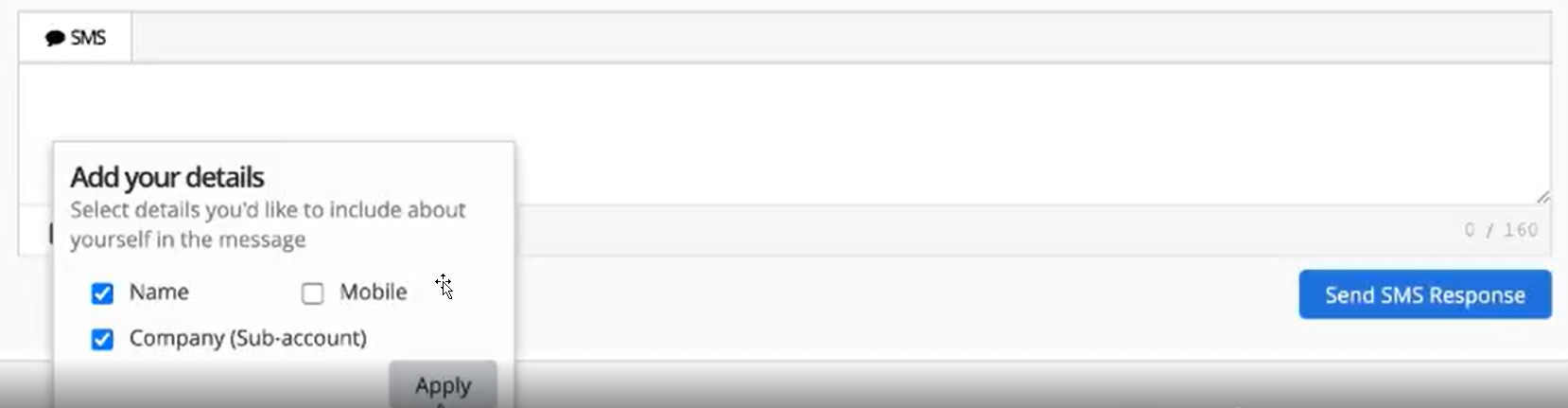
The following is a list of available header fields:
-
Name: Name of the user sending the message.
-
Sub-account: Sub-account of the user.
-
Mobile: Mobile number of the user.
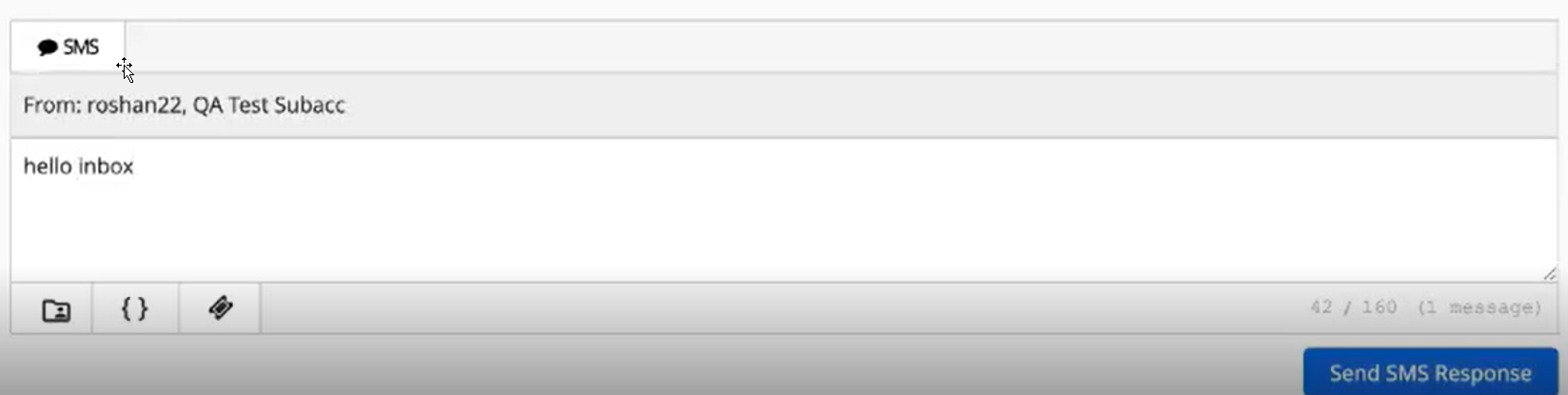
Users can select one or more of these fields to include in the message header. The selected fields are displayed in the preview, where applicable. Selected fields contribute to the overall message count.
Note: Admins can define roles with the privilege to add/remove header fields. Users can only remove header fields if they have the appropriate role permission. If a user does not have the appropriate permission, they cannot remove the header.
Individual Message (with applied header)
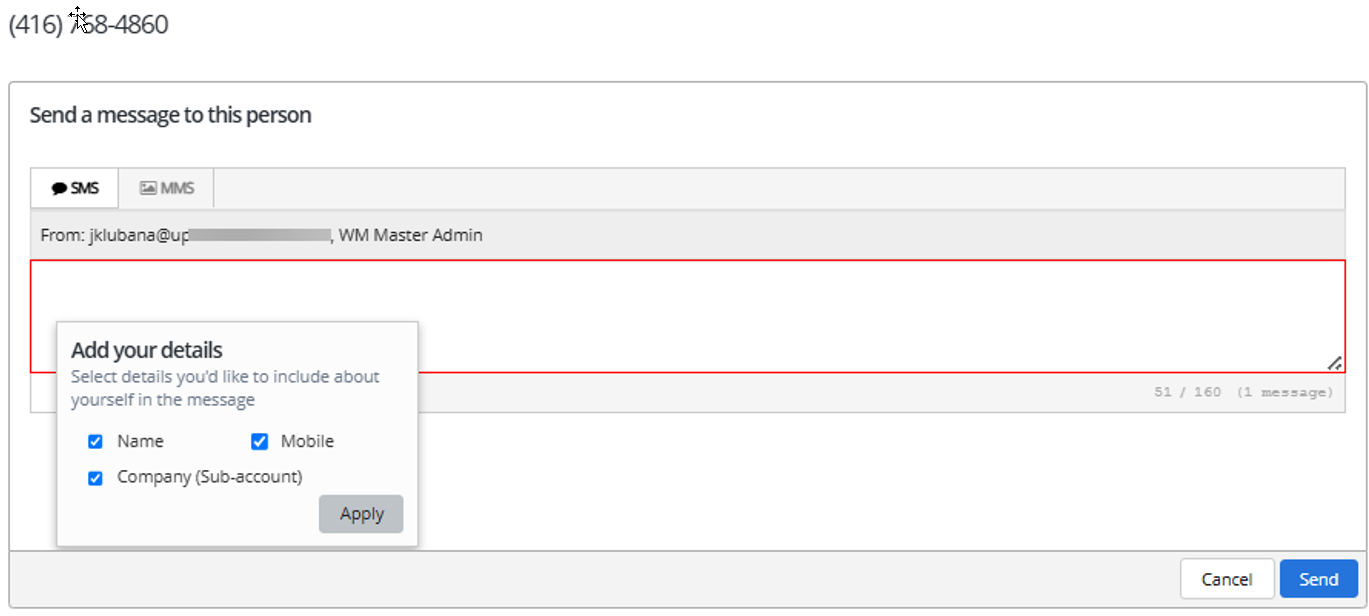
Conversation Stream (with applied header)
Inbox (with applied header, UK only)
Editing a footer
To make changes to a footer:
1. From the Broadcasts menu, select Templates & Footers.
2. Locate the footer to edit in the Templates & Footers table.

3. Select the footer name link.
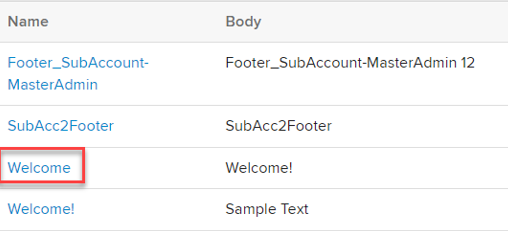
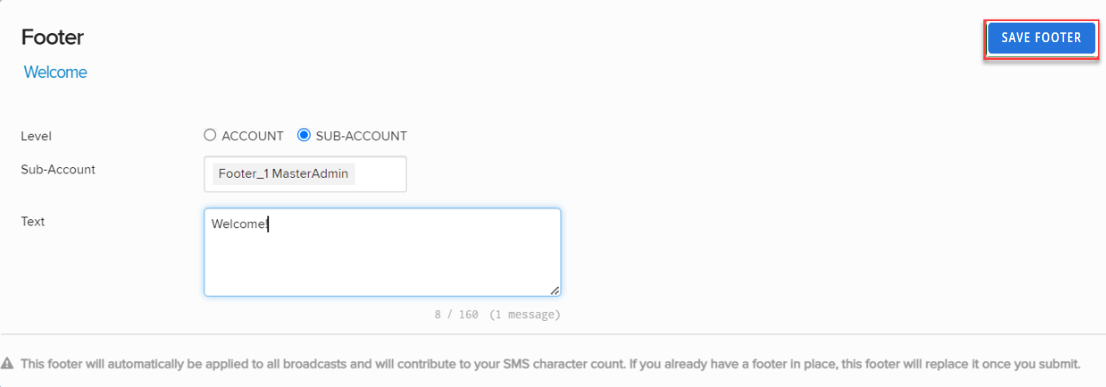
The footer page opens.
4. Make changes to the footer as needed. When you are done, select Save Footer.
Deleting a new footer
To delete a footer:
1. From the Broadcasts menu, select Templates & Footers.
2. Locate the footer to delete in the Templates & Footers table.

3. Select  Delete at the end of the row.
4. Select OK to confirm.
