Working with throttled messages
Example: Marco's organization just published the most recent issue of their newsletter, which customers can order by simply calling. He creates a Broadcast message for his recipients instructing them to call the organization to reserve a copy. However, his call center is only staffed with 50 individuals and the recipient list contains approximately 1,000 contacts. In order to ensure that his call center does not get flooded with more calls than it can handle, he creates a throttled Broadcast that will only send a maximum of 25 messages at once. This will prevent his call center employees from receiving more calls than they can handle.
After creating a throttled broadcast, you can take the following actions on it:
Note: Make sure to select the THROTTLE option when determining when the message should be sent.
Reviewing your active throttled messages
You can track your active throttled broadcasts on the Scheduled Messages page.
Note: An active throttled broadcast is one that is currently in the process of sending messages to recipients.
To review active throttled messages:
-
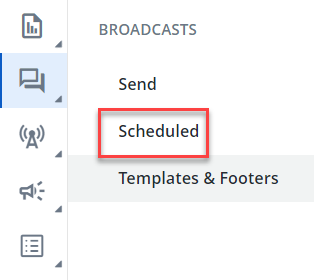
From the Broadcasts menu, select Scheduled:
-
Select the Active tab:

After selecting the Active tab, all of the broadcasts that are currently throttling will appear in the table:
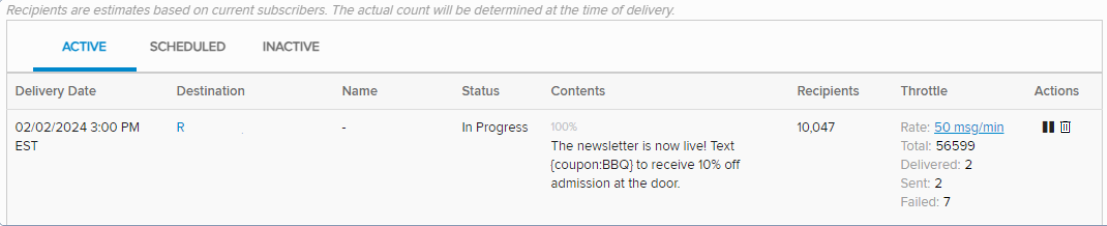
 Active Messages table
The Active Messages table contains the following information for each throttling broadcast:
-
Delivery Date: The scheduled delivery date and time.
-
Destination: The lists or smart segments of subscribers who will receive the message.
Tip: Selecting the value in this column will navigate the user to the "Subscriber Status" page, which allows them to see which contacts have received or failed to receive the message.
-
Name: The name of the message file used in the broadcast (if any).
-
Status: The current status of the throttled broadcast.
-
Contents: The content of the broadcast message, including both the subject and the message itself.
Note: In the case of A/B testing, the Contents column displays multiple messages and the percentage of recipients out of a total of 100%.
-
Recipients: The total number of subscribers that will receive the message.
-
Throttle: The current statistics of the throttled Broadcast.
Tip: Users can select the "throttle rate" to change it.
-
Actions: Users can select
 Pause to temporarily pause the broadcast. When this occurs, the Broadcast will appear in the Inactive tab, where it can be resumed at any time. Also, users can select
  Cancel on either tab to cancel the rest of the throttling.
Tip: To create a new broadcast from the Scheduled Messages table or the messaging calendar, in the upper-right corner of the page, select Send New Message. For more information, see Building a new broadcast.
Change the "throttle rate" of a throttled broadcast
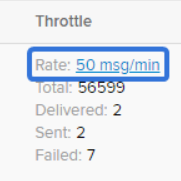
The "throttle rate" of a throttled broadcast refers to the speed at which messages are delivered to recipients. It is measured in messages per minute.
As an example, this throttled broadcast has a "throttle rate" of 50 messages per minute, which means only 50 messages will be sent to recipients in the span of a minute:
Users can adjust the "throttle rate" of a throttled broadcast at any time by visiting the Active tab on the "Scheduled Messages" page.
To change the "throttle rate" of a throttled broadcast:
-
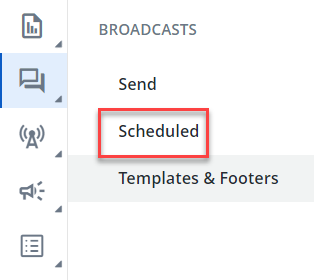
From the Broadcasts menu, select Scheduled:
-
Select the Active tab:
Note: If you would like to change the "throttle rate" of a paused broadcast, select the Inactive tab instead.
-
Click directly on the "throttle rate" of the broadcast you would like to edit:
-
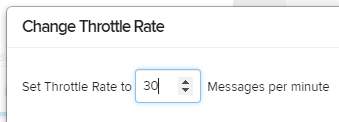
Enter the new "throttle rate" into the textbox:
-
Select the Update button:
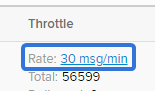
After selecting Update, the broadcast's "throttle rate" will be changed:
Pause a throttled broadcast
Users can temporarily pause an active throttled broadcast at any time. When a throttled broadcast is paused, messages will stop delivering to the recipients until the broadcast is resumed.
To temporarily pause a throttled broadcast:
-
From the Broadcasts menu, select Scheduled:
-
Select the Active tab:
-
Select
Pause under the Actions column of to temporarily pause the broadcast: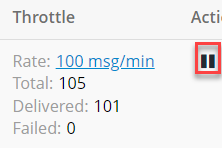
-
Select the Pause button from the window that appears:
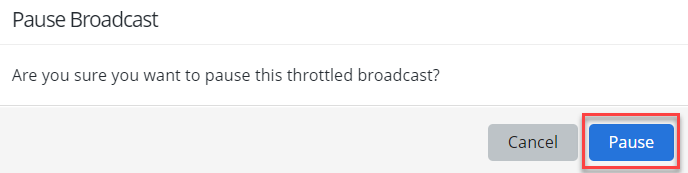
After selecting the Pause button, the broadcast will stop sending messages to recipients. It will be removed from the Active tab and placed into the Inactive tab, where it can be resumed.
Resume a paused throttled broadcast
Paused throttled broadcasts can be resumed by visiting the Inactive tab on the "Scheduled Messages" page.
Note: Throttled broadcasts cannot be resumed if the end date has expired. Attempting to resume a paused broadcast with an expired end time will result in an error:
To resume a paused throttled broadcast:
-
From the Broadcasts menu, select Scheduled:
-
Select the Inactive tab:

-
Select
 Play under the Actions column: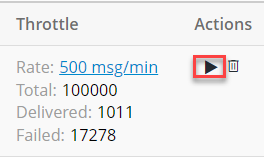
-
Select the Resume button in the window that appears:
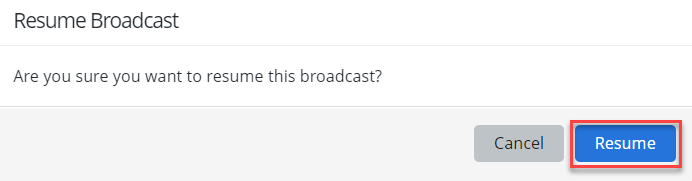
After selecting the Resume button, the broadcast will begin throttling once again. It can once again be found under the Active tab on the "Schedule Messages" page.
Delete a throttled broadcast
Throttled broadcasts can be easily deleted if they are no longer required. Deleting a throttled broadcast will bring it to a permanent end.
Tip: Deleted broadcasts cannot be recovered. Users who do not wish to permanently end their throttled broadcasts should consider temporarily pausing them instead.
To delete a throttled broadcast:
-
From the Broadcasts menu, select Scheduled:
-
Select either the Active tab or the Inactive tab:

-
Select
 Delete under the Actions column: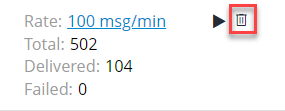
-
Select the Ok button to delete the broadcast:
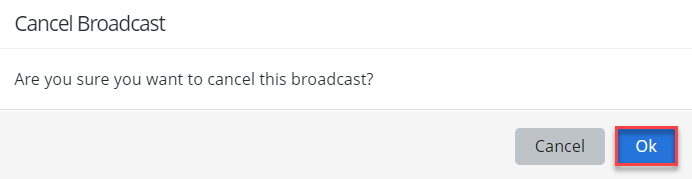
After selecting Ok, the broadcast will be deleted from Waterfall.
Editing a scheduled message
To make changes to a scheduled message:
-
From the Broadcasts menu, select Scheduled.
-
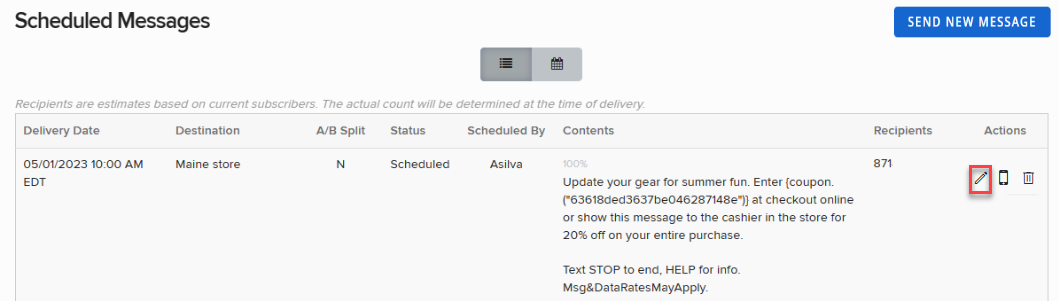
Locate the message to edit in the Scheduled Messages table, and then select
 Edit message at the end of the row.
The broadcast page opens.
-
Review your broadcast message and make changes as needed. For more information, see Building a new broadcast.
-
When you are done, select Review Message to double-check your changes.
-
When you are satisfied with your message, select Send Now or Schedule.
Testing a scheduled message
To test a scheduled message before it is sent to subscribers:
-
From the Broadcasts menu, select Scheduled.
-
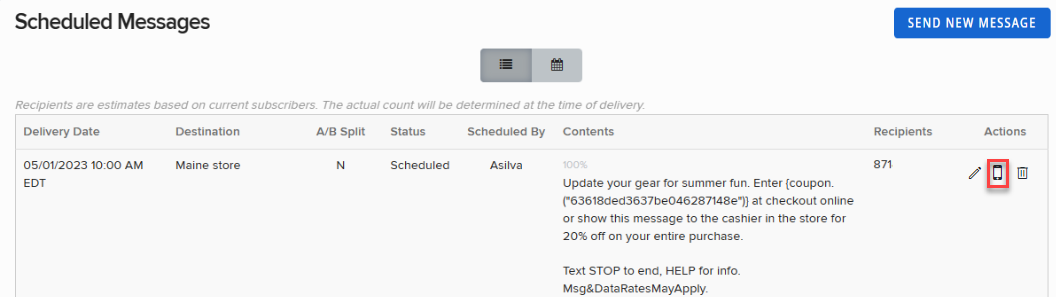
Locate the message to test in the Scheduled Messages table, and then select
 Send test message at the end of the row.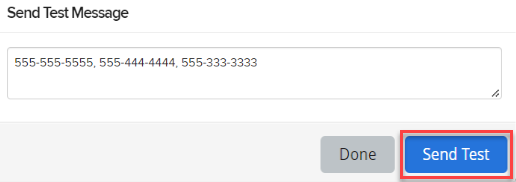
-
Enter one or more mobile numbers, separated by , (comma), and then select Send Test.
Note: If you are testing an A/B split broadcast, select a segment from the drop-down list, and then enter one or more mobile numbers, separated by , (comma). Select Send Test. Repeat this process for each segment in your broadcast.
-
When you see a notification that the test message has been sent, select Done.
Review your test message on your mobile device(s).
Deleting a scheduled message
To delete a scheduled message:
-
From the Broadcasts menu, select Scheduled.
-
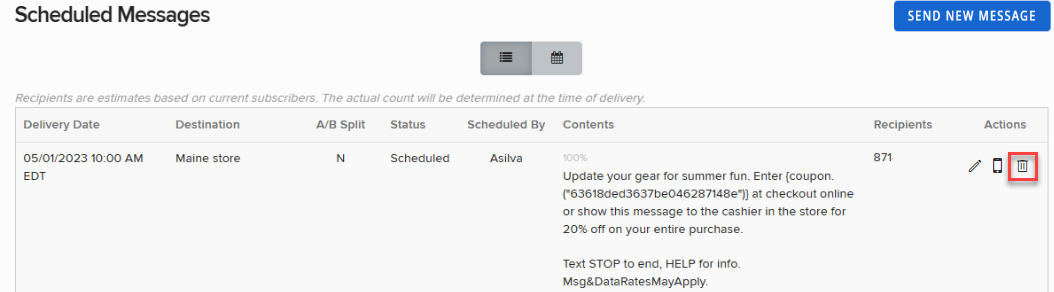
Locate the message to remove from the Scheduled Messages table, and then select
Delete at the end of the row.Tip: If you are testing an A/B split broadcast, all of the messages will be deleted. To remove or replace individual messages in the broadcast, select
Edit message. -
Select OK to confirm.