Resolving messaging and profile issues
-
Requiring a keyword opt-in to join a subscription list for receiving broadcast messages
-
Processing known stop words (STOP, ARRET, QUIT, CANCEL, UNSUBSCRIBE) from devices to opt-out and end subscriptions.
When messages fall outside out a conversation flow, for example, if the opt-in keyword or an opt-out STOP request is rejected because it is misspelled, they are added to the conversation stream, where users with special permissions can communicate directly with the sender to clarify their message or update their profile settings, for example, manually add or remove a user from a list.
Note: You must have special permissions to work with users to clear mismatched messages and resolve subscription issues. For assistance, contact Technical Support (wf_support@mobilecommons.com).
To work with the conversation stream:
Resolving mismatched messages
-
From the main menu, select Conversations and then select Conversations.
The Conversation Stream table lists mismatched messages and associated communications with mobile users.
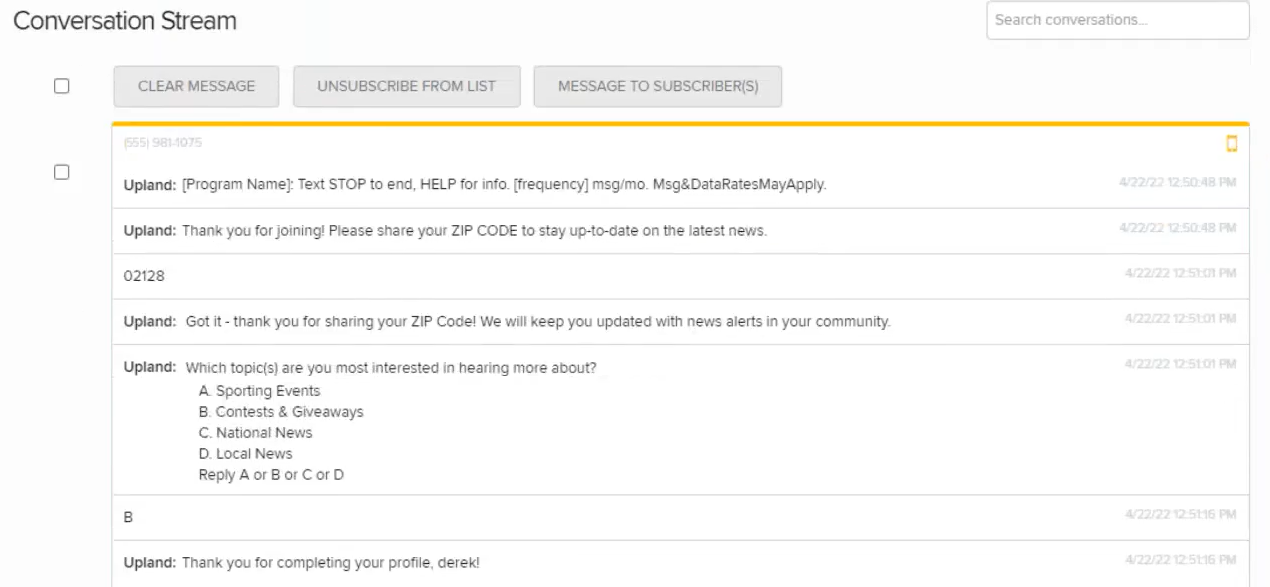
 Conversation Stream table
The Conversation Stream table contains the following information for each mismatched message:
-
The user's mobile phone number
-
The body of the text message, with date and time when it was received
Note: Select Expand conversation option to open the entire message.
-
 TEXT icon indicates a mobile device.
-
-
(Optional) To locate related messages in the Conversation Stream, enter a keyword in the Search box in the upper-right corner and then press ENTER. Matching messages are displayed in the Conversation Stream table.
-
Review each message to evaluate whether it was rejected from the conversation flow because it was a typing mistake or a request for service, such as a misspelled STOP request. To view a long message, or an exchange of messages, select Expand conversation.
Note: You can resolve mismatched messages individually or in bulk.
-
To resolve messages that were apparently sent in error and do not require follow-up:
-
Locate the message(s) in the Conversation Stream table.
-
Select the checkbox next to one or more messages that you can safely remove from Waterfall.
-
Select Clear Message.
-
Select OK to confirm.
-
-
To resolve requests to unsubscribe, for example, if the subscriber has texted a misspelled or unlisted STOP word to your short code, such as SPTO or EXIT:
-
Locate the message(s) in the Conversation Stream table.
-
Select the checkbox next to one or more messages.
-
Select Unsubscribe from list, and then select the list from the drop-down list.
-
In the lower-right corner, select Remove from list.
-
-
To clarify the issue with one or more messages, you can send a follow-up message, such as We did not understand your last message. Please re-send.:
-
Select Message to subscribers.
-
Enter the message to send to all selected subscribers.
Note: A simple text message is limited to 160 characters. Check the lower-right corner for the remaining character count. If the number is negative and red, then the message is overlong and may be split and sent as a multipart SMS message.
-
Select Send message.
-
Resolving profile issues
-
From the main menu, select Conversations and then select Conversations.
-
(Optional) To locate a message in the Conversation Stream table, enter a keyword in the Search box in the upper-right corner and then press ENTER. Matching messages are displayed in the Conversation Stream table.
-
Select Options on the right:
-
To modify the user's subscription, select Add to list or Remove from list.
-
To add information to their profile record, select Add metadata.
-
To open their user profile directly, select Subscriber profile.
Tip: Alternatively, you can select the mobile phone number link on the left. For more information, see Managing subscriber profiles.
-
If you determine that the message was sent in error and can be safely removed from the conversation stream, select Clear message.
-