Managing subscriber profiles
After a mobile user has opted in to a campaign for your account, Waterfall collects other key data items (metadata) based on the information the subscriber supplies. You can then target your messages to subscribers who match the profile data that you specify, such as buying similar products, selecting choices in a survey, or living in a certain geographic area. For more information, see Adding metadata fields to user profiles.
To work with profiles:
Accessing a subscriber's profile
You can access a subscriber's profile based on your subscriber access permissions provided by an administrator. The subscriber access permissions are outlined below:

-
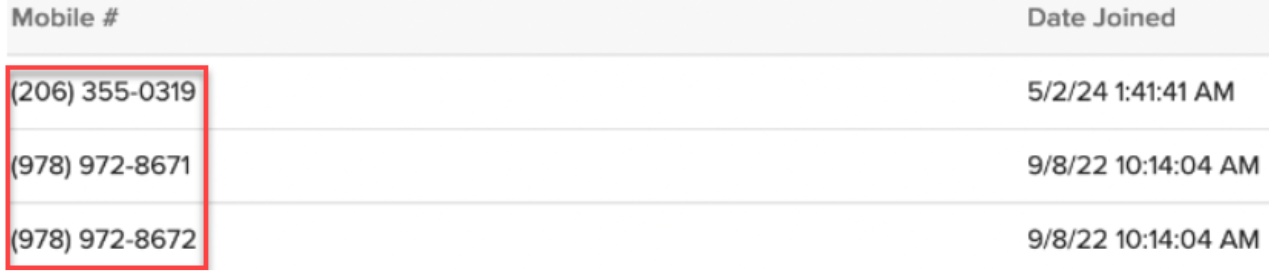
None: The
 Search field in the title bar, and the clickable mobile number link to access a subscriber's profile are unavailable.
-
Read Only: The
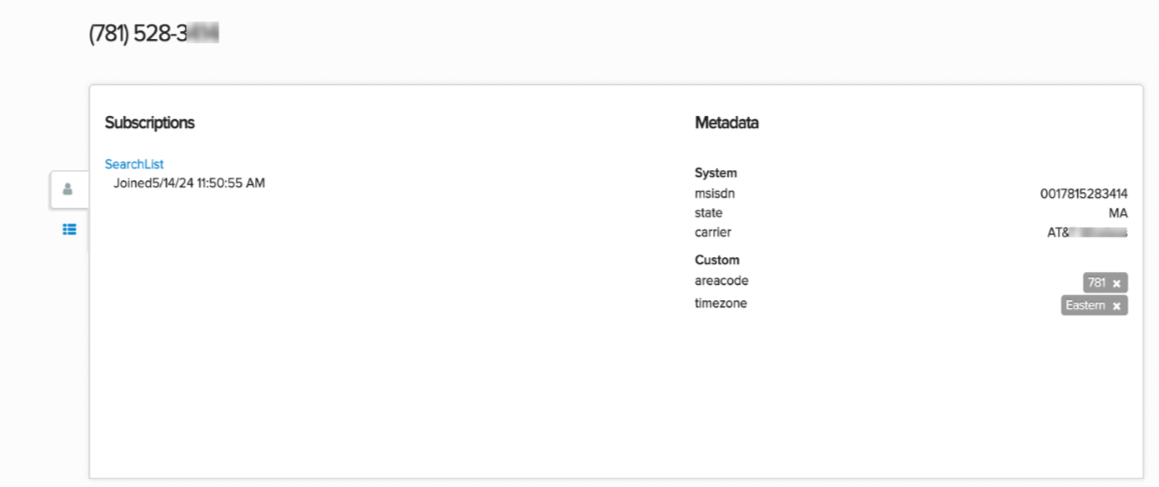
Search field in the title bar and the clickable mobile number link to access a subscriber's profile are available, but the actions for Message, Remove subscription, Add subscription, and Add/edit metadata are unavailable.

Unavailable actions:

-
Read and Write: The
Search field in the title bar, the clickable mobile number link to access a subscriber's profile, and all the aforementioned actions are enabled.
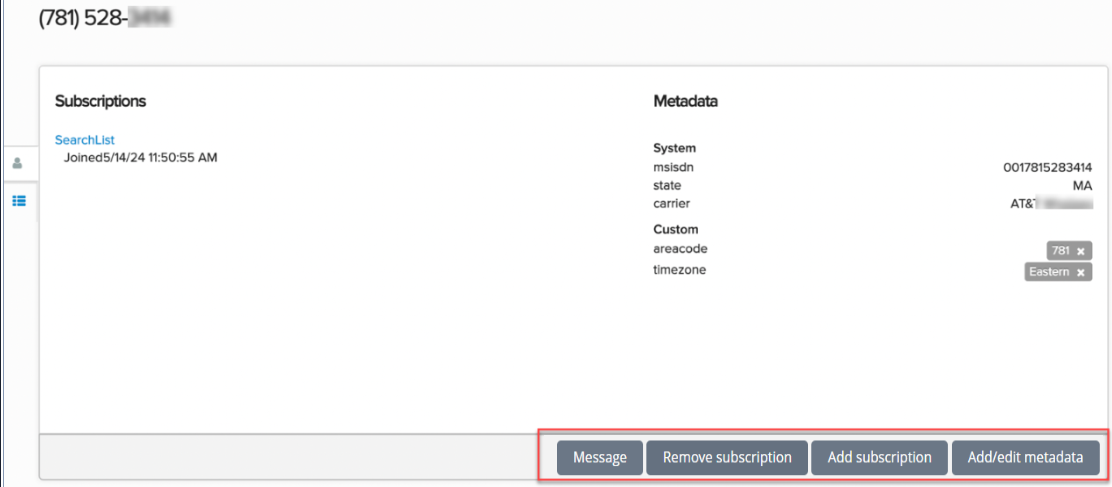
If you know a subscriber's mobile number, you can locate their subscriber profile from Search in the title bar; if not, you can drill down from a list to locate an individual subscriber profile.
-
To open the subscriber's profile page:
-
If you know a subscriber's mobile number, enter the number in the Search field in the title bar, and then select
 Search .
 -
To drill down to a subscriber in a list:
-
From the Lists menu, select Lists.
-
Locate the list in the Lists table:
-
To search for the list, enter all or part of the list name in the Search box at the top of the table, and then select
Search . -
To navigate a multipage Lists table, use the pagination bar at the bottom of the table.
-
-
Select the list name.
-
From the list details page, locate the subscriber's mobile number, and then select the mobile number link.
-
-
-
Select Conversations and then select Inbox.
Note: To view messages in the archive, select Archive from the View dropdown list in the upper-right corner.
Some messages are available in a mailbox assigned to a Waterfall user.
-
To access a mailbox, select the user name from the Mailbox dropdown list.
-
Locate the subscriber's name or mobile phone number in the From column, and then select the user link.
The subscriber profile for the mobile number opens.
-
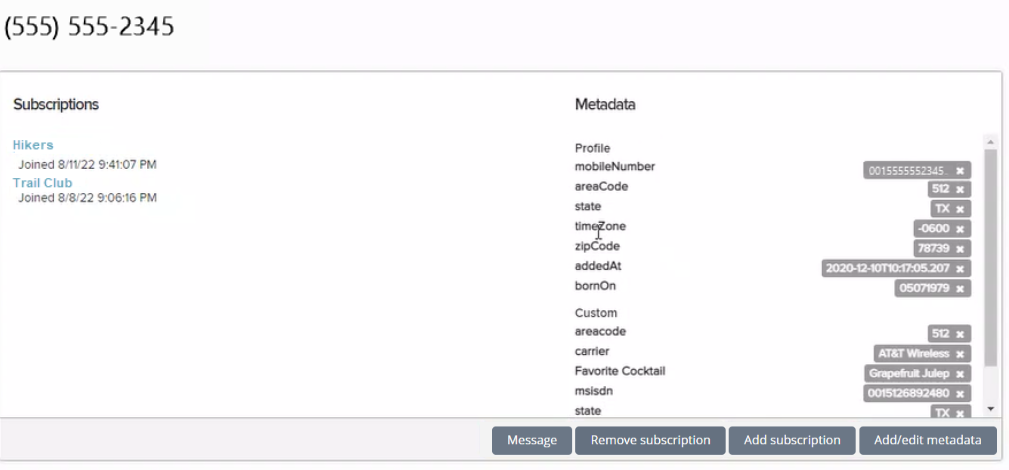
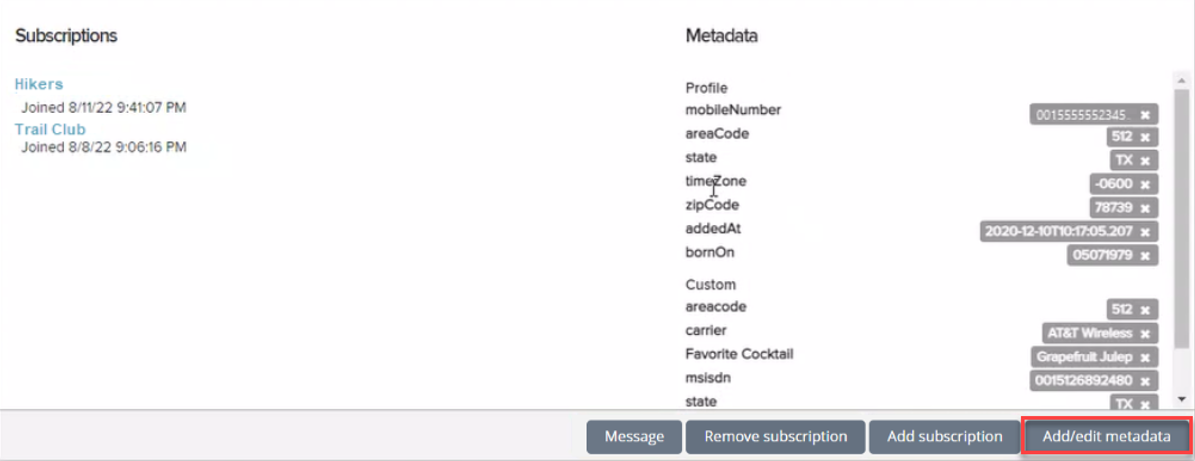
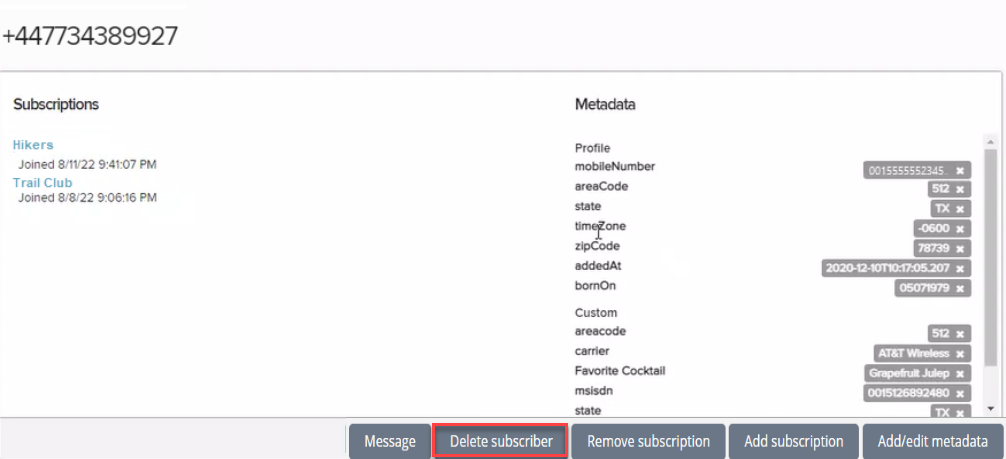
The subscriber profile for the mobile number opens. The subscriber's mobile number is at the top of the page, the full list of subscriptions is on the left, and all of the metadata fields in the subscriber's profile record are on the right.
-
-
To see a complete list of messages exchanged between the subscriber and Waterfall, select
 Messaging in the left margin.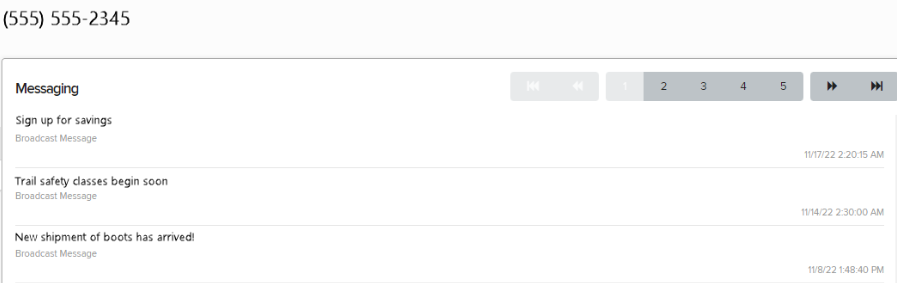
-
To return to the profile page, select
 Subscriptions in the left margin.
Sending a message to a subscriber
You can send a message directly to a subscriber from their profile page.
-
Open the subscriber's profile, making sure to double check that it is the correct subscriber. For more information, see Accessing a subscriber's profile.
-
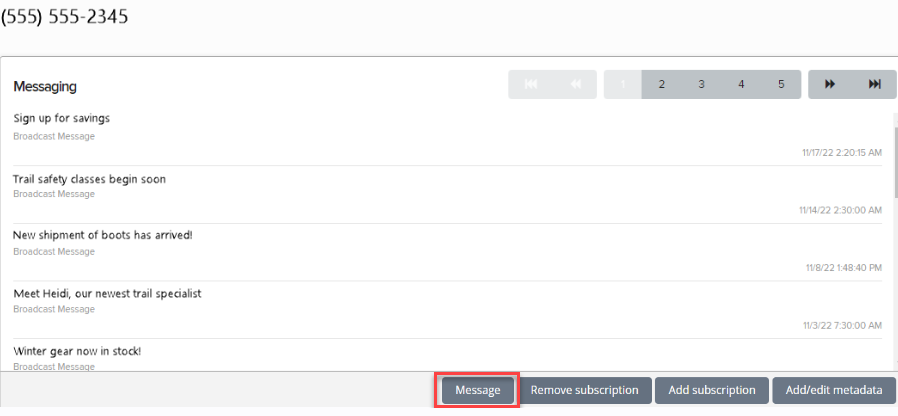
At the bottom of the subscriber's profile, select Message.
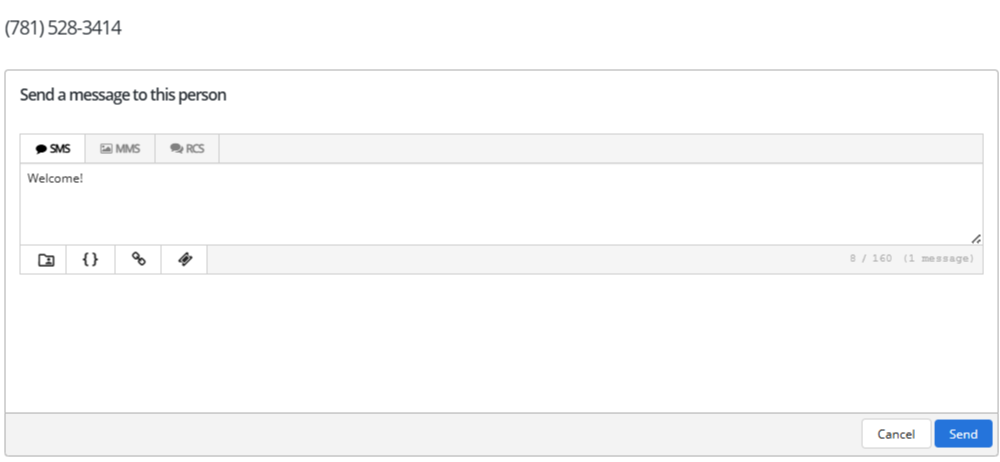
The subscriber's mobile phone number appears at the top of the message form.
-
Select SMS (plain text message), MMS (multimedia message, including images, videos and audio), RCS, and then enter your message in the text box. For more information on RCS messaging, see Using Rich Communication Services (RCS) messaging in Waterfall.
Note: MMS messaging is available in the United States and Canada only.
 SMS messages
For SMS messages, you can include some or all of the following customizations to add interest to your message:
-
Header (if available): Select
 Header and select one or more identifying details from your log-in account to add to the top of your message:
 -
Name: your first name and last name, if available; if unavailable, your log-in user name
-
Mobile: the mobile number associated with your user name
-
Company (Subaccount): the company or subaccount you are using when you add the header
When you are done, select Apply.
-
-
Dynamic insertion: Select
 Dynamic Insertion and select a metadata field from the dropdown list, then add a default value to display when a value is not available in a subscriber's profile. Select Insert to add the field to your message.
Tip: Adding a default value is highly recommended; otherwise, when a subscriber's profile does not include a value in the selected field, the entry in your message will be blank.
-
Link shortener (if available): Select a URL in your message and then select
 Link shortener. Select Insert to reduce the character count by adding a shortened link to your message.
 -
Coupon code (if available): Select
 Add Coupon and select a coupon code from the dropdown list. Select Insert to add the code to your message. For more information, see Adding coupon codes.
Note: A simple text message is limited to 160 characters. Check the lower-right corner for the remaining character count. If the number is negative and red, then the message is overlong and may be split and sent as a multipart SMS message.
MMS messages For MMS messages, you can include some or all of the following customizations to add interest to your message:
-
Header (if available): Select
Header and select one or more identifying details from your log-in account to add to the top of your message: -
Name: your first name and last name, if available; if unavailable, your log-in user name
-
Mobile: the mobile number associated with your user name
-
Company (Subaccount): the company or subaccount you are using when you add the header
When you are done, select Apply.
-
-
Dynamic insertion: Select
Dynamic Insertion and select a metadata field from the dropdown list, then add a default value to display when a value is not available in a subscriber's profile. Select Insert to add the field to your message.Tip: Adding a default value is highly recommended; otherwise, when a subscriber's profile does not include a value in the selected field, the entry in your message will be blank.
-
Link shortener (if available): Select a URL in your message and then select
Link Shortener. Select Insert to add a shortened link to your message. -
Custom image file: Select
 Image and navigate to locate the image file (.gif, .jfif, .pjpeg, .jpeg, .pjp, .jpg, .png, or .vcf) up to 3 MB. Select Open to add the image to your message.
 -
Custom video file: Select
 Video and navigate to locate the video file (.3gpp, .m4v, .mp4, .mpg, .mpeg, .avi, .wmv, or .mov). Select Open to add the video to your message.
 -
Custom audio file: Select
 Audio and navigate to locate the audio file (.mp3 or.wav). Select Open to add the audio to your message.
 -
vCard file: Select
 vCard and navigate to locate the vCard file (.vcf). Select Open to add the vCard to your message.
 -
Emoji: Select
 Emoji to select an emoji from the catalog.
 -
Coupon code (if available): Select
Add Coupon and select a coupon code from the dropdown list. Select Insert to add the code to your message. For more information, see Adding coupon codes.
For information on RCS messaging, refer Using Rich Communication Services (RCS) messaging in Waterfall.htm
-
- When you are done, select Send.
Adding or editing metadata
-
Open the subscriber's profile, making sure to double check that it is the correct subscriber. For more information, see Accessing a subscriber's profile.
-
To add or edit values in the profile field, select Add/edit metadata at the bottom of the profile.
-
To add a value, select the field from the dropdown list and then enter the new value.
-
To edit a value, select the field from the dropdown list and then make your changes to the entry.
For custom fields, your selection in the Add Metadata form determines whether the new value overwrites or is appended to the existing value. For more information, see Adding metadata fields to user profiles.
-
To delete a value, select
 Delete next to the field, then select OK to confirm.
-
Deleting a subscriber (UK only)
Users in the UK can delete a subscriber from Waterfall.
Note: You must have special permissions to delete a subscriber. For assistance, contact Technical Support (wf_support@mobilecommons.com).
-
Open the subscriber's profile, making sure to double check that it is the correct subscriber. For more information, see Accessing a subscriber's profile.
-
To delete a subscriber from Waterfall, select Delete subscriber at the bottom of the profile.
Note: Deleting a subscriber also removes records of any previous opt-out requests. As a result, Waterfall cannot honor their preference to unsubscribe from our communications.
-
Select Delete to confirm.