A keyword is a word of up to 16 alphanumeric characters that a user texts to your short code or long code to opt in to a campaign. For more information, see Opt-in messages.
Caution: Be sure to check the active short code or long code to ensure that you are working with the correct campaign. The same keyword may be used multiple times if your account has more than one originator code.
To add or delete keywords for a campaign:
-
Verify the active originator code for this campaign. This is the short code or long code or alphanumeric sender ID for branding (Waterfall UK only) for all messages sent or received.
-
If only one originator code is available, select
 Settings to see the active originator code.
 -
If more than one originator code is available, check the title bar, which displays the active originator code and a flag indicating the country of origin (United States or Canada or United Kingdom).
-
From the Campaigns menu, select Keywords.

 Keywords table
The Keywords table contains the following information for each keyword in use:
-
The name of the keyword
-
The date and time when the keyword was added to a campaign
-
Link to the campaign where the keyword is in use
-
Link to the list(s) populated by messages generated by the campaign
-
The action available for this keyword:
-
Delete
-
-
-
Locate the campaign in the Keywords table:
-
To search for the keyword, enter all or part of the keyword name in the Search box at the top of the table, and then select
 Search .
 -
To navigate a multipage Keywords table, use the pagination bar at the bottom of the table.
-
-
Select the campaign name link.
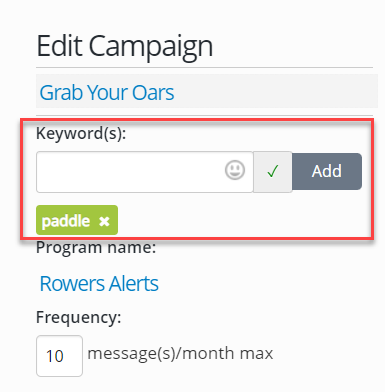
The Edit Campaign page opens. The keyword(s) are among the campaign settings in the left panel:
 Keywords
Keep the following tips in mind when you add keywords to your opt-in message:
-
Avoid generic or common words, like MORE, IF, or THE, which could lead to unintended opt-ins.
-
To lessen the chance of typing errors, keep your keywords as short as possible.
-
Choose keywords that are easy to spell correctly (and less likely to be autocorrected).
-
Avoid acronyms or a mix of numbers and letters.
-
Add backup keywords, such as near spellings and misspellings, for users who do not enter the keyword exactly. For example, if the keyword is BIGSALE, you may want to add SALEBIG and BIGSLAE.
Some words are reserved and not available for use as keywords:
-
HELP represents a request for instructions on texting, including the keywords your company recognizes.
-
CLEAR or STOP represents a request to remove the mobile phone number from the campaign.
-
INFO represents a request for your company name and customer service information.
In Canada, French and English terms (STOP/ARRET, HELP/AIDE) are reserved and must return a response in the same language. INFO is reserved for both languages and must return a bilingual (French and English) response.
Tip: Be sure to specify a keyword to restart a subscription if a mobile user opts out accidentally, for example, RESTART or UNSTOP. Work with Technical Support to set up the standard keywords for your account.
-
To add a keyword, enter a keyword name (up to 16 characters) or select an emoji from the
 Emoji list. When you see a green check mark indicating that the name or emoji is available for use in your campaign, select Add.
 Note: Keywords are not case sensitive.
-
To remove a keyword, locate the keyword under the Keyword field, and then select
 Delete .
-
-
When you are done, select Save Campaign.
Tip: If more than one code is available, you can change the active code. Select  Settings and review the Originators list. The current originator has a check mark next to it. To change the originator, select a different code from the Originators list.