Building a new smart segment
Creating a new smart segment
To create a new smart segment:
-
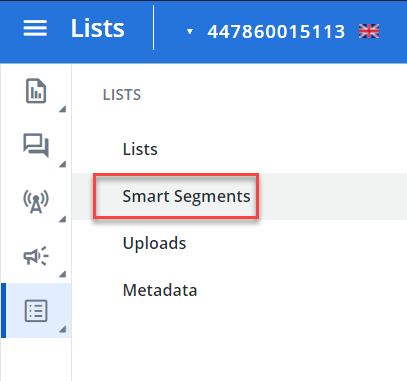
From the Lists menu, select Smart Segments.
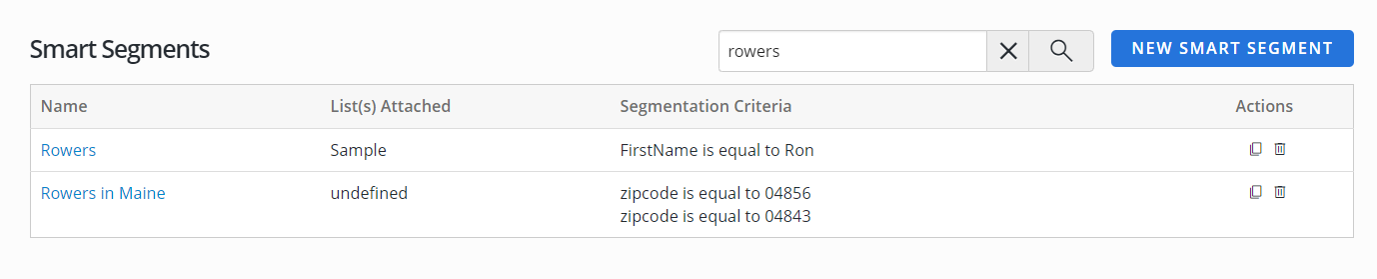
 Smart Segments table
The Smart Segments table contains the following information for each smart segment:
-
Link to the smart segment
-
The list from which the segment is drawn
-
A summary of the segmentation criteria
-
The actions available for this segment:
-
Clone
-
Delete
-
-
-
In the upper-right corner, select New Smart Segment.

-
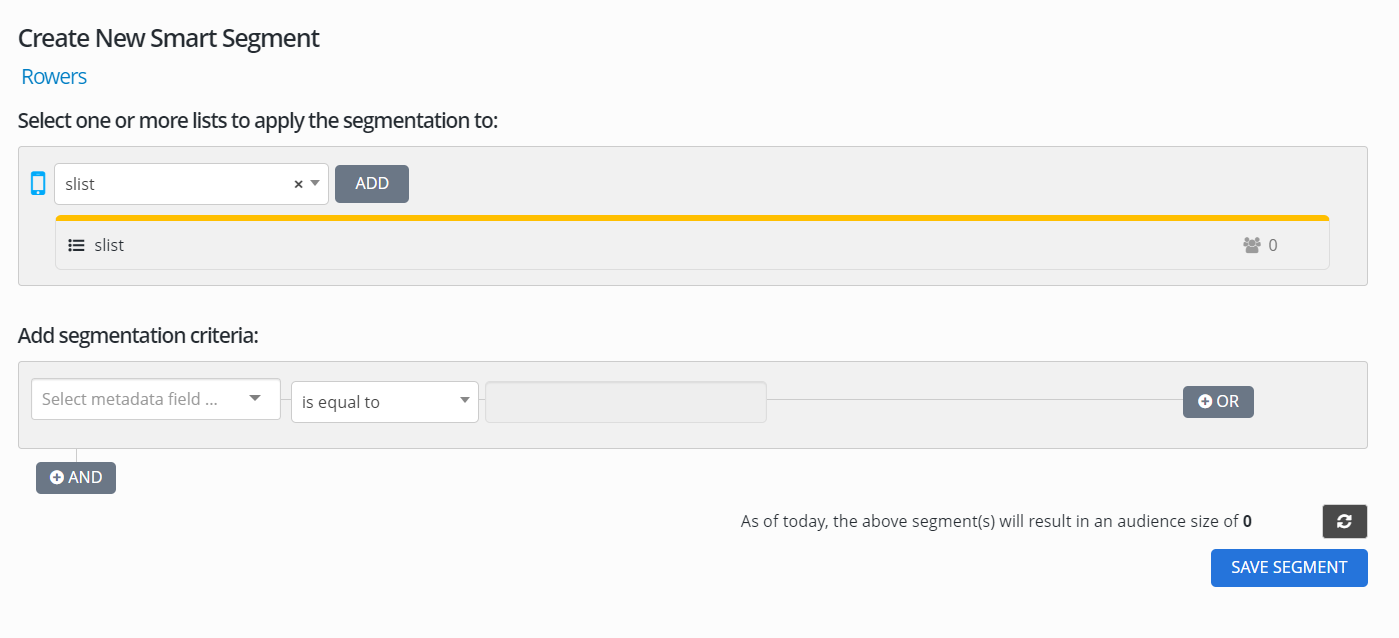
On the new segment form, enter a descriptive name for the segment.
The new segment will be a subgroup of profiles drawn from an existing list.
-
From the
 dropdown list, select an existing list and then select Add.
The number of subscribers appears at the end of the row.
Note: To remove a list, point to the list name and then select Delete
 at the end of the row.
The new segment form expands to include the segmentation criteria, which you will use to build a subgroup of profiles from the list.
-
Select a profile field containing information about the user from the metadata dropdown list.
-
Select an operator defining the metadata from the dropdown list.
Segmentation operators
Operator Selects Example Is equal to Records that match the value that you specify. Zip code "is equal to" 94115 Is not equal to Records that include all values that do not match the value that you specify. Zip code "is not equal to" 95115 Is less than (Number fields only) Records that include all values that are less than the value that you specify. Coupons received "is less than" 10 Is less than or equal to (Number fields only) Records that include all values that match or are less than the value that you specify. Coupons received "is less than or equal to" 10 Is greater than (Number fields only) Records that include all values that exceed the value that you specify. Coupons received "is greater than" 10 Is greater than or equal to (Number fields only) Records that include all values that match or exceed the value that you specify. Coupons received "is greater than or equal to" 10 Exists Records that include any value for the metadata field that you specify. Email address "exists" Does not exist Records that do not include any value for the metadata field that you specify. Email address "does not exist" Is not one of Records that include values other than the values that you specify. Zip code "is not one of" 94115, 90120, 93449 Is any of Records that include any of the values that you specify. Language "is any of" English, French, Spanish, or Portuguese Is all of Records that contain all of the values that you specify. Language "is all of" English and Spanish In radius of (Zip code field only) Records within a specified distance of a specified zip code. Zip code is "in radius of" 10 miles, 94115 Not in radius of (Zip code field only) Records that are not within a specified distance of a specified zip code. Zip code is "not in radius of" 10 miles, 94115 Is this age or older (Date field only) Records where the date of birth is the same as or earlier than a date that you specify in MMDDYYYY format. Birth date "is this age or older" than 01012005 Is younger than (Date field only) Records where the date of birth is later than a date that you specify in MMDDYYYY format. Birth date "is younger than" 01011997 On (Date field only) Records that match the date that you specify in MMDDYYYY format. Birth date is "on" 02292024. Before (Date field only) Records where the date is earlier than the date that you specify in MMDDYYYY format. Date added is "before" than 01012022 Between (Date field only) Records where the date is between two dates that you specify in MMDDYYYY format. Date added is "between" 01012018 and 12312023 After (Date field only) Records where the date is later than the date that you specify in MMDDYYYY format. Date added is "after" 01012000 -
Enter the metadata value.
-
To continue adding segmentation criteria, select OR or AND:
-
Select OR to expand the list with an additional criteria that selected profiles may optionally match.
-
Select AND to narrow the list with an additional criteria that selected profiles must match.
Note: To remove a segment, point to the segment and then select
Delete at the end of the row. -
-
To update the subscriber count, select
 Refresh in the lower-right corner.
 -
When you are done, select Save Segment.
The new segment is added to the Smart Segments table.
Cloning a smart segment
To create a new smart segment based on an existing smart segment:
-
From the Lists menu, select Smart Segments.
-
Locate the segment to clone in the Smart Segments table:
-
To search for the segment, enter all or part of the segment name in the Search box at the top of the table, and then select
 Search .
 -
To navigate a multipage Smart Segments table, use the pagination bar at the bottom of the table.
-
-
Select Clone
 at the end of the row.
The clone copy contains the segmentation criteria for the original segment.
-
Enter a descriptive name for the new segment.
You can apply the cloned smart segment to the selected list or apply it to another list.
-
To change the list:
-
Select a new list from the
dropdown list and select Add. -
To remove the original list, point to the list name and then select
Delete at the end of the row.
-
-
Review the segmentation criteria, making changes if necessary:
Segmentation criteria
-
Select a profile field containing information about the user from the metadata dropdown list.
-
Select an operator defining the metadata from the drop-down list. For more information, see Operators.
-
Enter the metadata value.
-
To continue adding segmentation criteria, select OR or AND:
-
Select OR to expand the list with an additional criteria that selected profiles may optionally match.
-
Select AND to narrow the list with an additional criteria that selected profiles must match.
-
Note: To remove a segment, point to the segment and then select
Delete . -
-
To update the subscriber count, select
Refresh in the lower-right corner. -
When you are done, select Save Segment.
Deleting a smart segment
To delete a smart segment:
-
From the Lists menu, select Smart Segments.
-
Locate the segment to delete in the Smart Segments table:
-
To search for the segment, enter all or part of the segment name in the Search box at the top of the table, and then select
Search . -
To navigate a multipage Smart Segments table, use the pagination bar at the bottom of the table.
-
-
Select
 Delete at the end of the row.
-
Select OK to confirm.