Working with the Inbox
Note: You must have special permissions to work with the Inbox. For assistance, contact Technical Support (wf_support@mobilecommons.com).
To open the Inbox:
-
Select Conversations and then select Inbox.
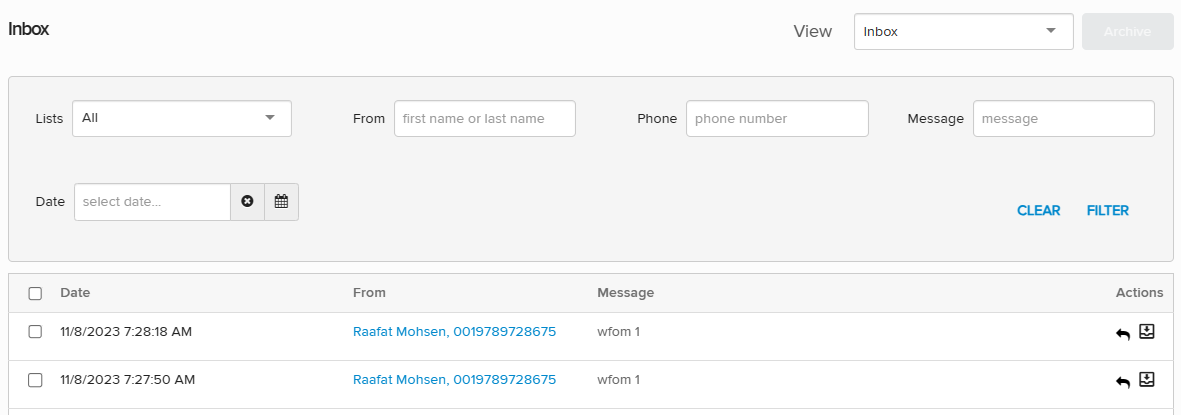
The Inbox displays the filter settings and the Inbox table:
 About the Inbox table
The Inbox table displays the following information for each message:
Column Description Date The date and time when the message was received by Waterfall. From Link to the profile of the subscriber who sent the message, with their first name, last name, and mobile phone number. Message Text of the message sent. Actions The following actions are available for each message:
-
Reply
-
Archive
-
Unarchive
Inbox messages are sorted in descending order, with the newest messages at the top of the table.
-
From the Inbox:
Filtering Inbox messages
You can filter the list of messages in the Inbox and in the archive:
-
Select Conversations and then select Inbox.
The filter options are at the top of the page.
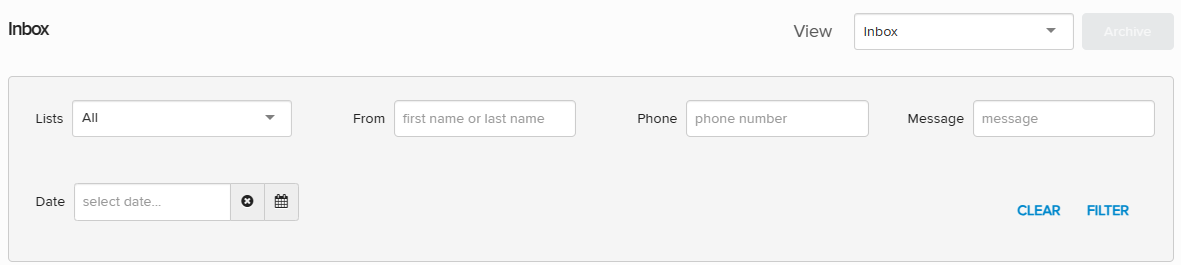
Note: To filter messages in the archive, select Archive from the View dropdown list in the upper-right corner.
-
Select one or more filter options:
-
Lists: Select one of the following options from the Lists dropdown list:
-
All: Messages from all users, whether they belong to a list or not.
-
Subscriber not in the list: Messages from users who do not belong to any list.
-
List name: Messages from users belonging to the selected list.
-
-
Date: To select a specific day, select
 Calendar and navigate to select a day. (To navigate the calendar, select
  Next month and
  Previous month.)
 -
From: Enter first and/or last name of a user.
-
Phone: Enter mobile phone number (MSISDN) of a user.
-
Message: Enter a search term to match in the message body.
Each additional option narrows the filter selections.
Tip: To clear your selections and start over, select Clear.
-
-
When you are done, select Filter.
The Inbox table lists only those messages that match your filter selections.
Accessing user profiles
To open the subscriber's profile page from the Inbox:
-
Select Conversations and then select Inbox.
Note: To view messages in the archive, select Archive from the View dropdown list in the upper-right corner.
-
Locate the subscriber's name or mobile phone number in the From column, and then select the user link.
The subscriber profile for the mobile number opens. For more information, see Managing subscriber profiles.
Replying to a mobile user
To reply directly to a message:
-
From the main menu, select Conversations and then select Inbox.
-
Locate the message in the Inbox, and then select
 Reply at the end of the row.
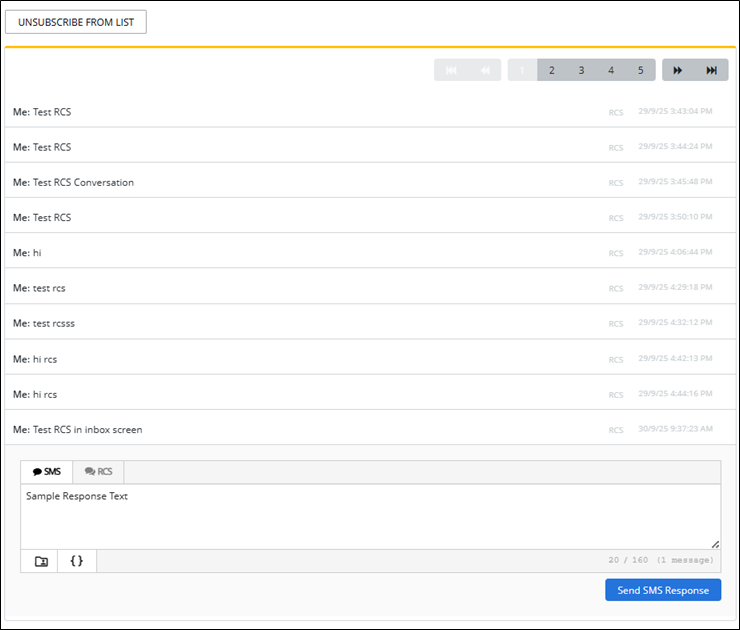
The Conversation page opens.
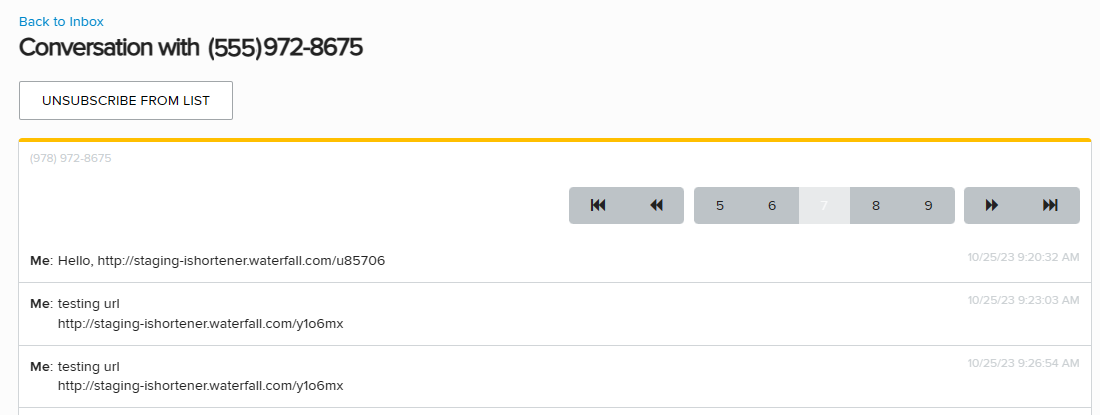
The Conversation page displays the mobile number and lists all of the messages to and from the number. To view a conversation over multiple pages, use the navigation options above the list.
-
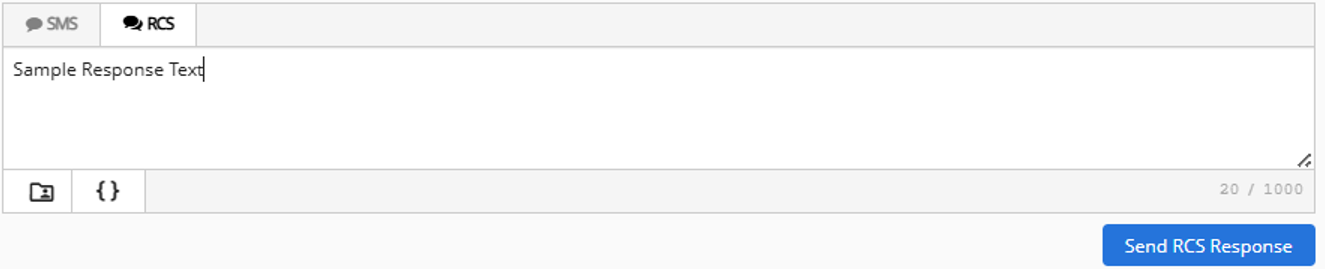
To send a reply, scroll to the message box at the bottom of the page.
-
Select SMS (plain text message), RCS for the message, and then enter or edit your message in the text box. For more information on RCS messaging, see Using Rich Communication Services (RCS) messaging in Waterfall.
Tip: Be sure to add the opt-out disclosure (for example, "Reply STOP 2 quit") to your broadcast message.
-
For SMS messages, you can include some or all of the following customizations to add interest to your message:
-
Dynamic insertion: Select
 Dynamic Insertion and select a metadata field from the dropdown list, then add a default value to display when a value is not available in a subscriber's profile. Select Insert to add the field to your message.
Tip: Adding a default value is highly recommended; otherwise, when a subscriber's profile does not include a value in the selected field, the entry in your message will be blank.
-
Link shortener (if available): Select a URL in your message and then select
 Link Shortener. Select Insert to reduce the character count by adding a shortened link to your message.
 -
Coupon code (if available): Select
 Add Coupon and select a coupon code from the dropdown list. Select Insert to add the code to your message. For more information, see Adding coupon codes.
Note: A simple text message is limited to 160 characters. Check the lower-right corner for the remaining character count. If the number is negative and red, then the message is overlong and may be split and sent as a multipart SMS message.
-
-
For RCS messages, select RCS (plain text message) for the message, and then enter or edit your message in the text box. You can send text-only Rich Communication Services (RCS) messaging, allowing you to interact with your subscribers with verified, branded messages, providing them with richer, app-like experiences.
Archiving messages
To remove messages from the Inbox and store them in the Archive:
-
From the main menu, select Conversations and then select Inbox.
-
Locate one or more messages to remove from the Inbox, and then select the corresponding check box in the left column.
-
In the upper-right corner, select Archive.
The selected messages are removed from the Inbox.
-
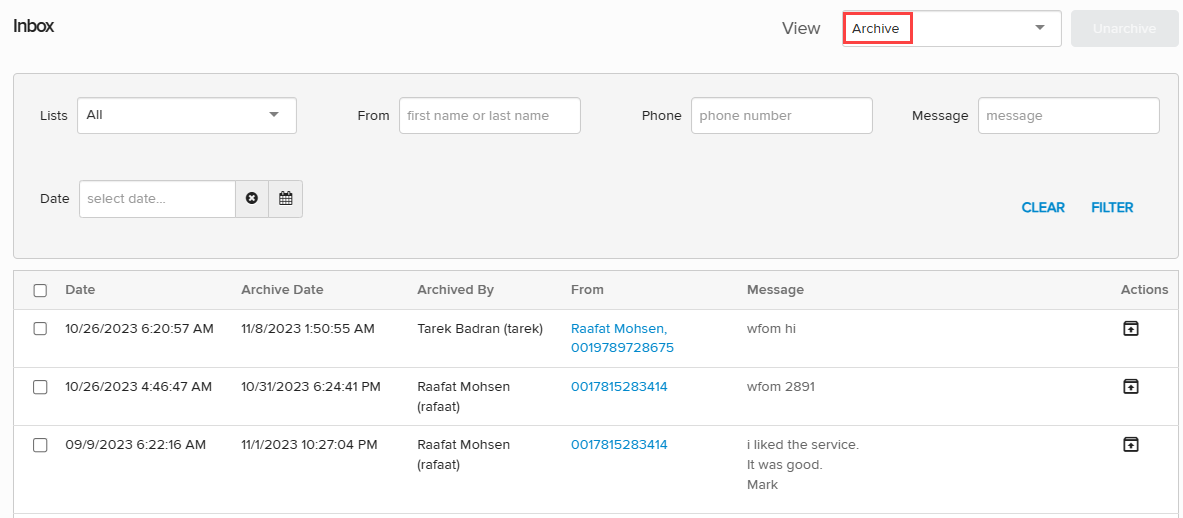
To view the archived messages, select Archive from the View dropdown list.
The Inbox displays the filter settings and stored messages in the Archive table. For more information, see Filtering messages.
 About the Archive table
The Archive table displays the following information for each message:
Column Description Date The date and time when the message was received by Waterfall. Archive date The date and time when the message was added to the archive. Archived by The first and last names of the user who archived the message. From Link to the profile of the subscriber who sent the message, with their first name, last name, and mobile phone number. Message Text of the message sent. Actions The following action is available for each message:
-
Unarchive
-
Archived messages are sorted in descending order, with the newest messages at the top of the table.
Restoring archived messages
To restore archived messages to the Inbox:
-
From the main menu, select Conversations and then select Inbox.
-
In the upper-right corner, select Archive from the View dropdown list.
The Inbox displays the filter settings and stored messages in the Archive table. For more information, see Filtering messages.
-
Locate one or more messages to restore to the Inbox, and then select the corresponding check box in the left column.
-
In the upper-right corner, select Unarchive.
The message(s) are restored to the Inbox.
-
To return to the Inbox, select Inbox from the View dropdown list.