Adding coupon codes
To add coupon codes to your campaigns:
Note: To add a coupon code to a campaign message or broadcast message, select  Add Coupon from the message toolbar and then select a coupon group. One coupon code from the group will be added to your message.
Creating a coupon codes file
A coupon group is a list of related coupon codes for use in your campaigns that you upload to Waterfall in a CSV (comma-separated values) file.
To create a coupon codes upload file:
-
Open Microsoft Excel or other spreadsheet program.
-
Add your coupon codes to the first column, one per row, with no header row.
You can add any number of rows with coupon codes.
-
When you are done, save the file in CSV format.
Tip: Be sure to make a note of the file's location.
Adding coupon groups
-
From the Campaigns menu, select Coupons.

 Coupons table
The Coupons table contains the following information for each coupon group:
-
Link to the coupon group
-
The subaccount where the coupon group is applied
-
The status of the coupons in the coupon group, including New and Processed.
-
The total number of coupon codes in the coupon group
-
The number of coupon codes remaining and available for use in the coupon group
-
The number of coupon codes that have been sent and are no longer available for use
-
The actions available for this coupon group:
-
Edit
-
Delete
-
-
-
In the upper-right corner, select Create New Coupon Group.
-
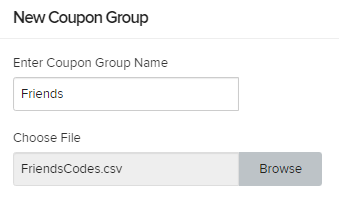
On the New Coupon Group form, enter a descriptive name for the coupon group.
-
To upload the coupon codes file, select Browse, navigate to select the CSV file containing the coupon codes, and then click Open. For more information, see Creating a coupon codes file.
-
To upload the coupon codes to the coupon group, select Create.
The new coupon group is added to the Coupons table:

Editing a coupon group
To add or remove coupon codes from a coupon group, create two files in CSV (comma-separated values) format: one with coupon codes to add and the other with coupon codes to remove. For more information, see Creating a coupon codes file.
Tip: Be sure to create separate CSV files for codes to add and codes to remove.
-
From the Campaigns menu, select Coupons.

-
Locate the coupon group in the Coupons table:
-
To search for the coupon group, enter all or part of the coupon group name in the Search box at the top of the table, and then select
 Search .
 -
To navigate a multipage Coupons table, use the pagination bar at the bottom of the table.
-
-
Select
 Edit.
Edit.The Coupon Details page opens.

-
You can or remove coupon codes from the coupon group.
-
Select Add codes, and then select Browse, navigate to select the CSV file with the coupon codes to add, and then click Open. New coupon codes in the selected CSV file are added to the coupon group.
-
Select Delete codes, and then select Browse, navigate to select the CSV file with the coupon codes to remove, and then click Open. Matching coupon codes in the selected CSV file are removed from the coupon group.
-
-
When you are done, select Save Coupon Group.
-
To return to the Coupons table, from the Campaigns menu, select Coupons.

The Total Codes and Codes Remaining statistics for the coupon group are updated.
Deleting a coupon group
You can remove a coupon group from your account.
-
From the Campaigns menu, select Coupons.

-
Locate the coupon group to delete in the Coupons table:
-
To search for the coupon group, enter all or part of the coupon group name in the Search box at the top of the table, and then select
Search . -
To navigate a multipage Coupons table, use the pagination bar at the bottom of the table.
-
-
Select
 Delete.
Caution: Deleting a coupon group is permanent. You cannot reverse it.
-
Select OK to confirm.