Adding components
 Components
The following components are available for your Waterfall campaigns:
| Component | Task |
|---|---|
| Age verification | Validate a mobile user's age before subscribing to a campaign with age restrictions. |
| Campaign duration | Set specific start and end dates during which your campaign can send and receive messages. |
| Collect metadata | Request information from the mobile user that will be stored in their profile and used for segmented lists. |
| Daypart | Set one or more day and time combinations when your campaign will be available to send and receive messages. |
| Dynamic content | Access information from an external application. |
| Poll | Ask the subscriber to respond to a multiple-choice question. |
| Post to URL | Send data, including information on a user's mobile device, service provider, and message content, to a third-party service. |
| Send message | Send an SMS message to a mobile user and, optionally, add them to the subscriber list for a campaign. |
| Subscription | Add a mobile user to the subscriber list for a campaign. For more information, see Setting up opt-in messages. |
| Sweepstakes | Add a sweepstakes contest, with the winner determined by a random drawing at the end of the contest. |
| Tag metadata | For a mobile number that sends an incoming message, add a metadata value to the profile. |
| Text-to-win | Add a contest with prizes determined by random drawings during the course of the contest. |
| Validation | Check the subscriber's profile data before sending a message. |
To begin, create a new campaign. The campaign page remains open.
From the campaign page:
-
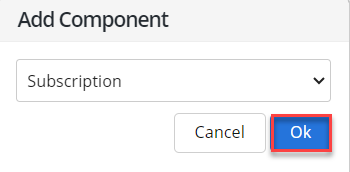
Select Add Component.
-
Select a component from the drop-down list, and then select OK. For a list of components with links to instructions, see Components.
-
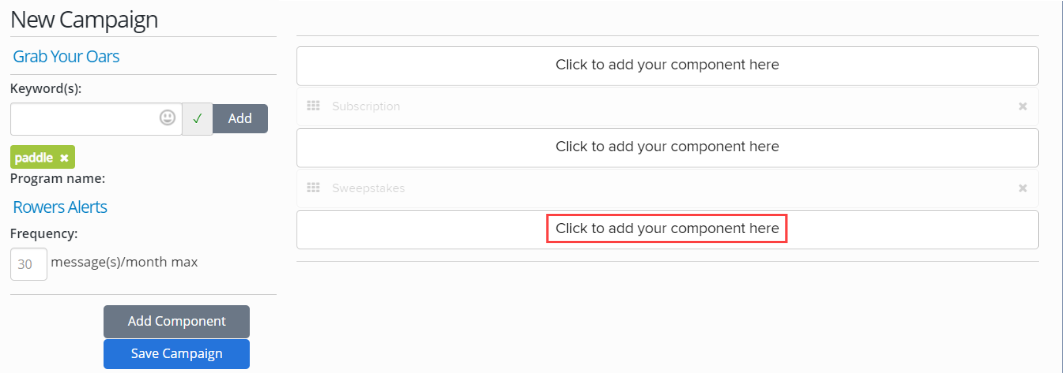
If components have already been added to the campaign, select the placement of the new component in the list on the right.
The component is added to the list.
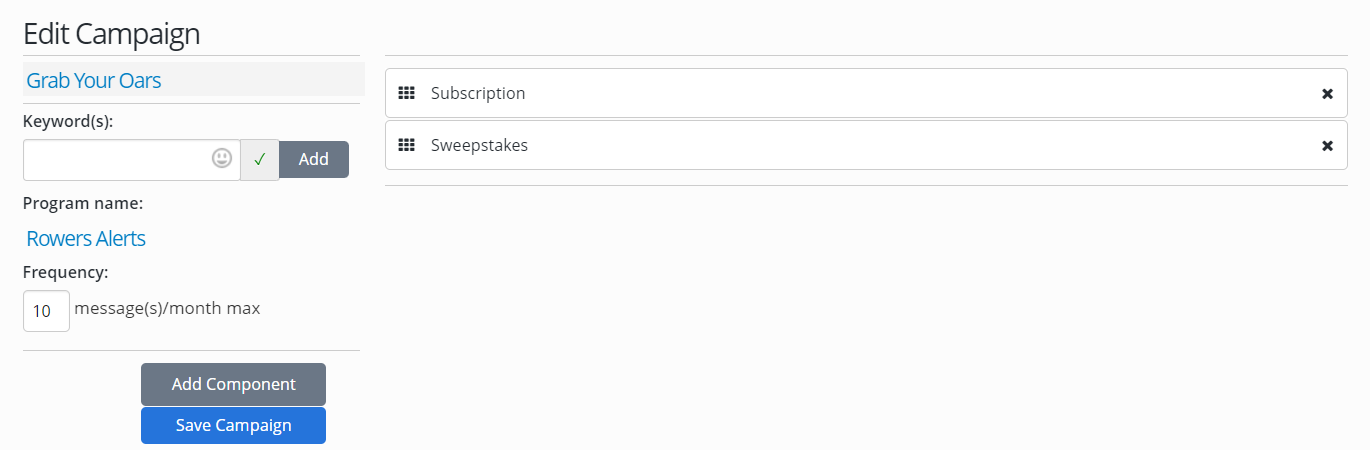
Note: To rearrange the order in which messages are sent by your campaign, select a component and drag it to a new position in the list.
-
Select the component name to open the form.
-
Fill in the component form. For a list of components with links to instructions, see Components.
Tip: Select Save Campaign periodically to save your work on the component, especially for long messages.
-
When you are done, select Save Campaign.
-
Continue adding messages to your campaign, or return to the Campaigns table:
-
If your campaign requires information on the subscriber's identity or interests, or if you want to add special offers to new subscribers, continue to add components to this conversation.
-
To return to the Campaigns table without adding components, from the Campaigns menu, select Campaigns.
The new campaign has been added to the Campaigns table.

-