Adding metadata fields to user profiles
Waterfall automatically collects data for the following system fields for each contact:
-
mobileNumber
-
carrier
-
state
-
timeZone
-
areaCode
These values are retained for compliance purposes and cannot be deleted.
Note: The key identifier in a user profile is the mobile phone number.
To add custom metadata fields to user profiles:
Creating a new metadata field
-
From the Lists menu, select Metadata.

 Metadata table
The Metadata table contains the following information for each metadata field:
-
The name of the metadata field
-
The level of access:
-
Account
-
Group
-
Profile
-
System
-
-
The type of value accepted in the field:
-
Text: Accepts any keyboard character, with a limit of 160 characters
-
Number: Accepts positive or negative numbers plus zero
-
Boolean: Accepts binary values (yes/no) only
-
Date: Accepts dates in MMDDYYYY format only
-
-
The maximum length of entries in the field
-
Whether new entries can overwrite existing entries: Y or N
-
The actions available for this metadata field:
-
Edit
-
Delete
-
-
-
In the upper-right corner, select Create New Metadata.
-
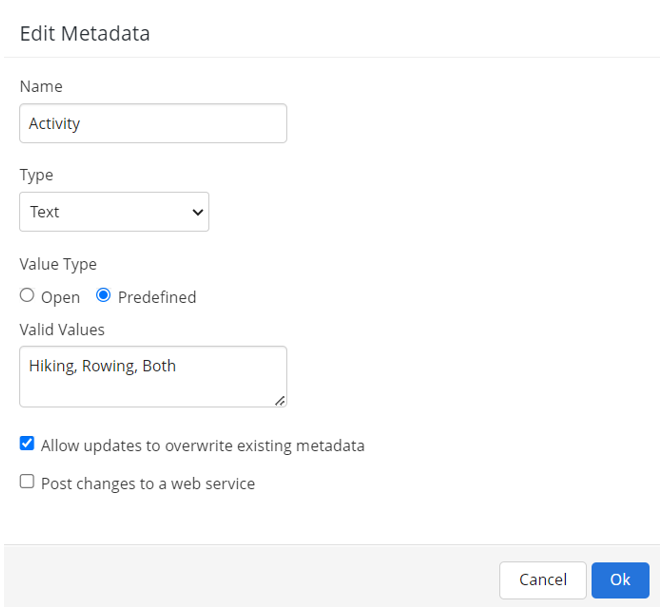
On the metadata form, enter a descriptive field name.
-
Select the field type from the drop-down list:
-
Text: Accepts any keyboard character, with a limit of 160 characters
-
Number: Accepts positive or negative numbers plus zero
-
Boolean: Accepts binary values (yes/no) only
-
Date: Accepts dates in MMDDYYYY format only
-
-
Select the value type for entries in the field:
-
Open: Accepts any value that matches the field type
-
Predefined: Enter a list of values, with a , (comma) between each entry, that will be accepted in the field
-
-
Determine whether new values will overwrite or be added to existing values in the field:
-
To overwrite existing content. retain the check mark in the Allow updates to overwrite existing metadata checkbox.
-
To append new values to existing content, clear the Allow updates to overwrite existing metadata checkbox.
-
-
To post the metadata field to a third-party website in real time, select the Post changes to a web service checkbox. For more information, see Post-to-URL.
-
When you are done, select OK.
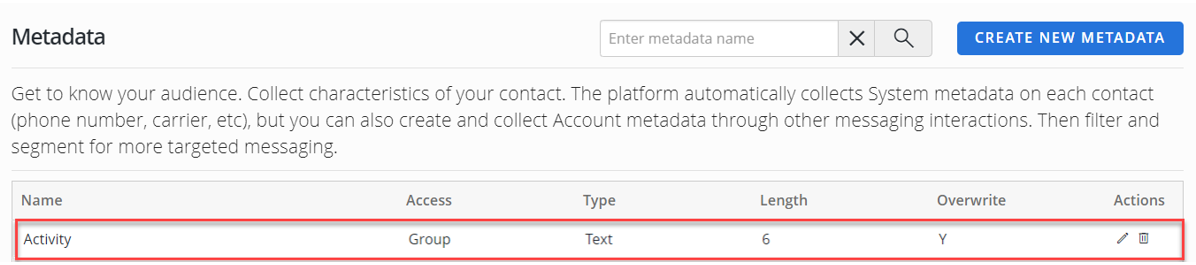
The new metadata field is added to the Metadata table.
Editing a metadata field
To make changes to a metadata field:
-
From the Lists menu, select Metadata.
-
Locate the metadata field to edit in the Metadata table:
-
To search for the metadata field, enter all or part of the metadata field name in the Search box at the top of the table, and then select
 Search .
 -
To navigate a multipage Metadata table, use the pagination bar at the bottom of the table.
-
-
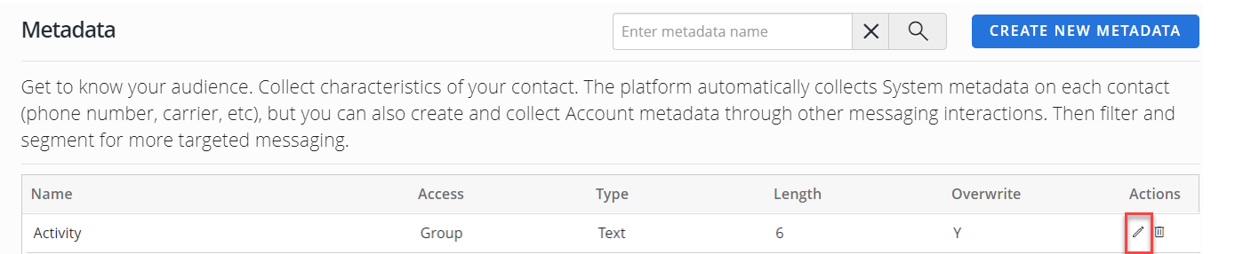
Select
 Edit at the end of the row.
The Edit Metadata page opens.
-
Review your metadata settings and make changes as needed. For more information, see Creating a new metadata field.
-
When you are done, select OK.
Deleting a metadata field
To remove a metadata field from user profiles for you account:
-
From the Lists menu, select Metadata.
-
Locate the metadata field to edit in the Metadata table:
-
To search for the metadata field, enter all or part of the metadata field name in the Search box at the top of the table, and then select
Search . -
To navigate a multipage Metadata table, use the pagination bar at the bottom of the table.
-
-
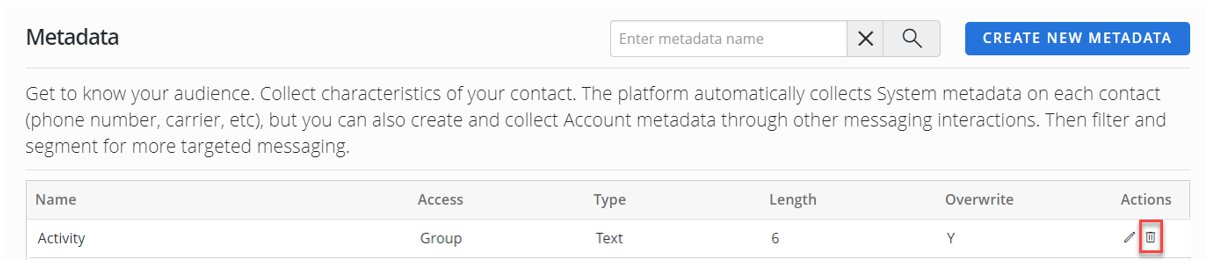
Select
 Delete at the end of the row.
 -
Select OK to confirm.