Post-to-URL (United States and Canada only)
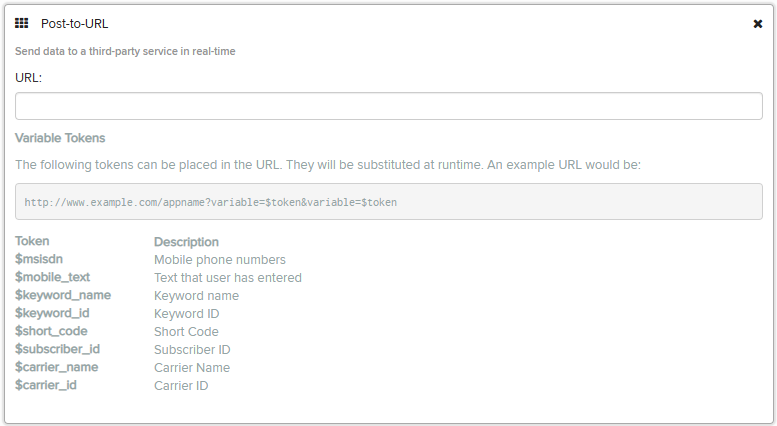
http://www.example.com/appname?variable=$token&variable=$token
The request to your service will be made as a POST to request.
For more information on working with campaigns, see Creating a new campaign or Editing a campaign.
To add the Post-to-URL component from the campaign page:
-
Select Add Component.
-
Select Post-to-URL from the drop-down list, and then select OK.
-
If components have already been added to the campaign, select the placement of the new component in the list on the right.
The component is added to the list.
-
Select the component name to open the form.
-
Enter the URL that hosts the service.
The following table lists the variables that you can post:
Token Description $msisdn The mobile phone number that is interacting with the service, including the country code, for example, 0014155165044 $mobile_text The text message sent by the user $keyword_name The keyword that triggered the session $keyword_id The keyword ID that triggered the session $short_code The short code that triggered the session $subscriber_id The identifier for the subscriber $carrier_name The name of the carrier network for the mobile phone number $carrier_id The Waterfall ID of the carrier network for the mobile phone number -
When you are done, select Save Campaign.
-
You can continue adding components or return to the Campaign table:
-
To continue adding components, see Adding components.
-
To return to the Campaigns table, select Campaigns from the Campaigns menu.
-
Note: To rearrange the order in which messages are sent by your campaign, select a component and drag it to a new position in the list.