Adding and removing subscriptions
You can add or edit a user's subscriptions directly from their profile:
Adding a subscription
-
Open the subscriber's profile, making sure to double check that it is the correct subscriber. For more information, see Accessing a subscriber's profile.
-
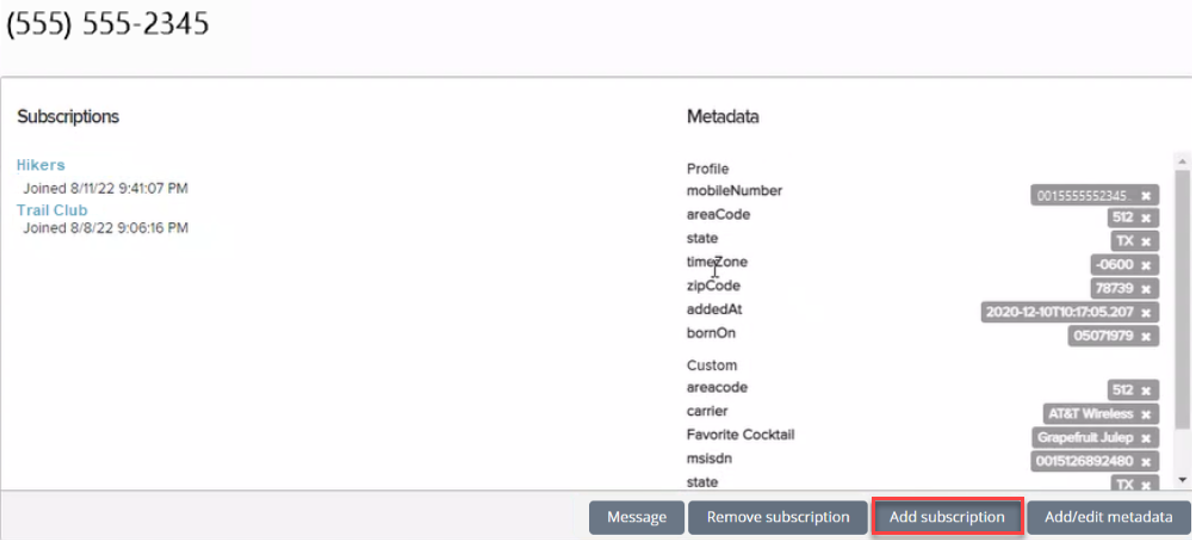
To add a subscription, select Add Subscription at the bottom of the profile.
-
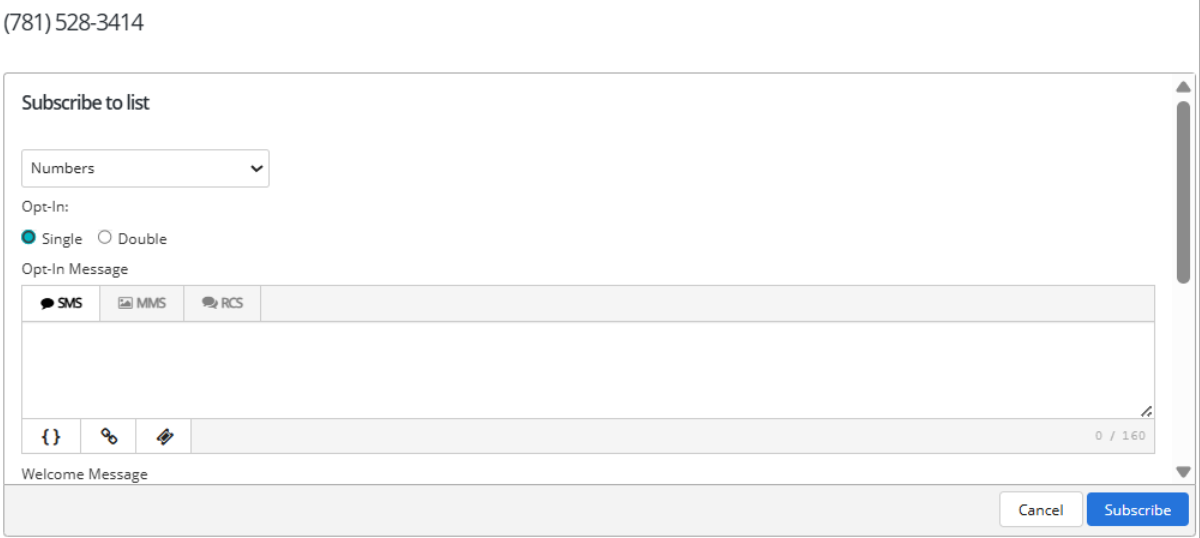
On the Subscribe to list form, select an opt-in option from the dropdown list:
-
Single: Automatically adds a mobile number to a subscription list.
-
Double: Requires a user response, for example Y or YES, to complete a subscription.
Note: To be compliant, the user must give their permission to receive messages from the list.
-
-
Add the opt-in messages, in SMS or MMS format. For more information, see Setting up opt-in messages.
Note: MMS messaging is available in the United States and Canada only.
-
When you are done, select Subscribe.
Removing a subscription
-
Open the subscriber's profile, making sure to double check that it is the correct subscriber. For more information, see Accessing a subscriber's profile.
-
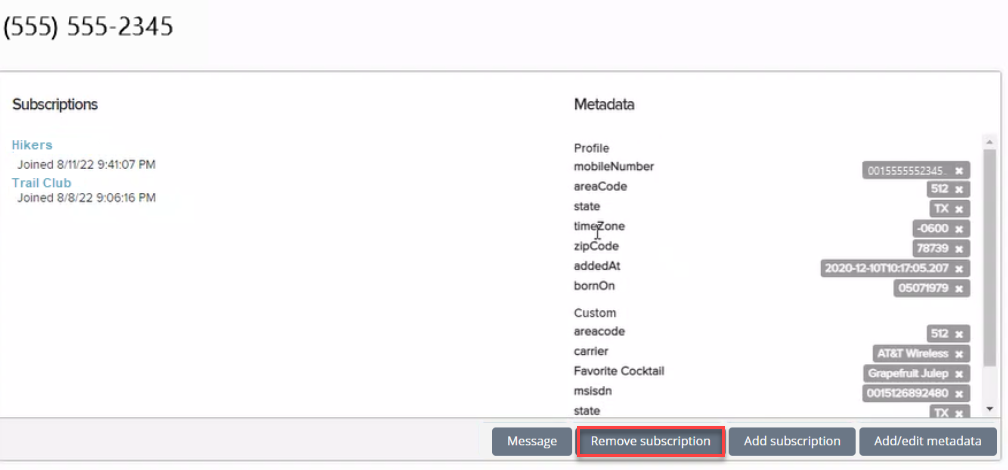
To remove a subscription, at the bottom of the profile, select Remove Subscription.
-
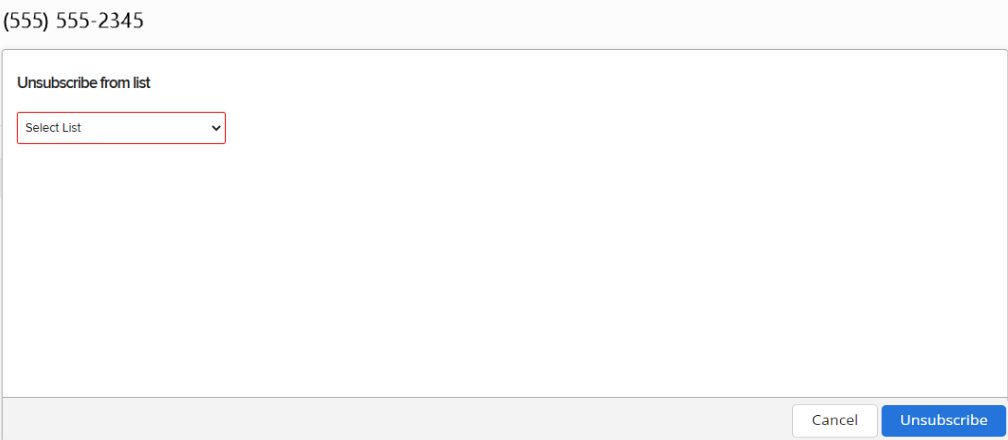
On the Unsubscribe from list form, select a subscription from the dropdown list.
-
Select Unsubscribe.