Dynamic Content (United States and Canada only)
-
The user texts keyword to 67463.
-
The campaign responds: Please reply with the UPC code of the product you'd like to find in stock .
-
The user replies with UPC code.
-
Waterfall calls a third-party web service to pull the stock status information and replies: Yes! This product is in stock. Place your order now at storename.com.
Note: Before you begin, set up the web service and have the URL on hand. If you need assistance, contact Technical Support.
For more information on working with campaigns, see Creating a new campaign or Editing a campaign.
To add the Dynamic Content component from the campaign page:
-
Select Add Component.
-
Select Dynamic Content from the dropdown list, and then select OK.
-
If components have already been added to the campaign, select the placement of the new component in the list on the right.
The component is added to the list.
-
Select the component name to open the form.
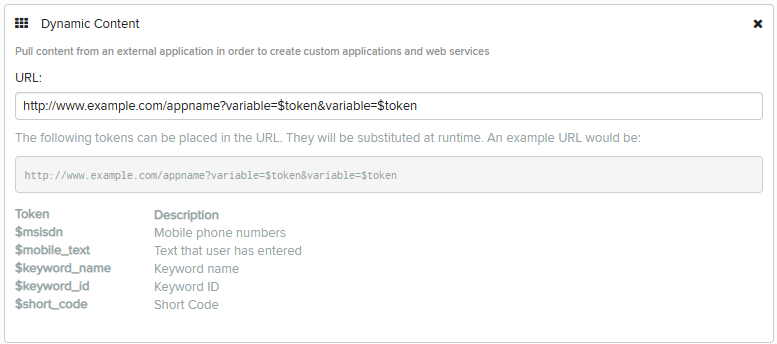
-
Enter the URL that hosts the web service to call.
The following tokens can be placed in the URL where the service is hosted. They will be substituted at runtime:
Token Description $msisdn
The mobile phone number that is interacting with the service, including the country code, for example, 0014155165044
$mobile_text The text message sent by the user
$keyword_name The keyword that triggered the session
$keyword_id The keyword ID that triggered the session $short_code The short code that triggered the session
 Example
http://www.example.com/appname?variable=$token&variable=$token&format=json
When the parameter "format=json" is added to your URL, your web service should tell Waterfall what message to send as well as whether the session should be kept open in the following JSON format:
{"endSession":true or false,"response":"message content"}
Otherwise, your service should respond with the following XML:
<dynamiccontent><response><![CDATA[message content]]></response><endSession>true or false</endSession></dynamiccontent>
The request will be made to your service as a POST request.
-
When you are done, select Save Campaign.
-
You can continue adding components or return to the Campaign table:
-
To continue adding components, see Adding components.
-
To return to the Campaigns table, select Campaigns from the Campaigns menu.
-
Note: To rearrange the order in which messages are sent by your campaign, select a component and drag it to a new position in the list.