Tag Metadata
For more information on working with campaigns, see Creating a new campaign or Editing a campaign.
To add the Tag Metadata component from the campaign page:
-
Select Add Component.
-
Select Tag Metadata from the dropdown list, and then select OK.
-
The component is added to the list.
Tip: The placement of the Tag Metadata component is very important. The incoming subscriber response will provide the value for the metadata field.
-
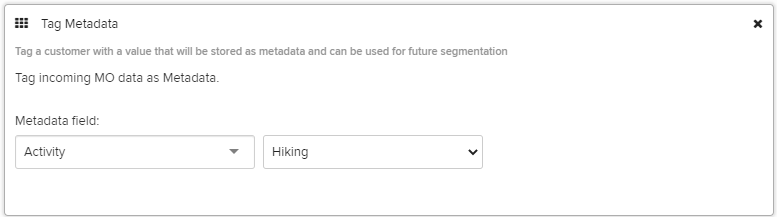
Select the component name to open the form.
-
Select the metadata field from the dropdown list. This is the profile field that will be populated by the subscriber response.
-
Specify a static or dynamic value for the metadata field:
-
To specify a static value, enter a value in the adjacent text field or select an existing value from the dropdown list.
-
To specify a dynamic value in the adjacent text field, enter one of the following tokens:
-
$keyword: the keyword texted by the user
-
$MM$dd$yyyy: today's date
-
$inc: the value in a number field plus 1
-
$dec: the value in a number field minus 1
-
-
-
When you are done, select Save Campaign.
-
You can continue adding components or return to the Campaign table:
-
To continue adding components, see Adding components.
-
To return to the Campaigns table, select Campaigns from the Campaigns menu.
-
Note: To rearrange the order in which messages are sent by your campaign, select a component and drag it to a new position in the list.