Accessing available reports
For a list of available report types, see Building a new report.
To access available reports:
-
From the Reports menu, select Reports.
The Reports table lists the reports that have been generated and are available to download.
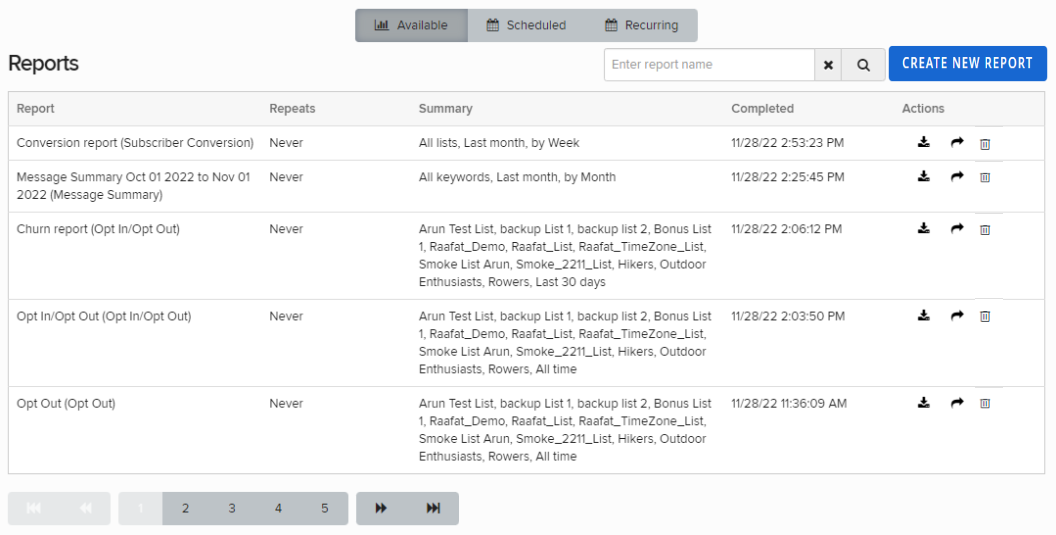
 Available Reports table
The Available Reports table contains the following information for every report that has been run:
-
The name of the report, with the report type in parentheses
-
The schedule when the report will be rerun, if any
-
Key information about the report
-
Date and time when the report was generated
-
The actions available for this report:
-
Download
-
Share
-
Delete
-
-
-
Locate the report in the Available Reports table:
-
To search for the report, enter all or part of the campaign name in the Search box at the top of the table, and then select
 Search.
 -
To navigate a multipage Available Reports table, use the pagination bar at the bottom of the table.
-
-
To download an available report in CSV (comma-separated values) format, select
 Download, and then select Open file to view the report in a spreadsheet program, such as Microsoft Excel.
 -
To share an available report, select
 Share. The Share Report form displays a link to the report. Select Email this report and then select your email service. Follow the instructions for your email service to send the report to one or more addresses.
 -
To delete an available report, select
 Delete and then select OK to confirm.