Reviewing recurring reports
For a list of available report types, see Building a new report.
To review recurring reports:
-
From the Reports menu, select Reports.
-
To view report that will run on a relative date, select Recurring.
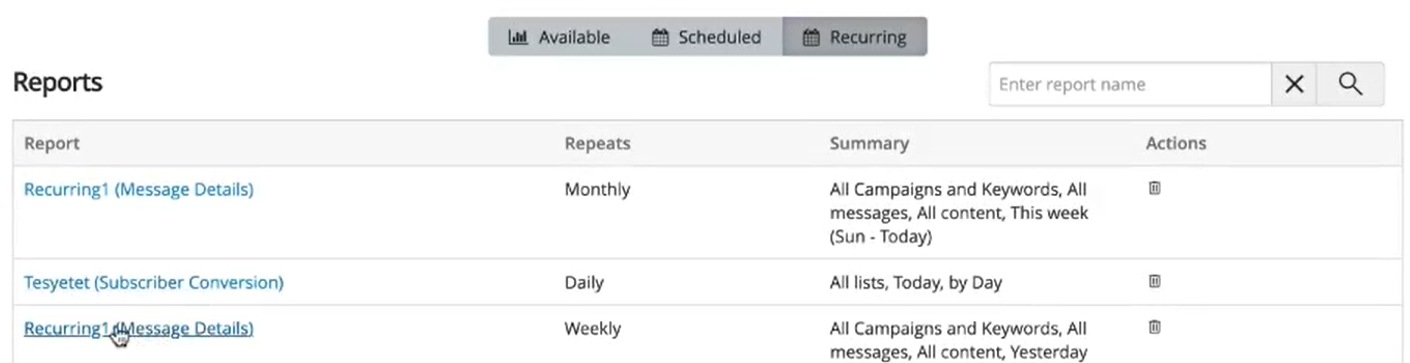
In the Recurring Reports section, the report name is a hyperlink. This link includes the template ID in its URL, allowing users to access the exact template ID associated with a recurring report. The template ID is provided to help users track and manage recurring reports. For example, if a recurring report is generated weekly, users can access the latest template ID of the generated report.
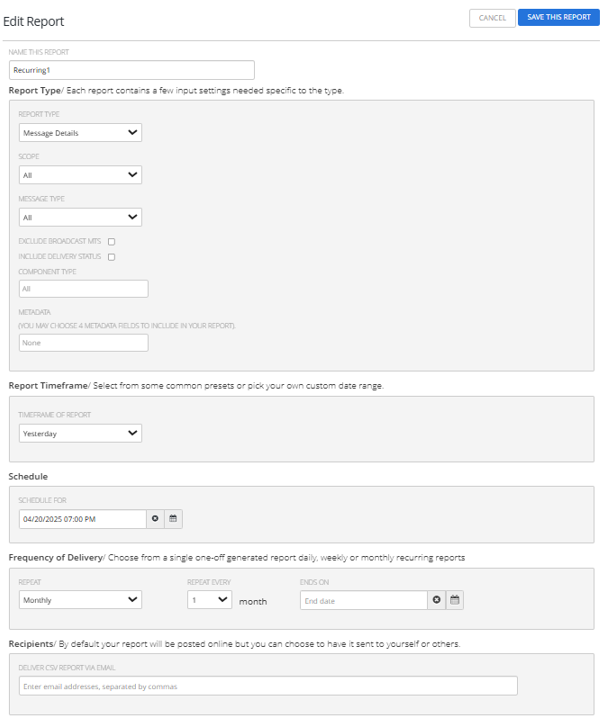
Clicking it opens the associated template, allowing you to edit the report. After making the necessary changes, save the report.
 Recurring Reports table
The Recurring Reports table contains the following information for every report to be run on a relative date, such as monthly or weekly:
-
The name of the report, with report type in parentheses
-
The relative date (for example, Weekly or Monthly) when the report will be generated and added to the Available Reports table
-
Key information about the report
-
The action available for this report:
-
Delete
-
-
-
Locate the report in the Recurring Reports table:
-
To search for the report, enter all or part of the campaign name in the Search box at the top of the table, and then select
 Search.
 -
To navigate a multipage Scheduled Reports table, use the pagination bar at the bottom of the table.
-
-
To delete a recurring report, select
 Delete and then select OK to confirm.