Poll
-
The user texts keyword to 67463.
-
The campaign responds:
Who will win the Stanley Cup this year?
-
A) Blackhawks
-
B) Bruins
-
C) Oilers
-
D) Penguins
-
E) Rangers
Reply A, B, C, D or E.
-
The user responds B.
-
The campaign responds with its custom vote confirmation message: Boston rocks! Visit NHL.com for additional team news!
For more information on working with campaigns, see Creating a new campaign or Editing a campaign.
To add a Poll component from the campaign page:
-
Select Add Component.
-
Select Poll from the dropdown list, and then select OK.
-
If components have already been added to the campaign, select the placement of the new component in the list on the right.
The component is added to the list.
-
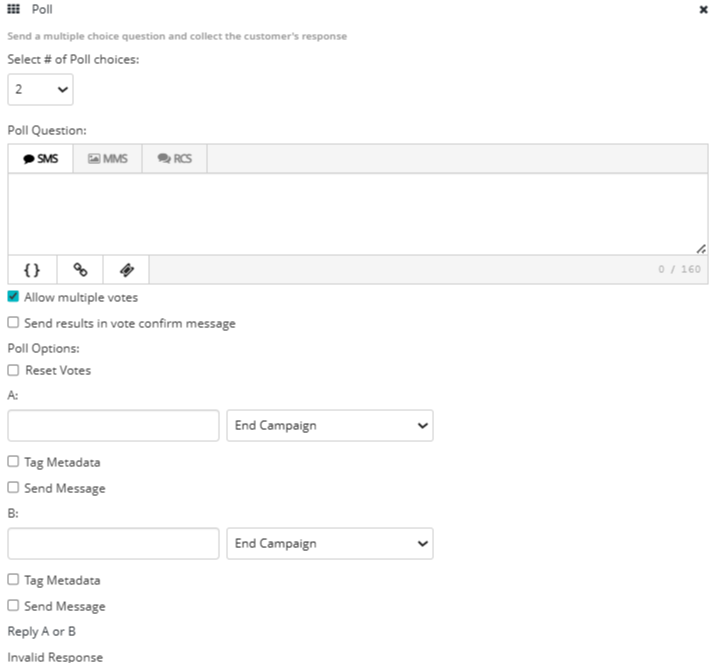
Select the component name to open the form.
-
Select the number of choices in response to the poll question from the drop-down list, up to 5. The form expands to add message options for each choice, in alphabetical order, up to E.
-
Enter the poll question.
To add a message, select SMS (plain text message), MMS (multimedia message, including images, videos and audio), RCS for each message, and then enter your message in the text box. For more information on RCS messaging, see Using Rich Communication Services (RCS) messaging in Waterfall.
Note: MMS messaging is available in the United States and Canada only.
 SMS messages
For SMS messages, you can include some or all of the following customizations to add interest to your message:
-
Header (if available): Select
 Header and select one or more identifying details from your log-in account to add to the top of your message:
 -
Name: your first name and last name, if available; if unavailable, your log-in user name
-
Mobile: the mobile number associated with your user name
-
Company (Subaccount): the company or subaccount you are using when you add the header
When you are done, select Apply.
-
-
Dynamic insertion: Select
 Dynamic Insertion and select a metadata field from the dropdown list, then add a default value to display when a value is not available in a subscriber's profile. Select Insert to add the field to your message.
Tip: Adding a default value is highly recommended; otherwise, when a subscriber's profile does not include a value in the selected field, the entry in your message will be blank.
-
Link shortener (if available): Select a URL in your message and then select
 Link Shortener. Select Insert to reduce the character count by adding a shortened link to your message.
 -
Coupon code (if available): Select
 Add Coupon and select a coupon code from the dropdown list. Select Insert to add the code to your message. For more information, see Adding coupon codes.
Note: A simple text message is limited to 160 characters. Check the lower-right corner for the remaining character count. If the number is negative and red, then the message is overlong and may be split and sent as a multipart SMS message.
MMS messages For MMS messages, you can include some or all of the following customizations to add interest to your message:
-
Header (if available): Select
Header and select one or more identifying details from your log-in account to add to the top of your message: -
Name: your first name and last name, if available; if unavailable, your log-in user name
-
Mobile: the mobile number associated with your user name
-
Company (Subaccount): the company or subaccount you are using when you add the header
When you are done, select Apply.
-
-
Dynamic insertion: Select
Dynamic Insertion and select a metadata field from the dropdown list, then add a default value to display when a value is not available in a subscriber's profile. Select Insert to add the field to your message.Tip: Adding a default value is highly recommended; otherwise, when a subscriber's profile does not include a value in the selected field, the entry in your message will be blank.
-
Link shortener (if available): Select a URL in your message and then select
Link Shortener. Select Insert to add a shortened link to your message. -
Custom image file: Select
 Image and navigate to locate the image file (.gif, .jfif, .pjpeg, .jpeg, .pjp, .jpg, .png, or .vcf) up to 3 MB. Select Open to add the image to your message.
 -
Custom video file: Select
 Video and navigate to locate the video file (.3gpp, .m4v, .mp4, .mpg, .mpeg, .avi, .wmv, or .mov). Select Open to add the video to your message.
 -
Custom audio file: Select
 Audio and navigate to locate the audio file (.mp3 or.wav). Select Open to add the audio to your message.
 -
vCard file: Select
 vCard and navigate to locate the vCard file (.vcf). Select Open to add the vCard to your message.
 -
Emoji: Select
 Emoji to select an emoji from the catalog.
 -
Coupon code (if available): Select
Add Coupon and select a coupon code from the dropdown list. Select Insert to add the code to your message. For more information, see Adding coupon codes.
Note: If an icon is grayed out, it is unavailable.
-
-
If you will accept more than one response per user, select the Allow multiple votes checkbox.
-
To make the poll results available to users in a confirmation message, select the Send results in vote confirmation message checkbox.
-
Under Poll options, to reset the running total of votes earned so far, select the Reset Votes checkbox.
-
For each poll choice, up to 5, labeled A through E:
-
Enter the answer choice and then select one of the following options for users who choose this response from the adjacent dropdown list:
-
To forward the user to another campaign, select Forward to Campaign from the dropdown list and then select the campaign from the adjacent dropdown list.
-
To move the user on to the next component in the campaign, select Deliv. Next Component from the dropdown list.
-
To end the campaign, select End Campaign from the dropdown list.
-
-
To add the user's choice to a field in their user profile, select the Tag Metadata checkbox, select the metadata field from the drop-down list, and then enter a value to add to the field.
-
To send a response to users who select the poll choice, select the Send Message checkbox and then enter a custom vote confirmation message in the text box.
-
-
Enter the Invalid Response message, encouraging the user to review their answers and respond in the correct format, A, B, C, etc.
-
When you are done, select Save Campaign.
-
You can continue adding components or return to the Campaign table:
-
To continue adding components, see Adding components.
-
To return to the Campaigns table, select Campaigns from the Campaigns menu.
-
Note: To rearrange the order in which messages are sent by your campaign, select a component and drag it to a new position in the list.